Appearance
Azure Event Hub
Realm Security integrates seamlessly with Azure Event Hub, enabling intelligent routing and analysis of security event logs. Follow these steps to configure sending logs from Azure to Realm Security Data Fabric.
Prerequisites
- Ensure you have administrative access to your Azure console.
Overview
- Azure Console: Create Microsoft Entra app registration
- Azure Console: Create Event Hub
- Azure Console: Send Events to Event Hub
- Realm Console: Configure Azure Event Hub Input Feed
1. Azure: Create Microsoft Entra App Registration
- Log in to the Azure console.
- Navigate to App Registrations > New registration.
- Give the app a name and click Register.
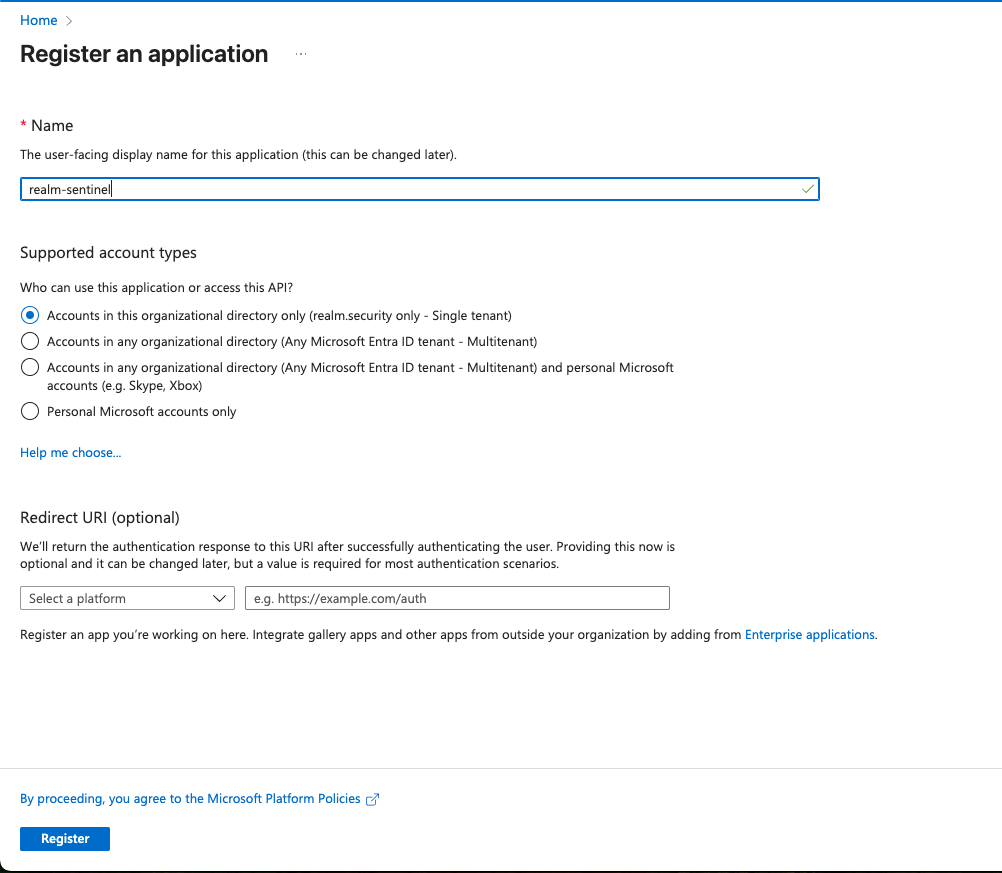
- Navigate to the newly created App Registration.
- Store the Client ID and Tenant ID. These will be used later when configuring the Azure Event Hub input feed in the Realm console.
- Navigate to Manage > Certificate and secrets. Select the Client secrets tab and click New client secret.
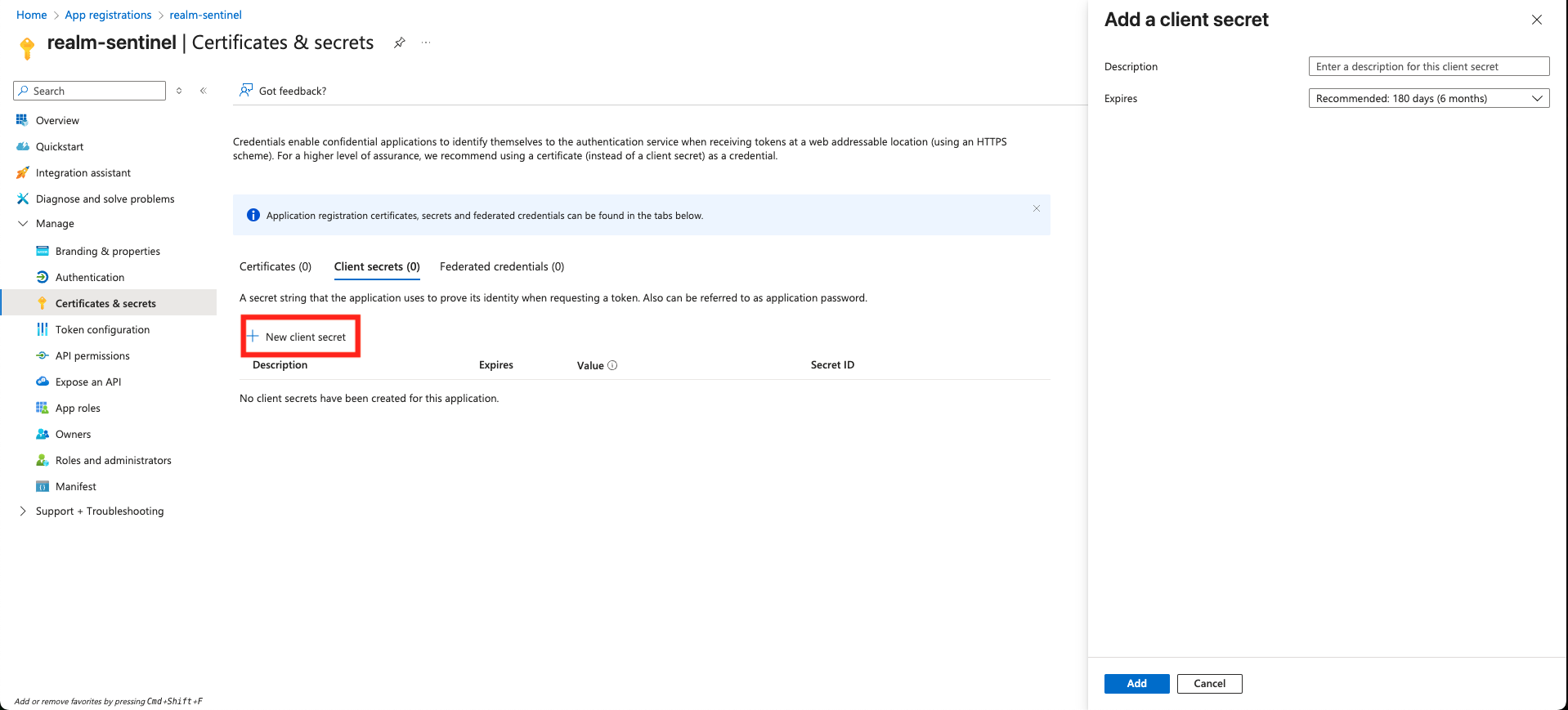
- Give the secret an optional description and select an expiration.
- Store the client secret value — it will be used later when configuring the Azure Event Hub input feed in the Realm console.
2. Azure: Create Event Hub
Navigate to the Event Hubs page in the Azure portal.
Select + Create and fill out the Basics tab:
Subscription/Resource Group: Select your existing group Namespace name: Give the namespace a globally unique name Region: Select the same region as your logs Pricing tier: Select any tier except Basic (Basic does not support Event Grid notifications)
Store the fully qualified namespace name (e.g.,
your-namespace-name.servicebus.windows.net) and the Event Hub name — these will be used when configuring the input feed in the Realm console.
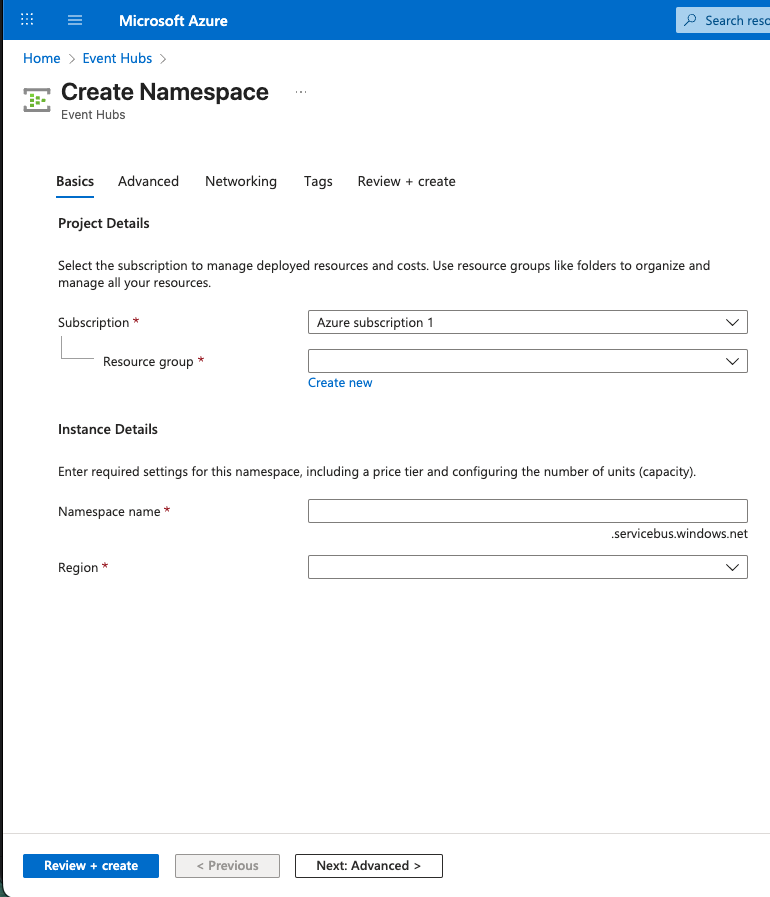
- Select Review + create, then select Create.
- Once deployment is complete, select Go to resource.
- On the Namespace page, select + Event Hub from the top menu.

Name: Give your Event Hub instance a name Partition Count: 2 partitions is typically sufficient. Refer to Azure Event Hub partitions documentation if you need more. Retention: We recommend at least 8 hours, in case a downstream service has an outage.
Note: If you configure the Event Hub to use a custom consumer group (not
$Default), save that value — it will be used when configuring the input feed in the Realm console.
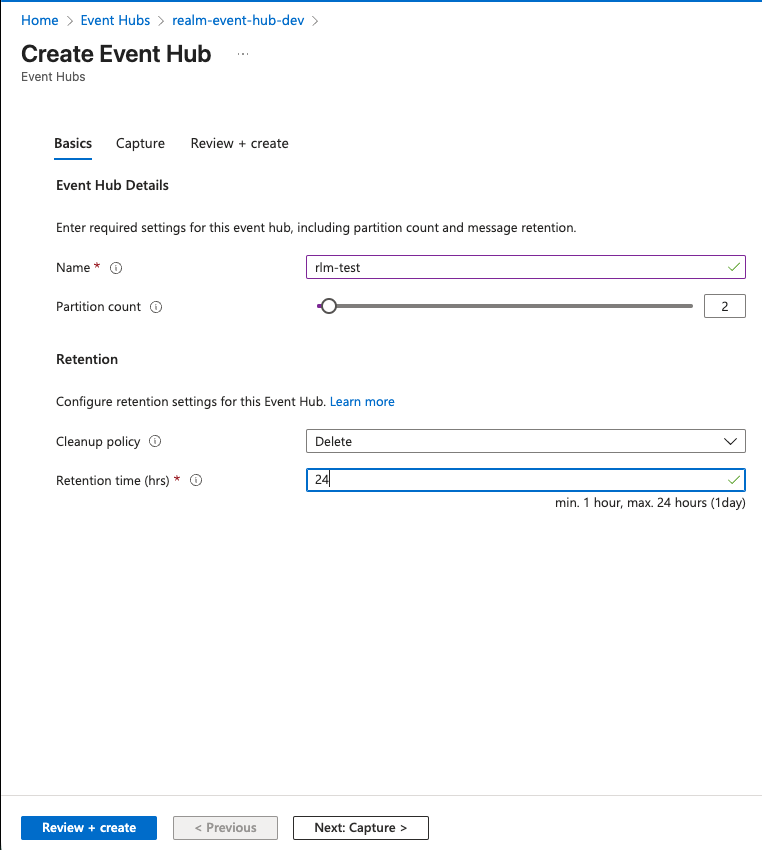
- Select Review + create, then select Create.
- Select Access Control (IAM) from the left-hand sidebar.
- Click + Add and select Add role assignment.
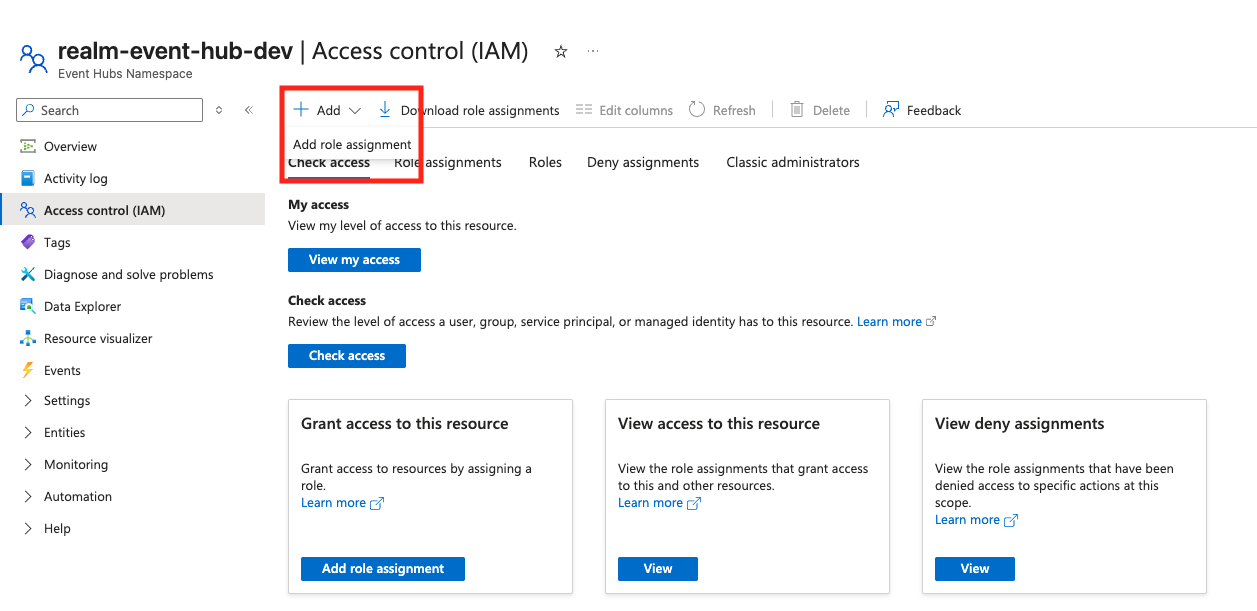
On the Role tab, search for and select Azure Event Hubs Data Receiver.
Note: This role allows the application to read events from the hub and is required for the Realm ingestion process.
On the Members tab:
- Set Assign access to to
User, group, or service principal. - Click + Select members.
- In the search box, enter the Name or Client ID of the App Registration you created in Step 1.
- Select your application from the list and click Select.
- Set Assign access to to
Click Review + assign, then click it again to confirm the assignment.
3. Azure: Sending Events to Event Hub
A. Configure Azure Activity Logs
- In the Azure portal, search for and select Monitor.
- From the left-hand menu, select Activity log, then select Export Activity Logs.
- Select + Add diagnostic setting.
Setting name: Provide a name Categories: Select the log categories you wish to monitor
- Under Destination details:
- Check the Stream to an event hub box.
Subscription: Select your subscription Event hub namespace: Select the namespace created in Step 2 Event hub name: Select your specific Event Hub instance Event hub policy name:
RootManageSharedAccessKey(or a custom policy with Send permissions) - Select Save.
B. Configure Microsoft Entra ID Logs (Azure AD)
- Navigate to Microsoft Entra ID (formerly Azure Active Directory).
- In the left-hand sidebar, scroll down to the Monitoring section and select Diagnostic settings.
- Select + Add diagnostic setting.
Setting name: Provide a name (e.g.,
realm-entra-logs-to-eventhub) Logs: Select the specific logs you want to capture - Under Destination details:
- Check the Stream to an event hub box.
- Select your Subscription, Event hub namespace, and Event hub name as in the previous section.
- Select Save.