Appearance
Splunk Integration
Realm integrates with Splunk by forwarding processed security events to a Splunk HTTP Event Collector (HEC) endpoint. This allows you to use Realm as part of your existing Splunk workflow — enriching, normalizing, and routing logs through Realm before they land in Splunk for search and alerting.
Note: This guide covers using Splunk as a destination (Realm → Splunk). To ingest logs from Splunk into Realm, see the Splunk HEC Source guide.
1. Configure an HTTP Event Collector in Splunk
- Login to the Splunk Console
- Go to Settings > Data Inputs
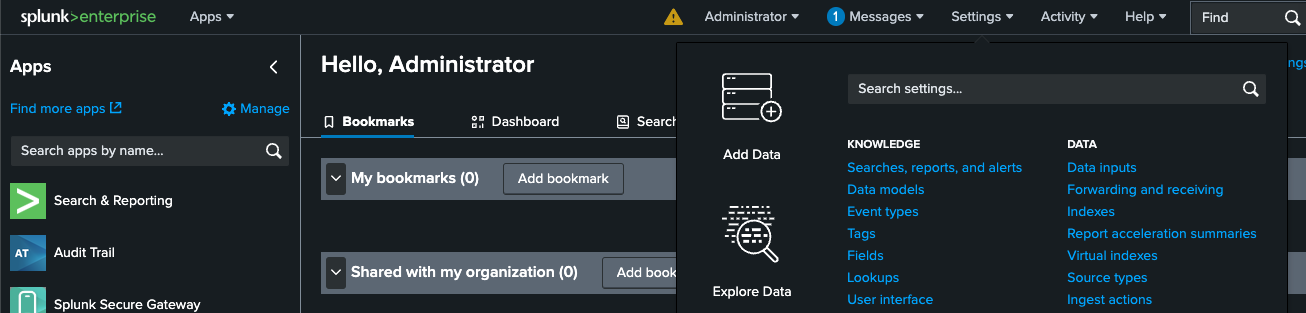
- Select HTTP Event Collector
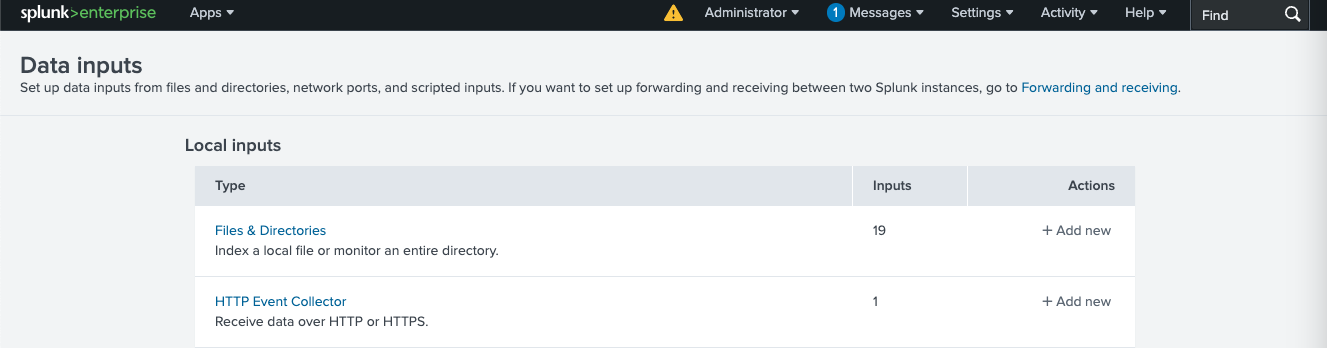
- Click on New Token
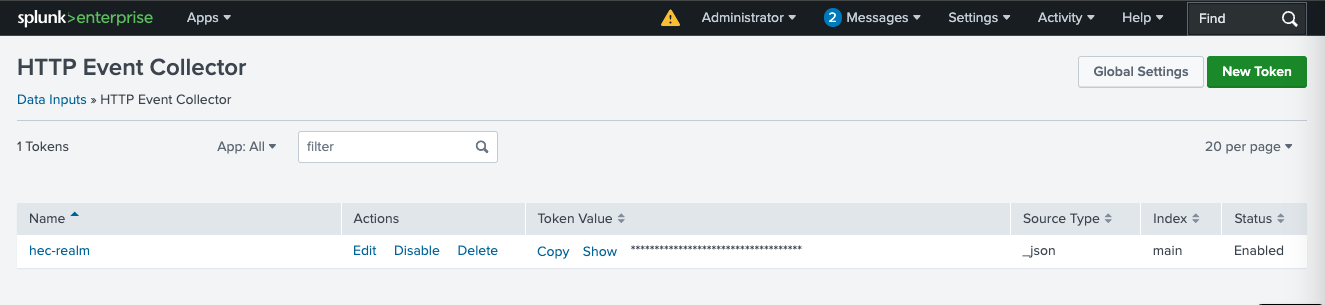
- Enter a name for the token:
Realm.Security
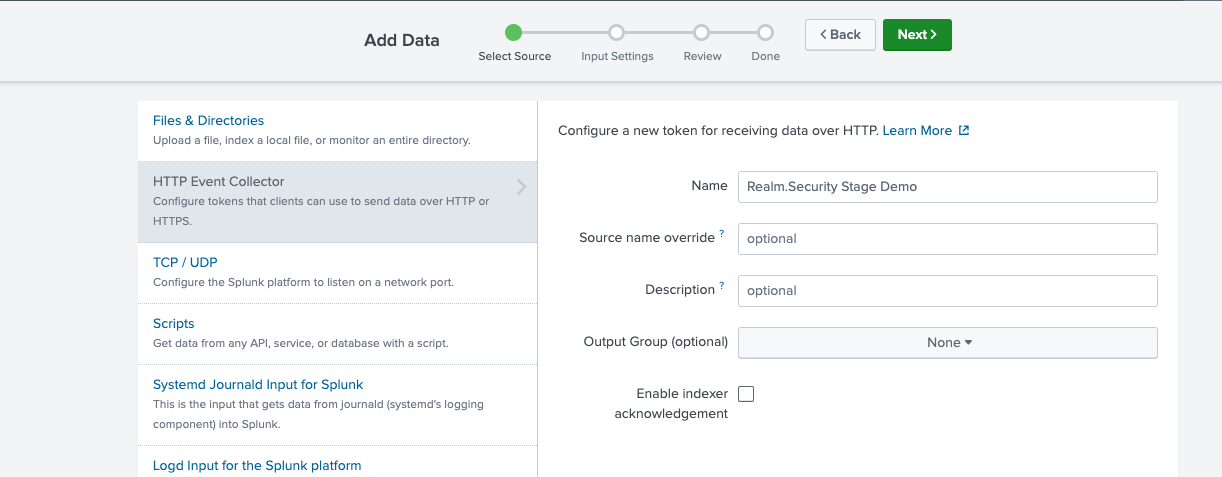
- Select an index to save data to or Create New Index
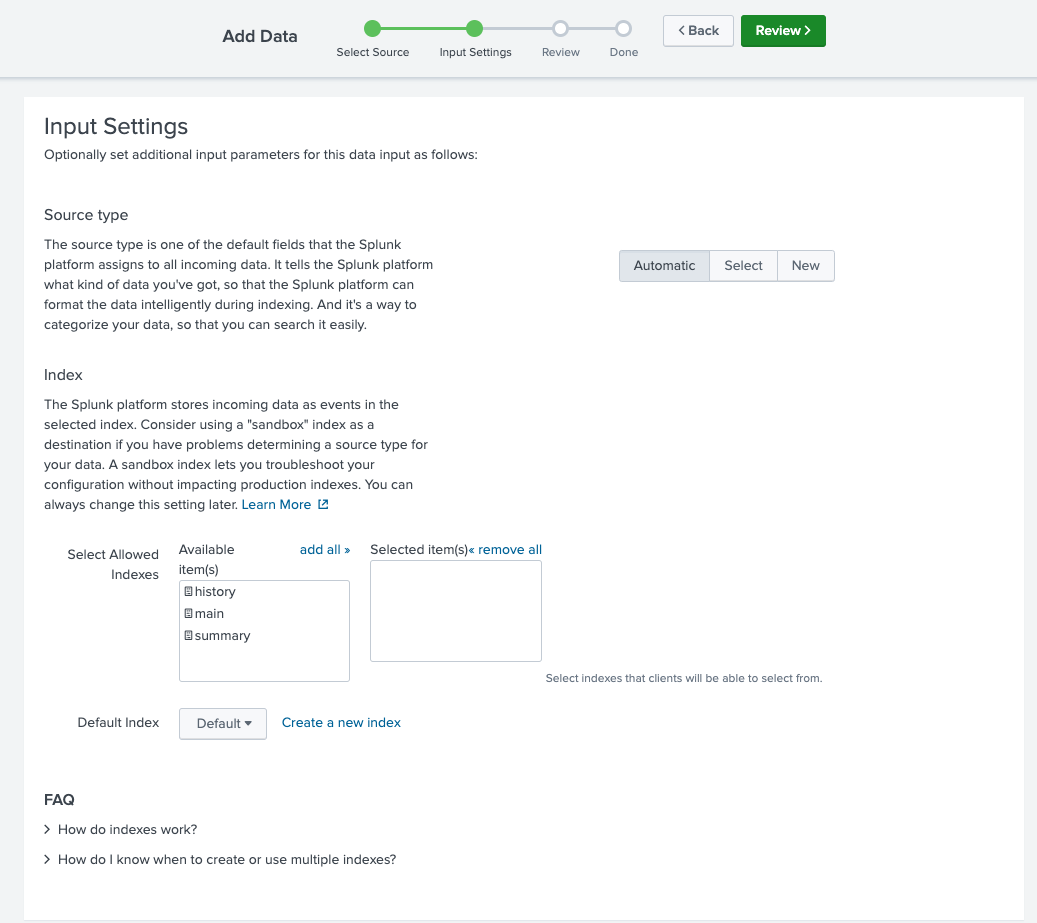
- Click Review
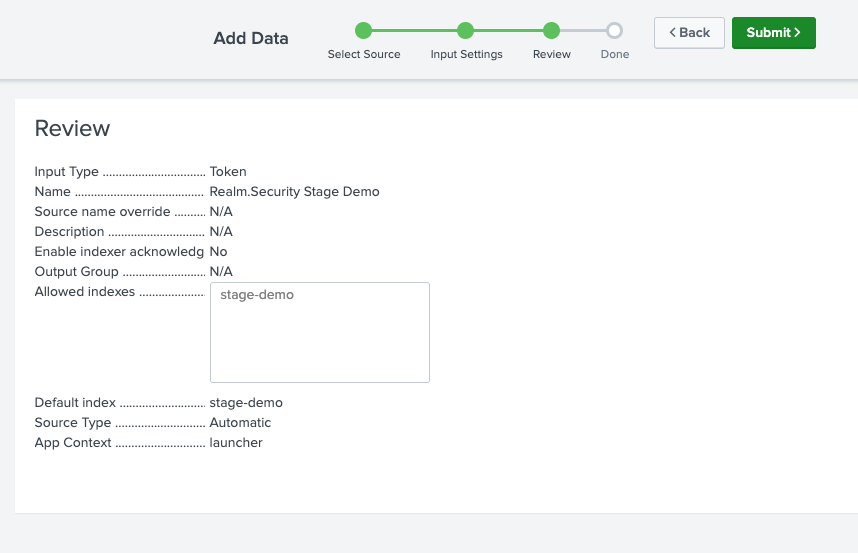
- Click Submit
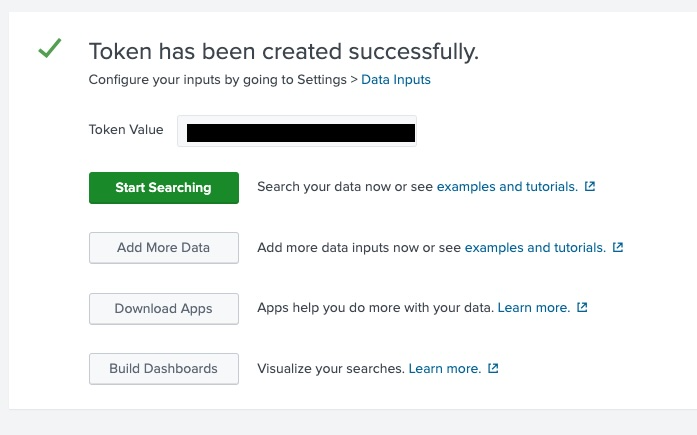
- Copy the token value and save it securely — you'll need it in the next section
🔗 Helpful Links
2. Configure an Output Feed in Realm
Create a Destination for Splunk:
- Use the Endpoint and Token obtained in the previous section
Add a new Output Feed:
Set the Name (e.g.,
Splunk Output)Optionally add a Description
Select Splunk as the method
Enter the Endpoint
Example:
texthttps://http-inputs-<host>.splunkcloud.com
Note for Splunk Cloud Users
When configuring an Output Feed for Splunk Cloud, ensure your HEC endpoint follows this format:https://http-inputs-<host>.splunkcloud.comFailing to specify
httpscan result in data being sent in an unexpected or unsupported format.
- Paste the Token from the previous step
- Choose the Format — we recommend starting with
JSONor RAW unless otherwise specified
Troubleshooting
If data is not flowing through to Splunk
- check if the Splunk token has permission to write to the configured index
- check if there are any IP restrictions on Splunk ingestion ensure Realm IP range is allowed. Please contact Realm support to get a fixed IP range that can be whitelisted.