Appearance
Sumo Logic Integration
Configuring Sumo Logic to Receive Data
Realm Security supports integration with Sumo Logic using OTLP/HTTP for log ingestion. This guide provides instructions to configure Sumo Logic to receive data from Realm.
Configuration of the Realm Collector and specific firewall sources (such as FortiGate or Palo Alto) are documented separately.
Step 1: Configure Sumo Logic to Receive OTLP Data
- Navigate to Settings > Connections > Add Collector.
- Enter a name:
Name:
Realm OTLP - Copy the OTLP Endpoint URL.
- Create a New Partition (Recommended) — this helps separate Realm Security logs from other existing data pipelines.
Step 2: Create a Destination in Realm for Sumo Logic
- Navigate to Destinations > Add Destination.
Name:
Sumologic - Under Destinations, select Add New Source.
- Connect the relevant log source (e.g., FortiGate, Azure, etc.) to the Sumologic destination.
- Go to Output Feeds > Add Output Feed.
- Choose the Sumologic output feed.
- Paste the OTLP Endpoint URL copied earlier.
Step 3: Add Fields in Sumo Logic
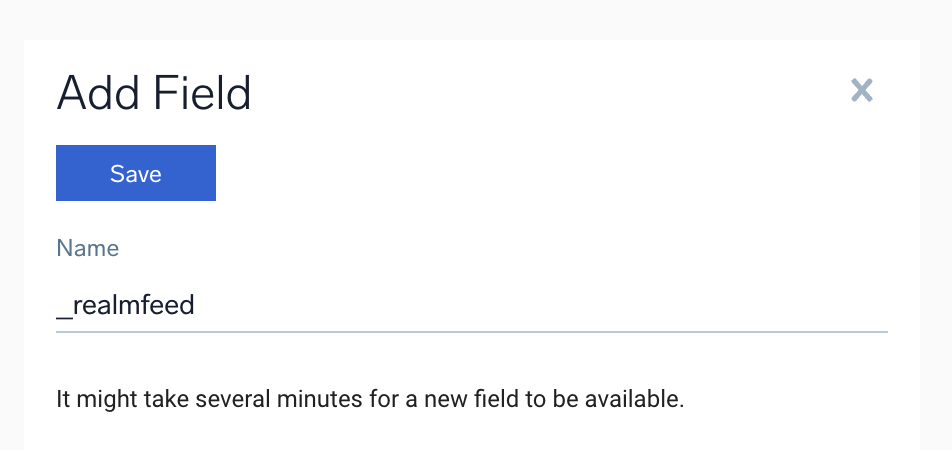
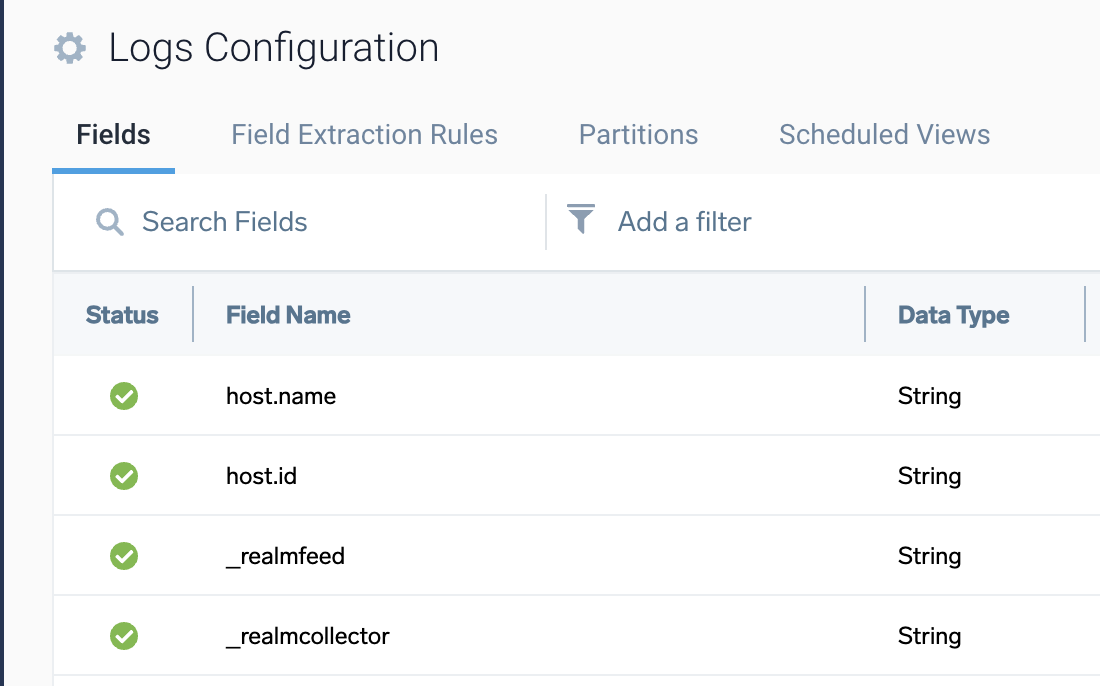
Event logs sent to Sumo Logic get additional event metadata: _realmfeed with the input feed name (for collector feeds, this is the stream name) and _realmcollector with the collector name.
Within Sumo Logic, these fields get indexed and can be used for RBAC, searching, filtering, reporting, and monitoring logs. To make use of these meta fields, log in to Sumo Logic and add the two fields.
Related Resources
- For FortiGate setup, refer to the FortiGate Syslog Configuration Guide.
- For Collector installation, see Install Realm Collector.
- For additional support, contact Realm Security.
Sending data from multiple sources to Sumo Logic
Broadly speaking, there are two approaches for sending logs from multiple sources to Sumo Logic.
1) Data Collector per Source in Sumo Logic
In this option, set up a different Data Collector in Sumo Logic for each source and override the value of the sourceCategory field to match the source.
2) One Data Collector in Sumo Logic
When using Realm as your data pipeline, you have the option to use a single Data Collector in Sumo Logic, simplifying the setup and configuration required in Sumo Logic.
Realm tags all events with an additional metadata field _sourceCategory and sets its value appropriately based on the source. This way there is no need to set up a separate Data Collector for each additional source in Sumo Logic. Realm documentation for each source lists the value of the _sourceCategory field.
On your Sumo Logic Output Feed configuration in Realm, the Event Metadata: _sourceCategory field lets you build this value using two available options.
%product_formatresolves to the underlying product/technology format of the Source (e.g.,Palo Alto Networks (CSV)/PAN-OS,FortiGate/FortiOS,Okta).%source_nameresolves to the name you gave the Source when you created it in Realm. The same name shown under Sources on the Destination's Pipelines tab (e.g.,Palo Alto Networks #1,Forti Firewalls,Okta - New).
For the single Realm Data Collector within Sumo Logic, do not set an override value for the _sourceCategory field. Use the _sourceCategory field to map the logs to appropriate indexes in Sumo Logic as you would normally do.