Appearance
CrowdStrike Integration
You can use CrowdStrike as a source or a destination. Continue below to integrate as a source for CrowdStrike Falcon Data Replicator (FDR), or click here to send logs to CrowdStrike Next-Gen SIEM.
CrowdStrike FDR as a Source
Create CrowdStrike FDR Feed
- Log in to CrowdStrike Falcon Console
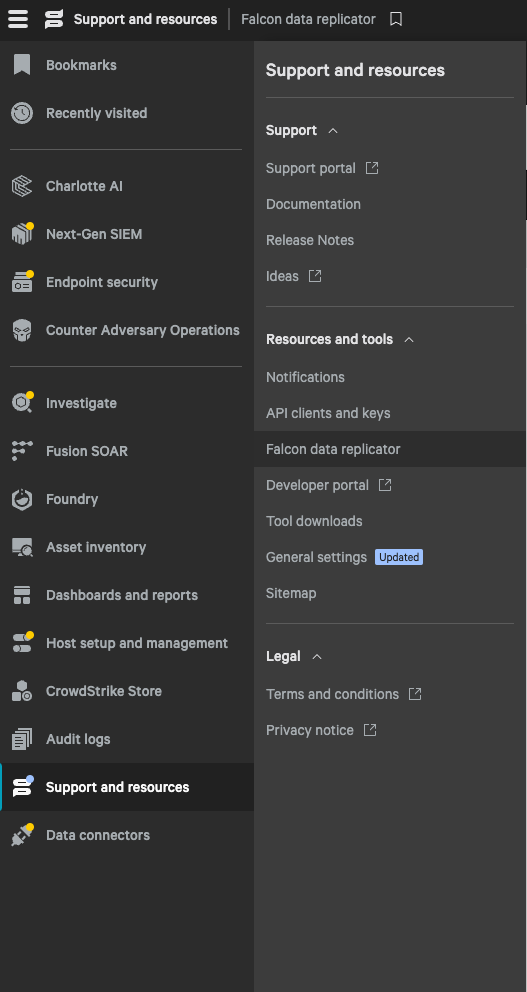
- Go to Support and resources > Falcon data replicator
- Click Create Feed

- Fill out the feed details:
Feed name:
Realm.Security - Turn the feed on
- Leave Default settings selected
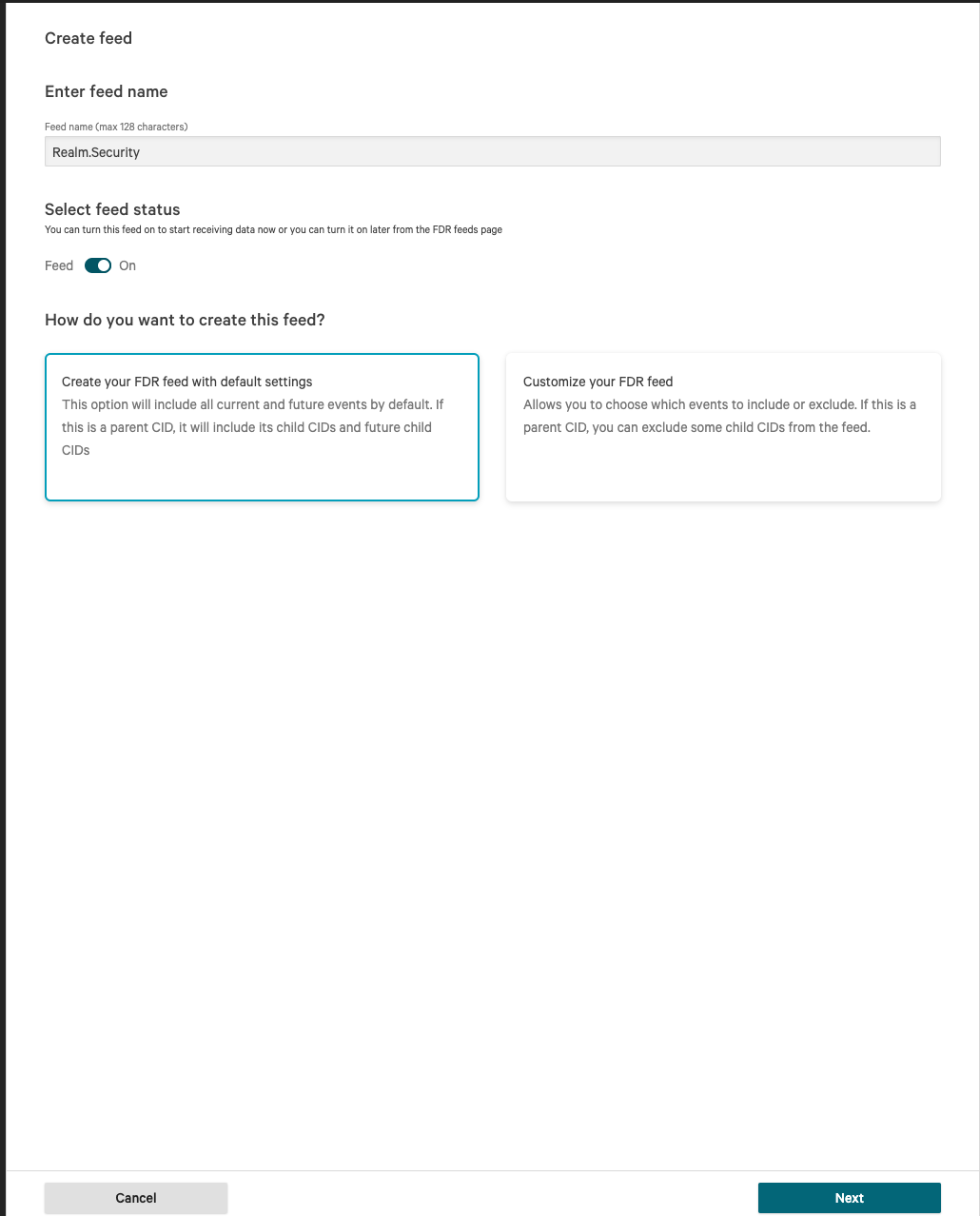
- Click Next
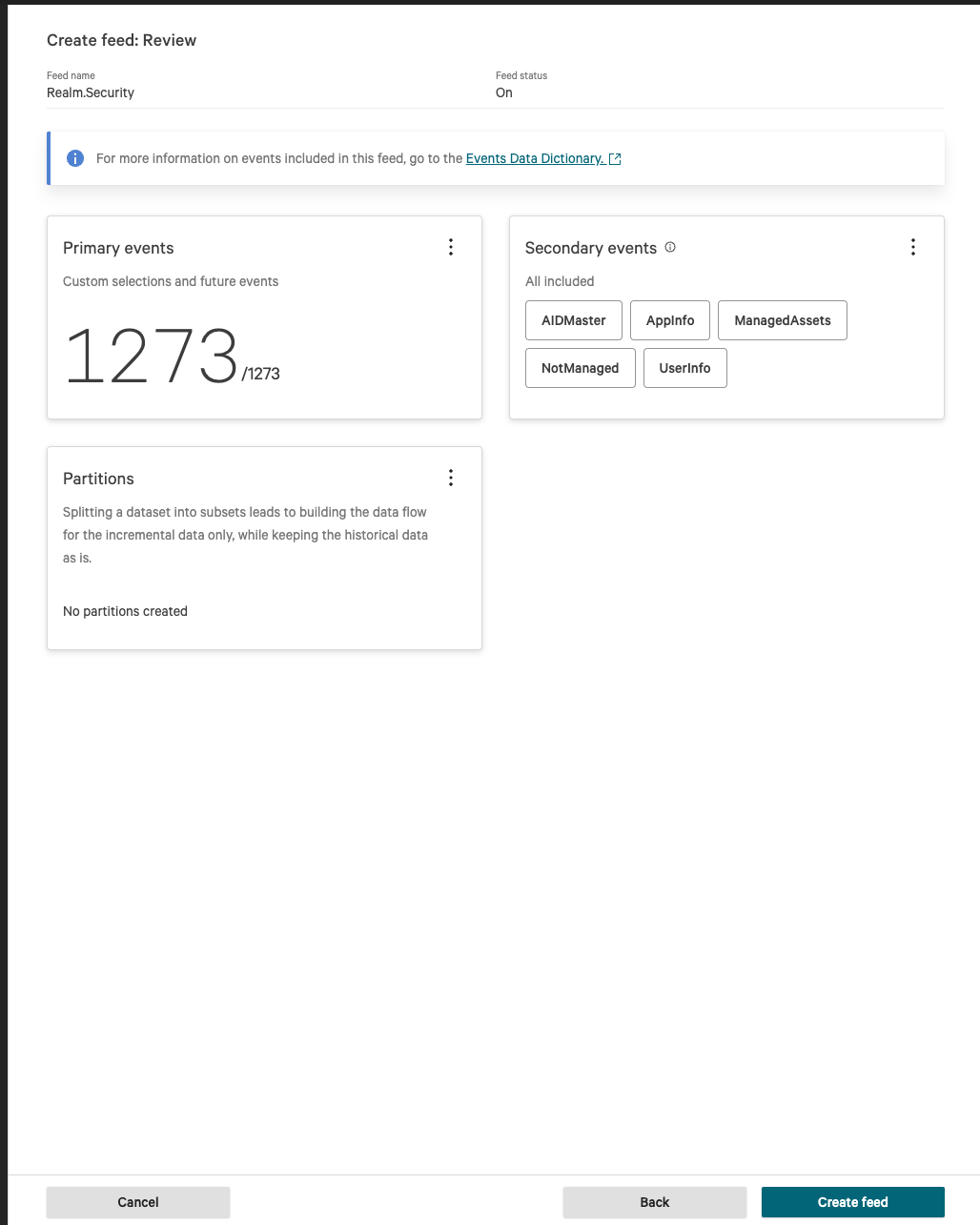
- Click Create feed
- Copy the ClientID and save it in a safe place
- Copy the Secret and save it in a safe place — you will not be able to see it again
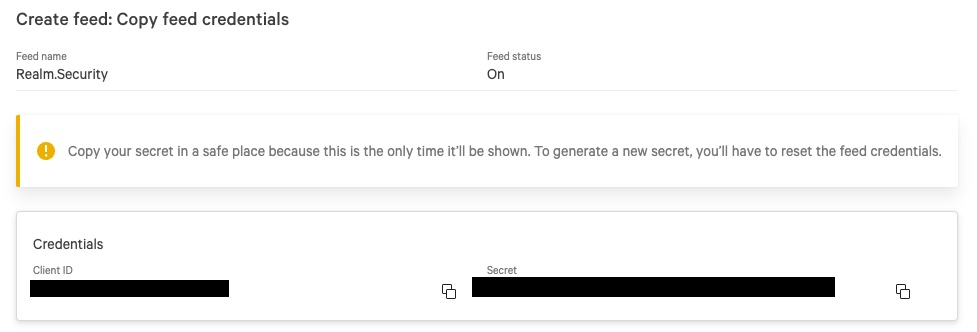
- Copy the Notifications URL

Configure CrowdStrike FDR in Realm
- In Realm, go to Sources
- Click Add Source and select CrowdStrike FDR
- Fill in the connection details:
Name:
CrowdStrike FDR
Queue URL: The Notifications URL copied in step 11
Client ID: The Client ID copied in step 9
Client Secret: The Secret copied in step 10 - Click Save
Realm will begin polling the CrowdStrike FDR queue and ingesting Falcon telemetry events into your data pipeline.
CrowdStrike NGSIEM as a Destination
Send Logs from Realm to CrowdStrike NGSIEM
Find the Event Connector
- Log in to the CrowdStrike Falcon Platform console
- Go to Next-Gen SIEM > Data onboarding
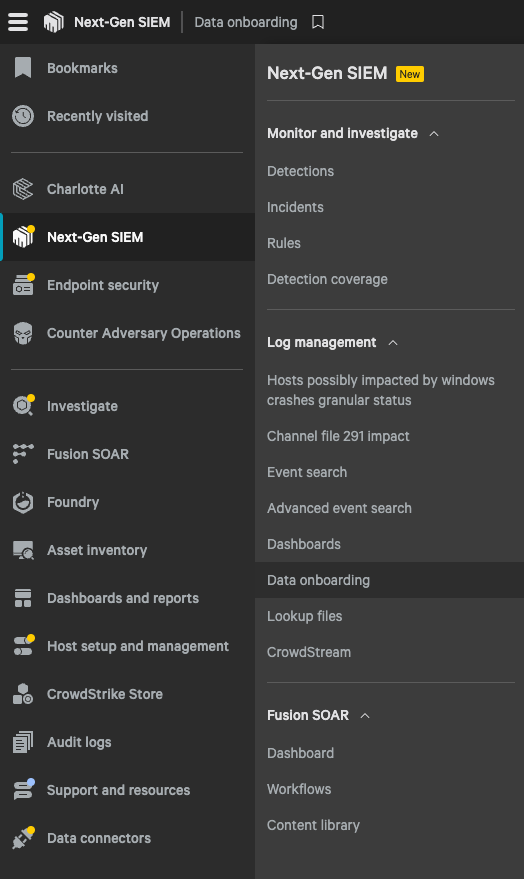
- Search by Product:
Falcon Logscale
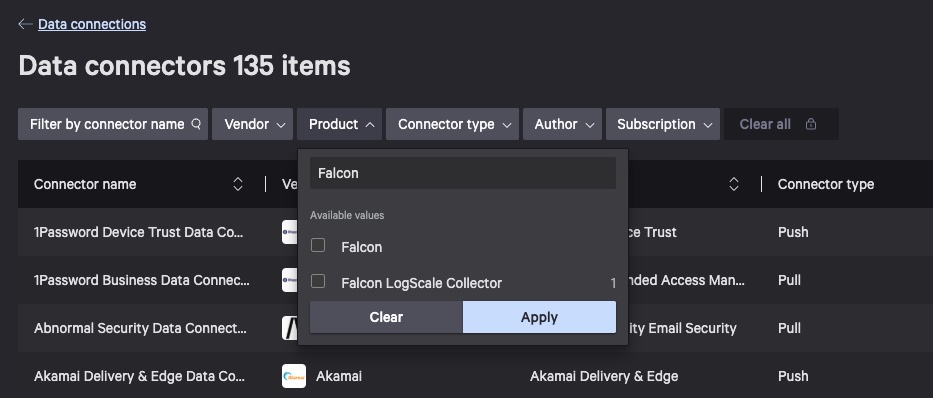
- Select Logscale Event connector
- Click
Configure
Fill Out the Add New Connector Form
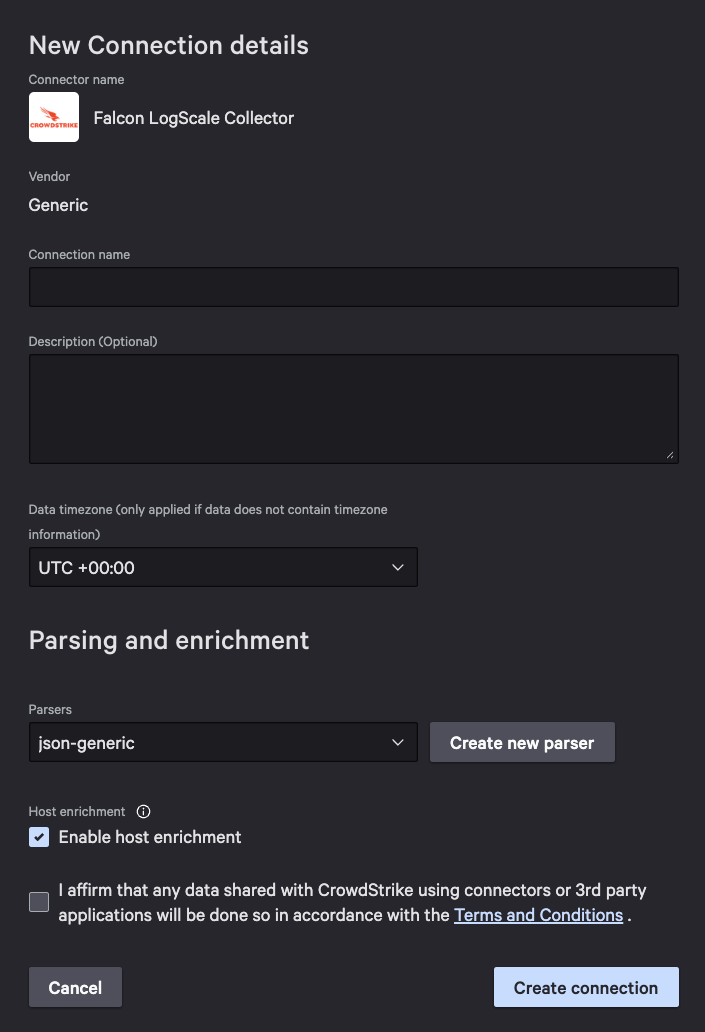
- Fill out the connector details:
Connection Name:
Realm.Security(this value gets stored in a field along with the data)
Description:Receive logs from Realm. SecurityParser:JSON (Generic Source) - Select the T&C checkbox
- Click Create Connection
NOTE: when forwarding logs from Realm, you have a choice of sending logs either in RAW format (as generated by the source product) or JSON format (as parsed by Realm.) Typically when a parser for a log type is available in NGSIEM, it is recommended to forward RAW logs. When a parser for a log type is not available in NGSIEM or it is available but not working as expected, forward JSON logs from Realm. The setting whether to forward RAW or JSON can be configured on the output feed form in Realm console.
Get the API Key and API URL
- A connector setup in progress confirmation dialog will appear — click Close
- While the connector is being set up, copy the API URL from the connector details page
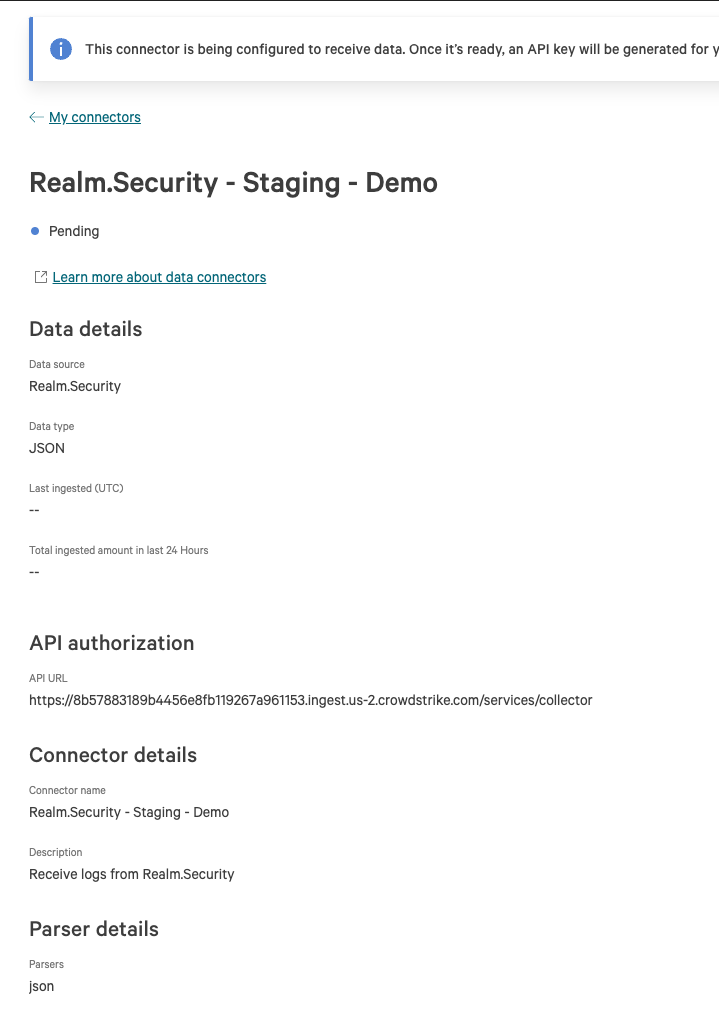
- Setting up the connector may take a while. Refresh the connector details page. Once the connector is set up, click Generate API key
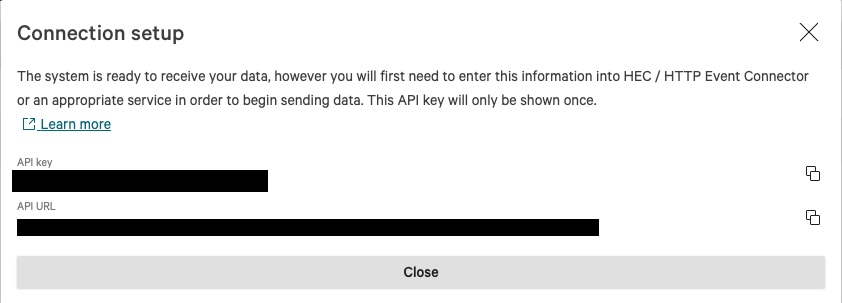
- Copy the API Key and save it in a safe place — you will need to enter it in the Realm console

- Copy the API URL — you will need to enter it in the Realm console