Appearance
Realm Collector
Realm Collector is an Open Telemetry Collector (OTel) distribution. Configuration and management are facilitated through the web console (control plane). This eliminates the requirement for manual modification of configuration files on the virtual machine. The collector is pre-configured for secure communication with Realm cloud, incorporating automated certificate rotation. It is optimized for high-volume workloads through the utilization of disk buffering and batching.
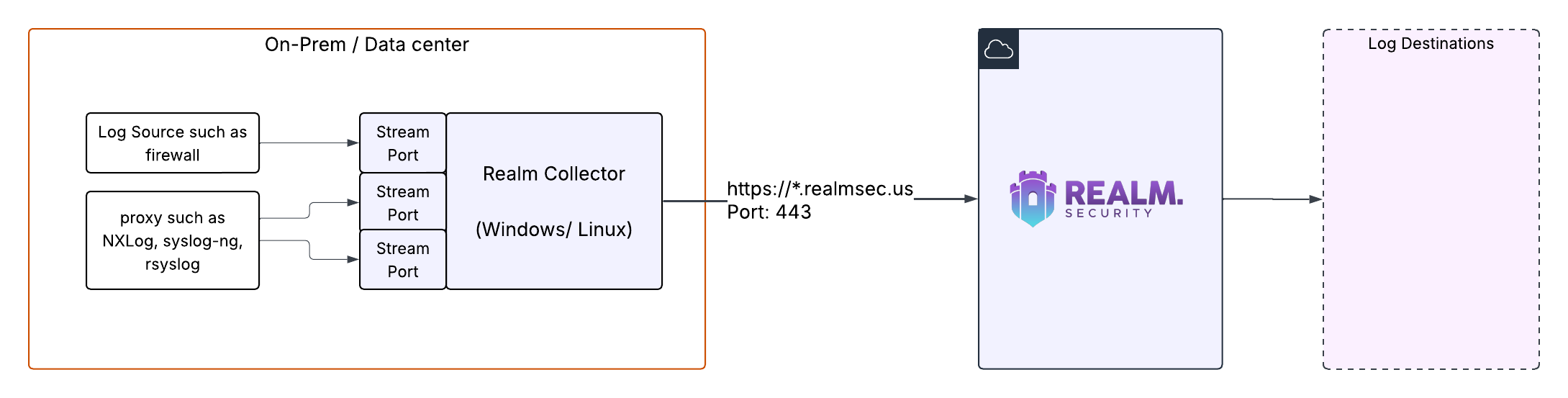
Realm collector receives data from the log sources on configured stream ports and forwards it over to the Realm Cloud. Realm cloud never reaches out to Realm collector. Realm collector always initiates the connection to Realm Cloud.
Install Realm Collector
Collector is typically installed on a VM/container.
VM Requirements
- 64-bit processor (Intel or AMD)
- 2 CPU cores, 4 GB memory for a load of 10,000 events/sec. For higher log volume, allocate proportionately more memory & CPU to the VM.
- 50 GB free disk space
- Supported Platforms
- Linux: Realm Collector is compatible with most major Linux distributions including Ubuntu, RHEL derivatives, as well as cloud variants like Amazon Linux.
- Windows: Windows 10, Windows Server 2016 or above.
- Installing the collector as a Windows service requires administrator access.
- Static IP address or a DNS name for the VM
Outbound IP/Port Allow List
Realm Collector uses the following FQDN/IPs and ports for network communication. In restricted/locked down networks, it is typically necessary to punch a hole through the firewall to allow these connections.
- Inbound: Port is user-defined in Realm Console.
- Outbound: Here are the three URLs that the collector communicates over with Realm backend.
| FQDN | Purpose |
|---|---|
| api.realmsec.us | Collector uses this endpoint to periodically poll for config updates. |
| *.otlp.ingest.realmsec.us | This is the data ingestion endpoint. Collector sends all log data to this endpoint. |
| health.ingest.realmsec.us | Collector sends its operational metrics for health monitoring to this endpoint. |
| Protocol | Port |
|---|---|
| TCP | 443 |
IP Addresses to add to your firewall allow list if needed:
text
18.220.219.115
13.58.136.153
3.143.123.136
3.139.32.204
3.140.52.245
13.59.168.65
Configure Collector
Create Collector
- In Realm, go to Collectors > Add Data Collector
- Type a name for your collector, which typically represents the data center where the collector will be running. For example "US-East Collector"
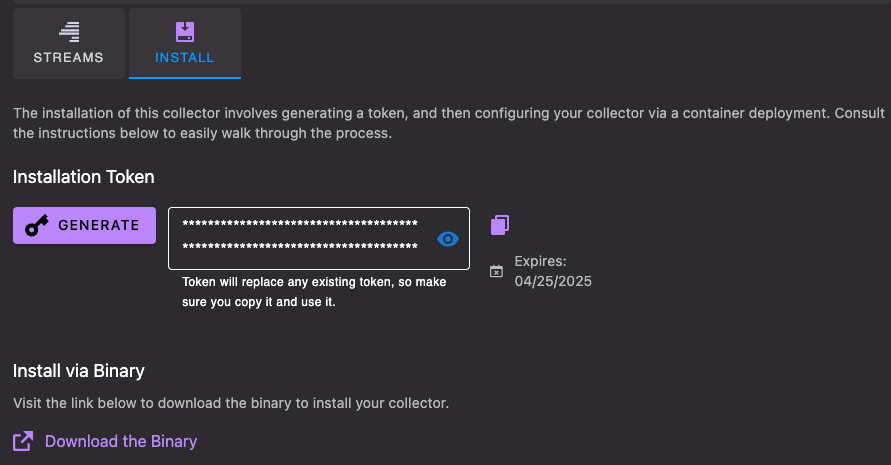
- From your collector page, go to the Install tab and Click Generate
- Copy the collector install token, you will need it later when installing the collector
Create Streams
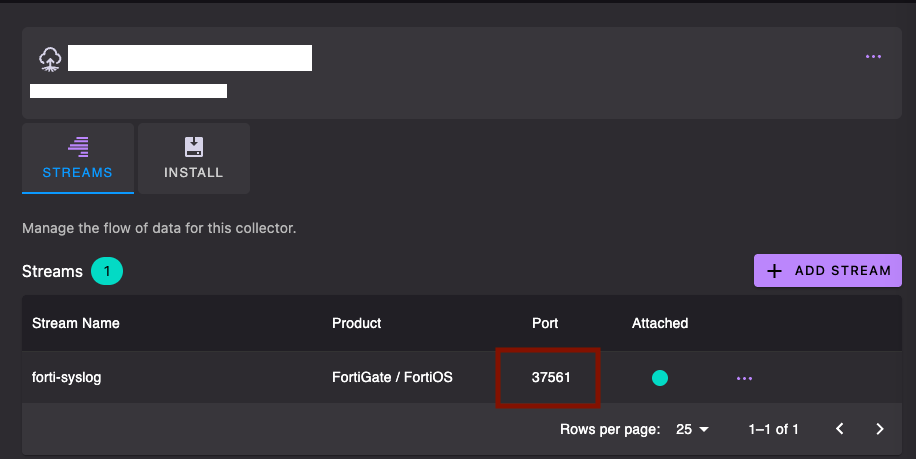
- Click Add Stream from your Collector page
- Name the stream, this typically matches the device/appliance generating the logs (such as a firewall, DNS router etc)
- Choose the product you want to stream, such as "Fortigate"
- Note down the receiving port for the data
Deployment topology
Multiple Collectors
It is recommended to deploy more than 1 collector for reliability behind a load balancer. You would need to configure a load balancer, and the collectors behind the load balancer. In this scenario,
- Add a collector group in the Realm console.
- Add/configure necessary streams to the collector group. If you already have collectors configured in your environment, make sure the streams on the group are setup with the same config.
- Add collectors to the collector group. All the collectors will have the same streams as their group.
- Configure the log sources to send logs to the load balancer IP/dns endpoint and receiving port number for the stream.
Multiple log sources
- Configure multiple log sources (from the same vendor) to send logs to a single Realm Collector on the same receiving port (ie. same stream defined in realm console). Suited for centralized deployment and management when all the log sources (such as firewalls) export logs to the same host and receiving port.
- Each log source (such as firewall) could be configured to send logs to a distinct receiving port on the Realm Collector. This provides granular ingestion metrics per firewall.
Downloads
Collector binaries for all platforms, including Linux, are available from GitLab Releases.
The latest collector release is v0.137.0-rlm4.
Install the Collector
Setup, service configuration, and troubleshooting steps differ enough between platforms that each gets its own guide:
Troubleshooting
Logs are not flowing through to the collector
- Confirm the source is configured to send data to the correct port and protocol.
- If the source logs confirm it is sending data, check whether the logs are reaching the VM either via wireshark or by running a TCP dump on the collector port:shell
sudo tcpdump -i any -nn -A port <PORT> - If the TCP dump shows no logs reaching the VM, a network firewall is likely blocking the traffic before it reaches the VM. Update the network firewall to allow the traffic for the configured port.
- If the TCP dump confirms the VM is receiving logs on the configured port and protocol, check the VM host firewall next: Windows host, Linux host.
- Once the logs are confirmed to be reaching the collector service but are still not appearing in Realm Cloud, verify that the collector VM can reach Realm Cloud on port 443.
- If outbound connectivity on port 443 is confirmed, check that logs are being exported in the format expected by the collector. The Realm integration guide for the product specifies the expected format, protocol, and framing trailer combination.
Update log sources
Update the on-prem log sources (Firewall/DNS router/Switches etc) to send logs to the collector.