Appearance
Cloudflare Integration
Realm Security can collect log data from an S3 bucket or Azure Blob container, or logs can be sent directly to Realm via an HTTP endpoint logpush.
AWS S3
Use this transport when you are sending Cloudflare WAF logs to an S3 bucket.
In this step, you will provision the necessary infrastructure in the AWS Console to:
- Create an S3 Bucket to collect Cloudflare logs
- Create an SQS Queue to receive notifications when new logs are written to the S3 bucket
- Update S3 bucket properties to send notifications to the SQS queue
- Create and attach a policy to allow the AWS S3 service to send notifications to the queue
- Create a Realm IAM user with permission to read from the Cloudflare S3 bucket and SQS queue
- Create AWS Access Key and Secret Access Key for the Realm IAM user
Create S3 Bucket
- Go to S3.
- Click Create Bucket and fill out the details.
Name:
rlm-cloudflare-logs - Copy the ARN of the bucket.
Realm supports two approaches for receiving logs from an S3 bucket:
- Option 1 — Via SQS (S3 → SQS): Configure S3 to send event notifications directly to a new SQS queue.
- Option 2 — Via SNS & SQS (S3 → SNS → SQS): Subscribe a new SQS queue to an existing SNS topic that already receives S3 events.
Both approaches share the same SQS queue, IAM policy, and IAM user setup. Follow the relevant section below based on your setup.
Option 1: Via SQS (S3 → SQS)
Use this approach if your S3 bucket does not already have an SNS topic configured for event notifications.
Step 1: Create SQS Queue
- Go to SQS > Queues
- Click Create Queue
- Choose a queue name based on the bucket purpose
Name (examples):
rlm-s3-cloudtrail,rlm-s3-alb
- Click Create Queue
- Copy the ARN of the queue — you will need it in the steps below
Step 2: Create IAM Policy
- Go to IAM > Policies
- Click Create Policy
- Click JSON and replace the contents with the following, substituting
<s3_bucket_arn>with your S3 bucket ARN and<sqs_queue_arn>with the SQS queue ARN from Step 1
json
{
    "Version": "2012-10-17",
    "Statement": [
        {
            "Sid": "s3ReadObjects",
            "Effect": "Allow",
            "Action": [
                "s3:ListBucket",
                "s3:GetObject"
            ],
            "Resource": [
                "<s3_bucket_arn>",
                "<s3_bucket_arn>/*"
            ]
        },
        {
            "Sid": "sqsEventNotifications",
            "Effect": "Allow",
            "Action": [
                "sqs:ChangeMessageVisibility",
                "sqs:DeleteMessage",
                "sqs:GetQueueAttributes",
                "sqs:GetQueueUrl",
                "sqs:ReceiveMessage",
            ],
            "Resource": [
                "<sqs_queue_arn>"
            ]
        }
    ]
}- Click Next
- Choose a policy name based on the bucket purpose
Name (examples):
rlm-s3-notify-cloudtrail,rlm-s3-notify-albDescription: Grant read access to S3 bucket and permission to receive S3 notifications from the SQS queue.
- Click Create Policy
Step 3: Create IAM User
- Go to IAM > Users and click Create User
- Choose a username based on the bucket purpose
Name (examples):
rlm-s3-cloudtrail,rlm-s3-alb
- Click Next
- Select Attach policies directly
- Search for and select the policy created in Step 2
- Click Next, then Create user
- Open the user that was just created and copy its ARN — you will need it in Step 4
- Go to Security credentials and click Create access key
- Select Third-party service, check the confirmation checkbox, then click Next
- Enter a description:
Credentials for Realm.Security to read logs from S3 bucket
- Click Create access key
- Copy and save the Access Key and Secret access key — you will need these when configuring the S3 input feed in Realm
Step 4: Update SQS Access Policy
The SQS queue policy must allow S3 to publish notifications to the queue and allow the IAM user to read from it.
- Go to SQS > Queues
- Select the SQS queue you created
- Go to Queue policies and click Edit
- Replace the policy JSON with the following, substituting
<sqs_queue_arn>with the SQS queue ARN and<iam_user_arn>with the IAM user ARN from Step 3
json
{
  "Version": "2012-10-17",
  "Id": "__default_policy_ID",
  "Statement": [
    {
      "Sid": "AllowS3Publish",
      "Effect": "Allow",
      "Principal": {
        "Service": "s3.amazonaws.com"
      },
      "Action": "sqs:SendMessage",
      "Resource": "<sqs_queue_arn>"
    },
    {
      "Sid": "AllowRealmUser",
      "Effect": "Allow",
      "Principal": {
        "AWS": "<iam_user_arn>"
      },
      "Action": [
        "sqs:ChangeMessageVisibility",
        "sqs:DeleteMessage",
        "sqs:ReceiveMessage"
      ],
      "Resource": "<sqs_queue_arn>"
    }
  ]
}- Click Save
Step 5: Configure S3 Event Notifications
- Go to S3 > Buckets and select your bucket
- Go to Properties > Event notifications
- Click Create event notification
- Fill out the details:
Event name:
RlmCreateEvents
Check All object create events
Destination: SQS Queue
Select the queue you created from the dropdown
- Click Save changes
Option 2: Via SNS → SQS
Use this approach to subscribe a new SQS queue to an SNS topic that receives S3 ObjectCreate notifications, then connect that queue to Realm.
Step 1: Create and Configure SNS Topic
Skip this step if you already have an SNS topic configured to receive S3 ObjectCreate notifications. Copy its ARN and proceed to Step 2.
Create the SNS topic:
- Go to SNS > Topics
- Click Create topic
- Select Standard as the type
- Choose a topic name based on the bucket purpose
Name (examples):
rlm-s3-notify-cloudtrail,rlm-s3-notify-alb
- Click Create topic
- Copy the ARN of the topic — you will need it in the steps below
Update the SNS topic access policy:
The SNS topic policy must allow S3 to publish to it.
- On the topic details page, go to Access policy and click Edit
- Replace the policy JSON with the following, substituting
<sns_topic_arn>with the SNS topic ARN and<s3_bucket_arn>with your S3 bucket ARN
json
{
  "Version": "2012-10-17",
  "Statement": [
    {
      "Sid": "AllowS3Publish",
      "Effect": "Allow",
      "Principal": {
        "Service": "s3.amazonaws.com"
      },
      "Action": "sns:Publish",
      "Resource": "<sns_topic_arn>",
      "Condition": {
        "ArnLike": {
          "aws:SourceArn": "<s3_bucket_arn>"
        }
      }
    }
  ]
}- Click Save changes
Configure S3 to send ObjectCreate notifications to the SNS topic:
- Go to S3 > Buckets and select your bucket
- Go to Properties > Event notifications
- Click Create event notification
- Fill out the details:
Event name:
RlmS3ToSnsEvents
Check All object create events
Destination: SNS Topic
Select the SNS topic you created from the dropdown
- Click Save changes
Step 2: Create SQS Queue
Follow the same steps as Step 1 in Option 1 above to create a queue and copy its ARN.
Step 3: Create IAM Policy
Follow the same steps as Step 2 in Option 1 above to create a policy and copy its ARN.
Step 4: Create IAM User
Follow the same steps as Step 3 in Option 1 above. Save the IAM user ARN, Access Key, and Secret access key.
Step 5: Update SQS Access Policy
The SQS queue policy must allow the SNS topic to publish messages to the queue and allow the IAM user to read from it.
- Go to SQS > Queues
- Select the queue you created
- Go to Queue policies and click Edit
- Replace the policy JSON with the following, substituting
<sqs_queue_arn>with the SQS queue ARN,<sns_topic_arn>with the SNS topic ARN from Step 1, and<iam_user_arn>with the IAM user ARN from Step 4
json
{
  "Version": "2012-10-17",
  "Id": "__default_policy_ID",
  "Statement": [
    {
      "Sid": "AllowSNSPublish",
      "Effect": "Allow",
      "Principal": {
        "Service": "sns.amazonaws.com"
      },
      "Action": "sqs:SendMessage",
      "Resource": "<sqs_queue_arn>",
      "Condition": {
        "ArnEquals": {
          "aws:SourceArn": "<sns_topic_arn>"
        }
      }
    },
    {
      "Sid": "AllowRealmUser",
      "Effect": "Allow",
      "Principal": {
        "AWS": "<iam_user_arn>"
      },
      "Action": [
        "sqs:ChangeMessageVisibility",
        "sqs:DeleteMessage",
        "sqs:ReceiveMessage"
      ],
      "Resource": "<sqs_queue_arn>"
    }
  ]
}- Click Save
Step 6: Subscribe SQS Queue to SNS Topic
- Go to SNS > Topics
- Select the SNS topic from Step 1
- Click Create subscription
- Fill out the details:
Protocol: Amazon SQS
Endpoint:<sqs_queue_arn>
- Click Create subscription
The subscription will be automatically confirmed since both resources are in the same AWS account.
Step 7: Verify the S3 → SNS → SQS Pipeline
- Navigate to S3 and open the bucket tied to your SNS topic.
- Go to Properties → Event notifications and confirm the existing notification is pointing to your SNS topic for s3:ObjectCreated:* events.
- Upload a test object to the S3 bucket.
- Go back to your SQS queue and click Send and receive messages.
- Click Poll for messages — you should see a message appear containing the S3 event payload.
Configure the Input Feed in Realm
- In Realm, go to Sources
- Click Add Source and select Cloudflarae WAF
- For the Transport Method, select Amazon S3
- Fill in the connection details:
Name:
Cloudflare WAFSQS Queue URL: The URL of the queue you created Access Key: The access key from Step 3
Secret Access Key: The secret access key from Step 3
- Click Save
Realm will begin polling the SQS queue and fetching Cloudflare WAF log files from S3 as they arrive.
Azure Blob Storage
Use this transport when you are sending Cloudflare WAF logs to an Azure Blob Container.
Add an Azure Blob Storage Input Feed
- On the Select Transport Method step in the Add Source flow, or from the source page, click Add Input Feed.
- Select Azure Blob Storage and give it a name.
- Enter the Azure credentials and storage configuration:
Tenant ID:
<tenant_id>
Client ID:<client_id>
Client Secret:<client_secret>
Event Hub Namespace:<namespace>.servicebus.windows.net
Event Hub Name:<event_hub_name>
Storage Account Name:<storage_account_name>
Container Name:<container_name>
- Click Save.
Configure Azure Resources
Set up the App Registration, Event Hub, Storage Account, and Event Grid notification subscription so Azure notifies Realm when new blobs are created. Follow the Azure Blob Storage source setup guide for complete instructions.
Setup Cloudflare
In this section, you will configure Cloudflare to export logs to the S3 bucket created above.
- Select Analytics & Logs > Logpush.
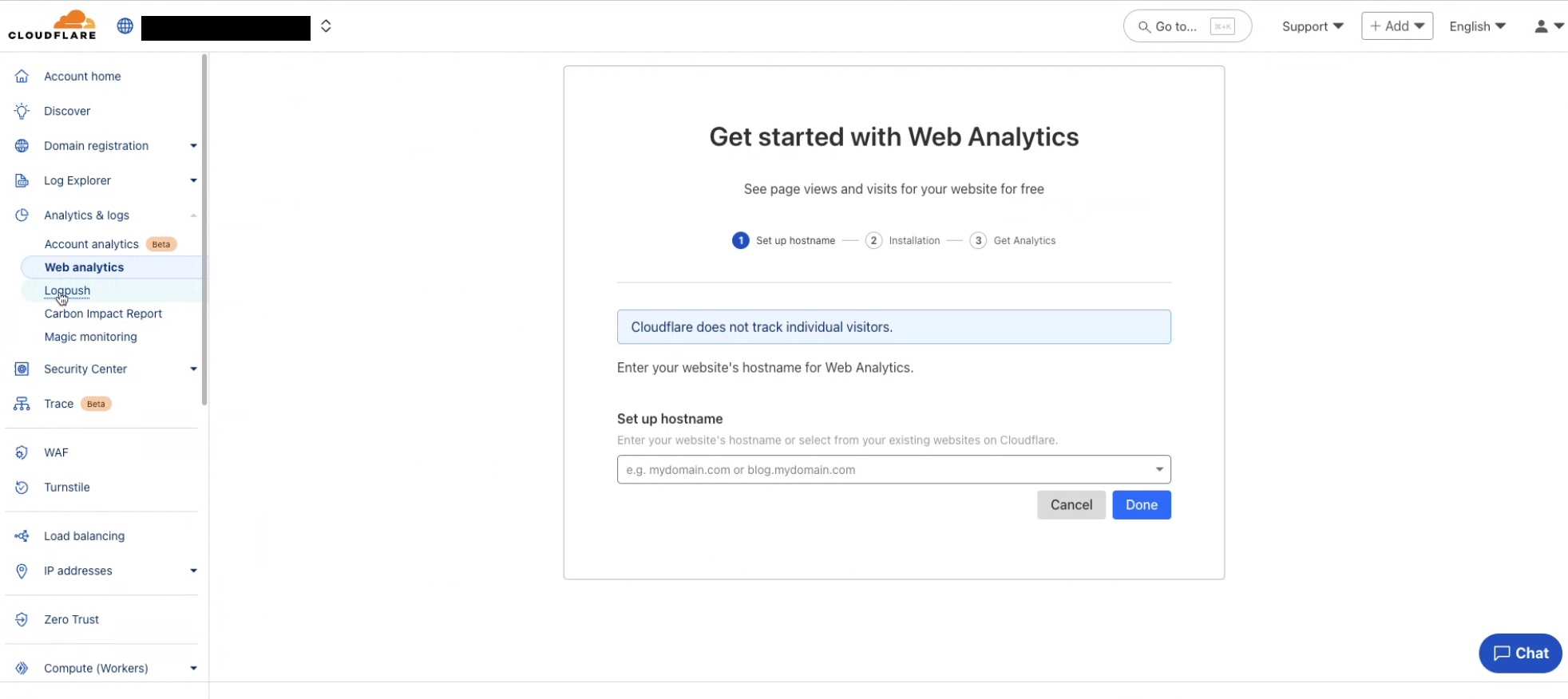
- Click Create a Logpush job.
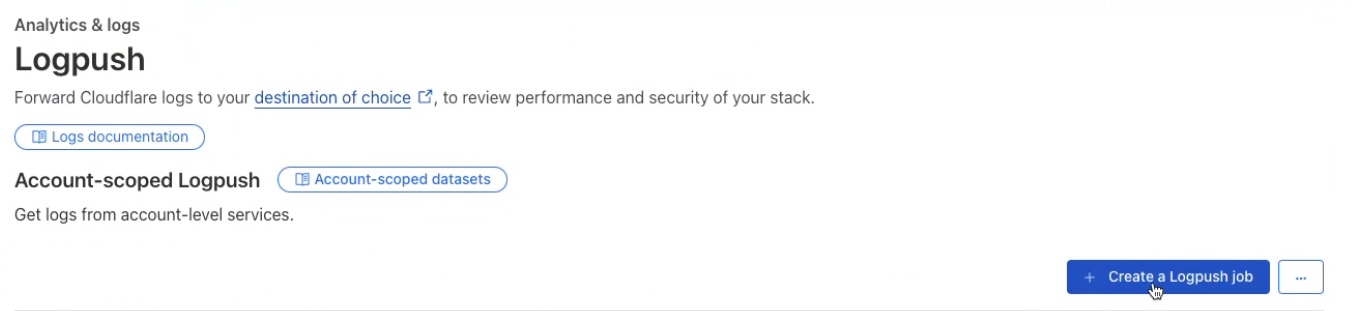
- Select Amazon S3 as the destination.
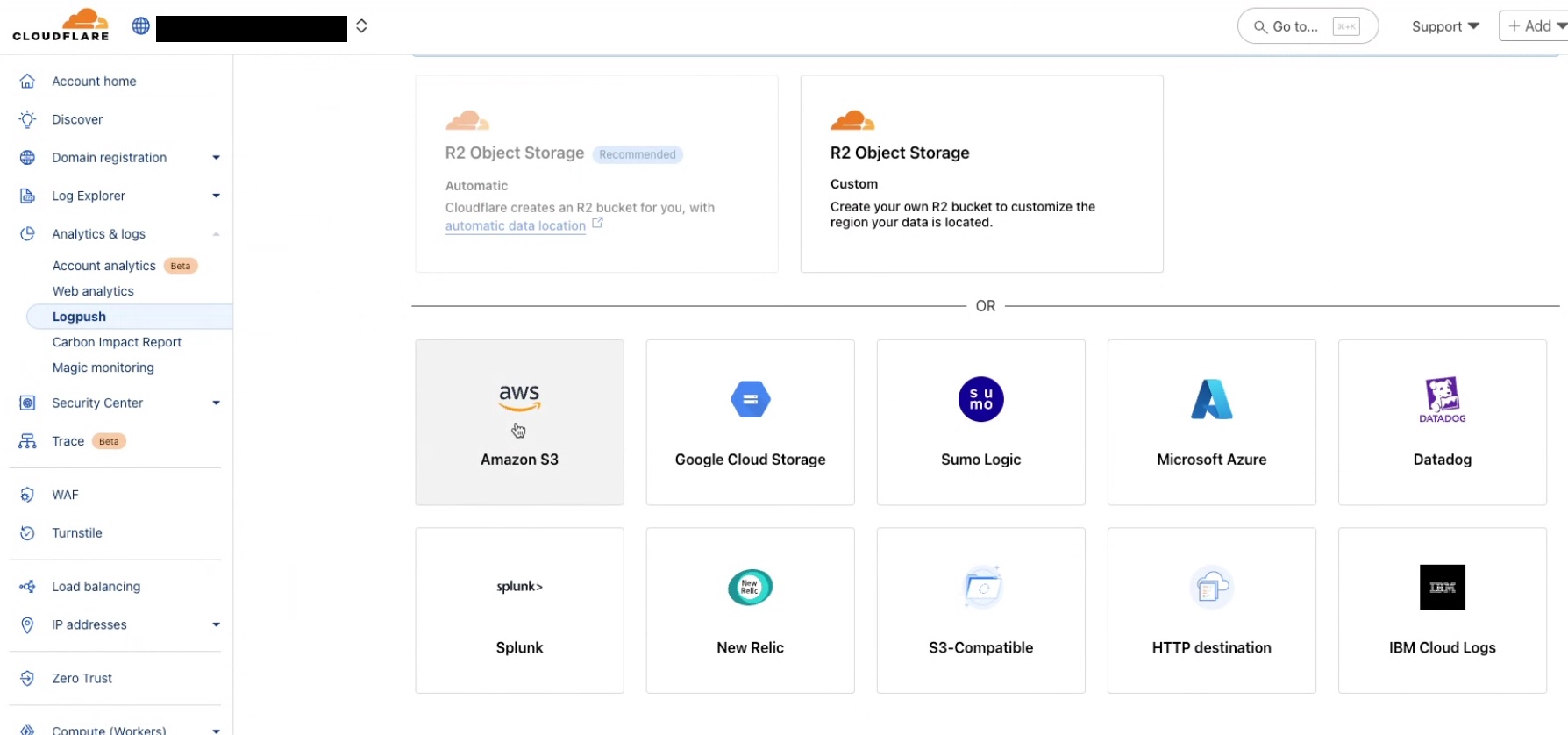
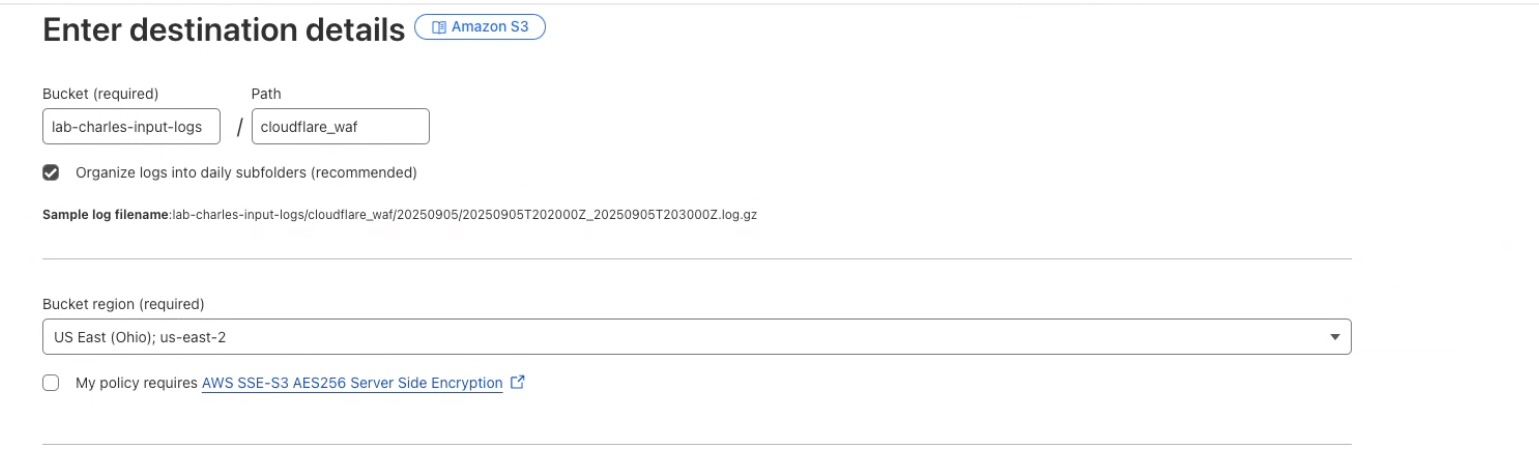
- Enter the details for the AWS S3 bucket where logs will be forwarded to.
- Copy the S3 bucket permissions from the Cloudflare console and add them to the bucket in the AWS console.
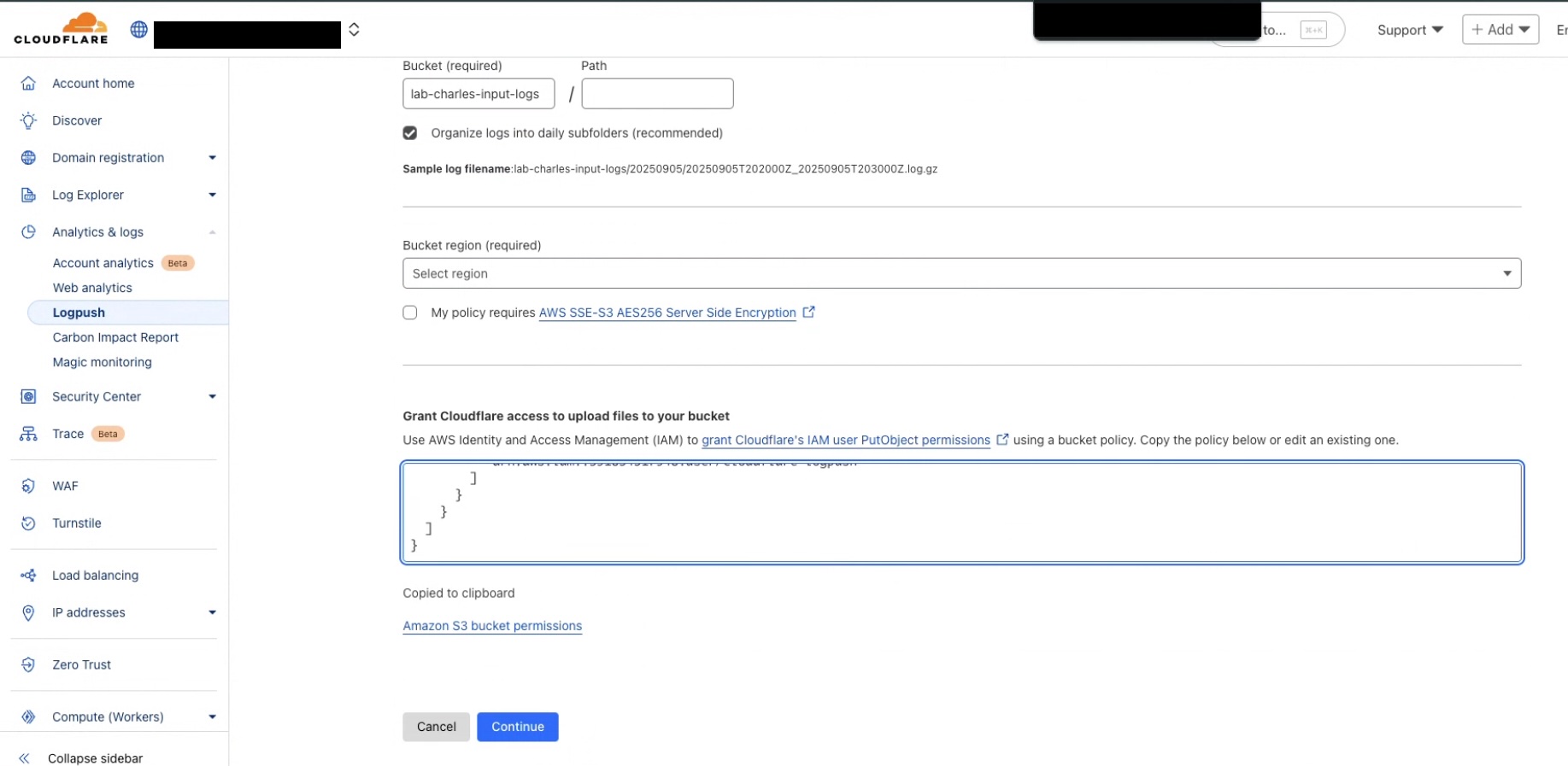
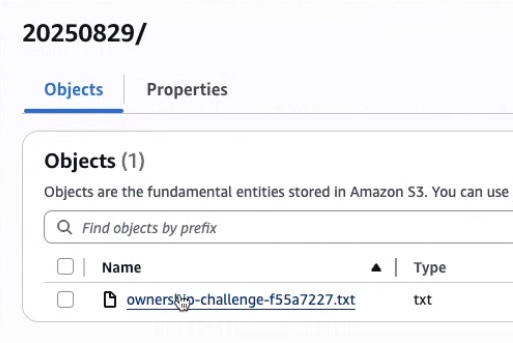
Click Continue. Cloudflare will write an ownership challenge text file to the S3 bucket.
In the AWS console, go to the S3 bucket, locate and open the file named
ownership-challenge-xxxxxxx.txt. Copy its contents.
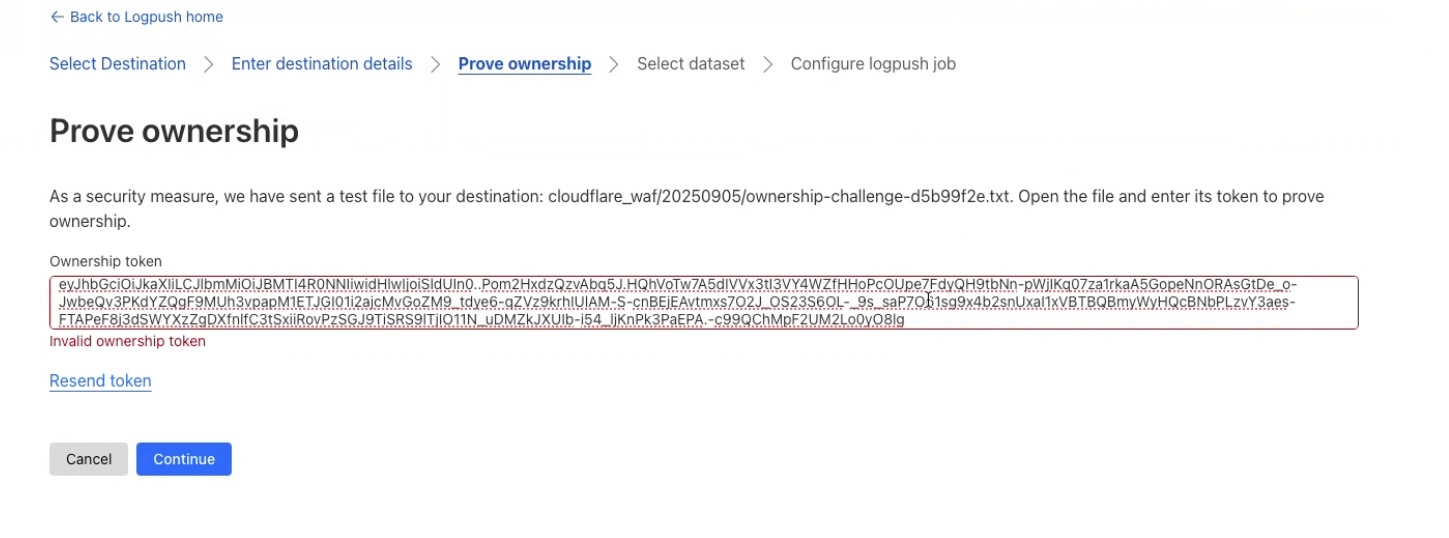
- Paste the ownership challenge token in the Cloudflare console.
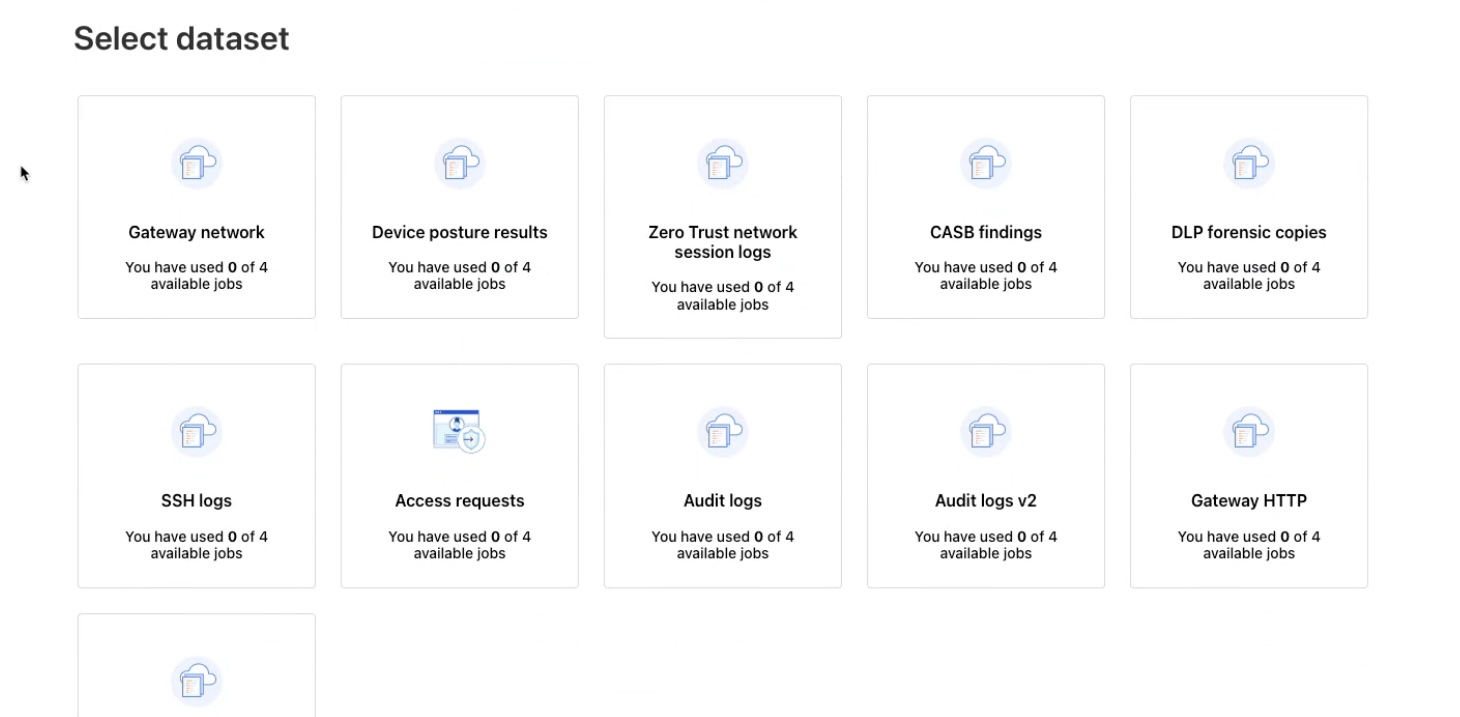
- Select one or more log datasets to push to the S3 bucket.
HTTP Logpush
Read more about configuring an HTTP logpush in the Cloudflare Documentation.
Prerequisites
- Administrative Access to the Cloudflare Dashboard
- Realm Cloud HTTP input feed
- Make sure to use a Public Certificate and take note of the Authentication Token
Setup Cloudflare
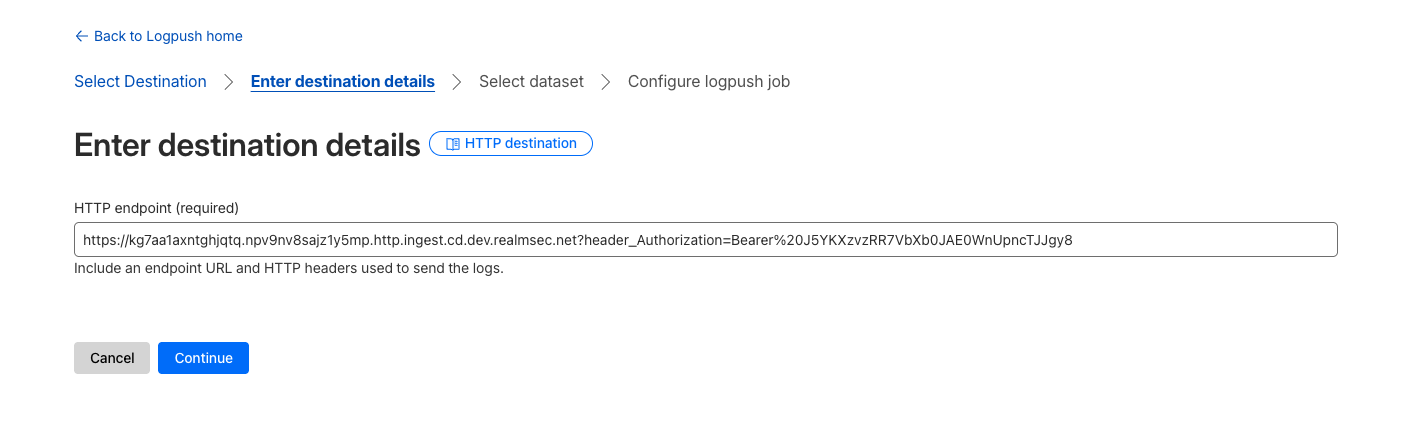
- Select Analytics & Logs > Logpush.
- Click Create a Logpush job.
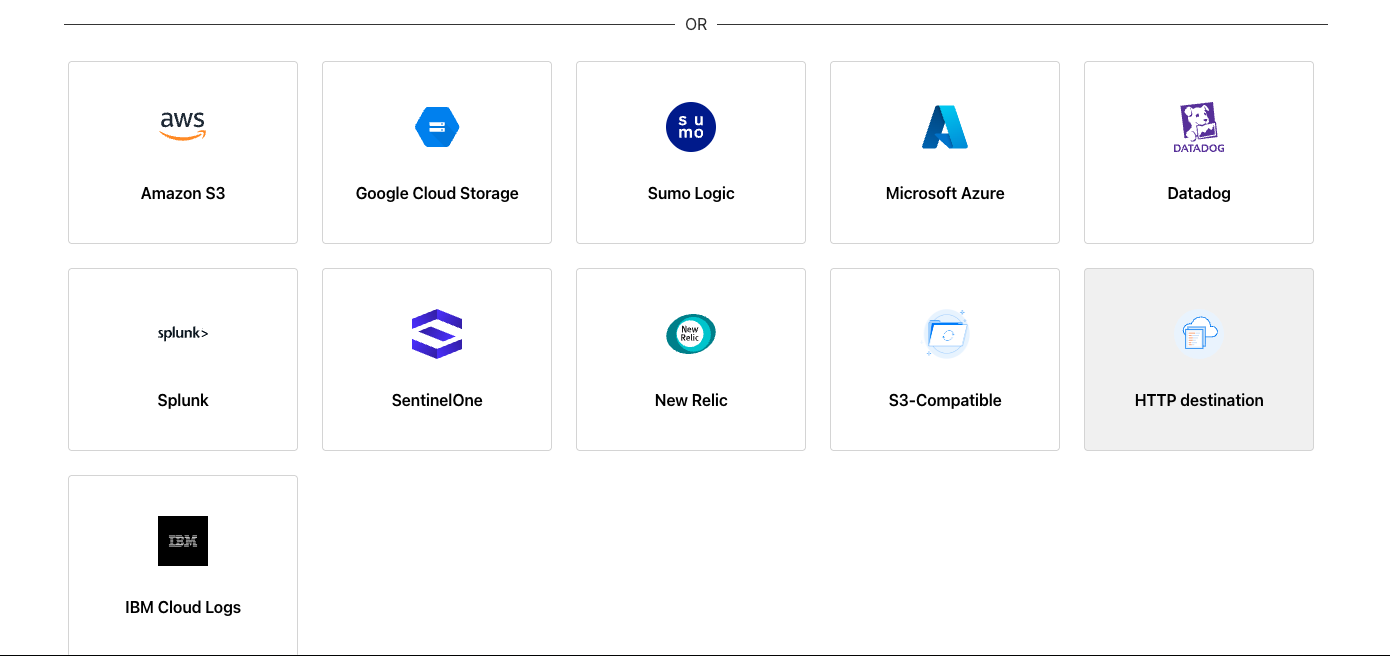
- Select HTTP as the destination.
- Enter the URL (including
https://) of the Cloud HTTP input feed, and include the authentication header at the end of the URL:
text
https://my-url.http.ingest.cd.dev.realmsec.net?header_Authorization=Bearer%20<token>