Appearance
FortiClient Log Collection Integration
Configuring FortiClient Integration for Realm Security
Realm Security collects FortiClient logs via FortiAnalyzer. Follow the steps below to configure FortiClient and FortiAnalyzer for log collection.
Prerequisites
- Administrative access to the FortiClient EMS
- Administrative access to FortiAnalyzer
- Realm Collector is set up and running with a Raw TCP Stream. See Realm Collector install guide for setting up a collector.
- Realm Security Raw TCP collector IP address or FQDN
- Realm Collector receiving port number. In Realm console, go to Collectors > select collector and copy the port number listed for the Stream.
Configure FortiClient Log Forwarding to FortiAnalyzer
For additional configuration options, see the FortiClient EMS Administration Guide.
- In FortiClient EMS, go to Endpoint Profiles > System Settings and edit the desired profile
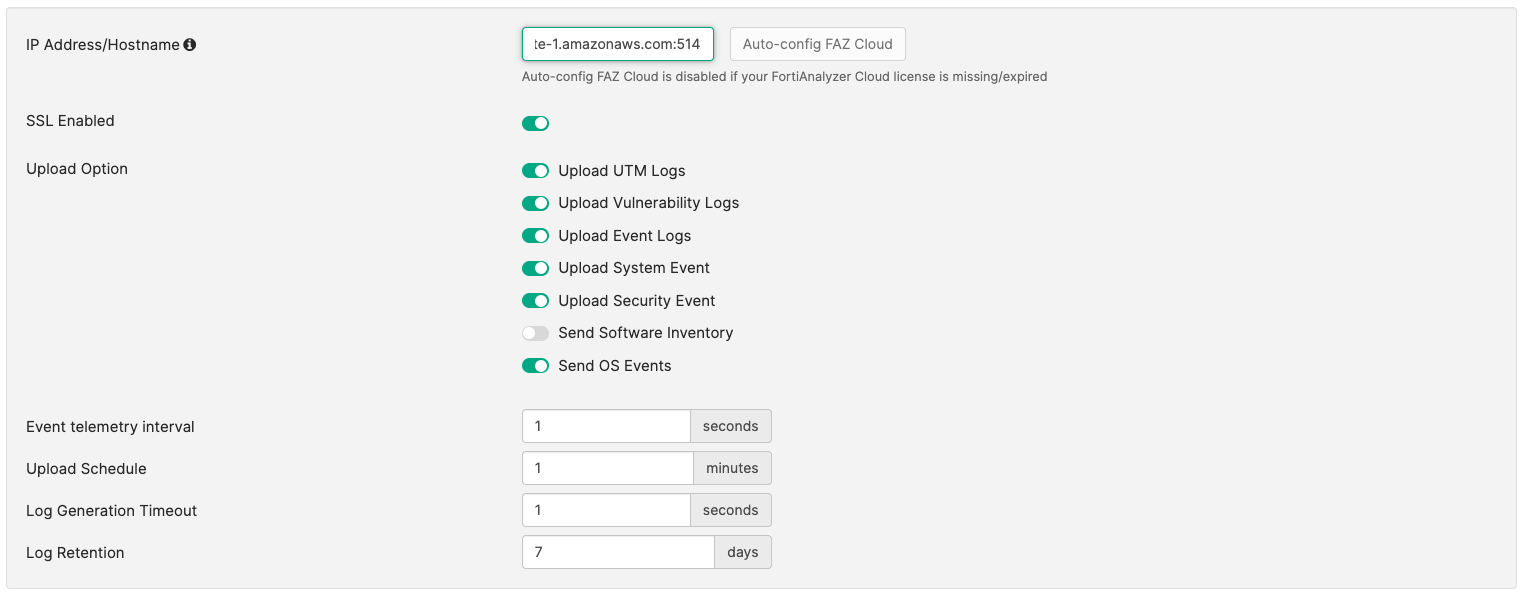
- In the Log section, enable Upload Logs to FortiAnalyzer/FortiManager
- Enter the IP Address/Hostname and port of the configured FortiAnalyzer instance — or if using FortiAnalyzer Cloud, click Auto-config FAZ Cloud
Configure FortiAnalyzer to Forward Logs to Realm Collector
For additional configuration options, see the FortiAnalyzer Log Forwarding guide.
- In FortiAnalyzer, go to System Settings > Administrative Domain and enable Administrative Domain (ADOM), then create or select the FortiClient ADOM
- To connect FortiClient EMS to FortiAnalyzer, go to Device Manager > Add Device and enter the FortiClient EMS Serial Number
- To forward logs from FortiAnalyzer to Realm, go to System Settings > Advanced, click the Log Forwarding tab, then click Create New
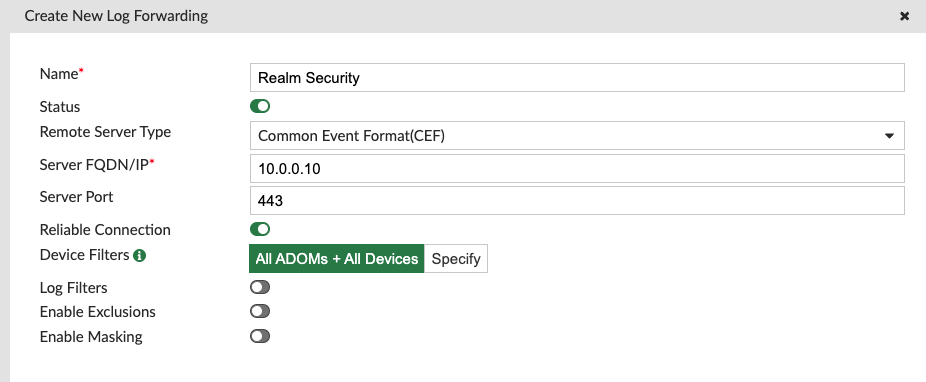
- Fill out the forwarding details:
Remote Server Type:
Common Event Format (CEF)Server FQDN/IP: IP address or FQDN of the Realm Collector Port: Realm Collector stream port number