Appearance
File Upload
The File Upload feature in Realm allows you to securely bring your external business data, detection rules, and configuration files directly into the Realm platform. By uploading these files, you unlock advanced use cases like custom enrichments, enhanced business context, and detection engineering workflows.
Today, the file upload primarily powers the Detection Integrity workflow, allowing you to validate, translate, and optimize your existing SIEM data while proving it does not affect your detection rules.
Use Case: Detection Integrity
Maintaining visibility across your security footprint requires ensuring that your optimization rules in Realm do not actively disrupt workflows in the SIEM or detection engine. The Detection Integrity workflow allows you to upload your detection rules into Realm to see how they map, translate, and perform against your actual streams of data.
Core Features & Technical Specifications
- Supported File Formats: Explicitly supports
.csv,.json,.yaml,.jsonl,.yml,.zip,.tgz, and.pyfile types. - Size Restrictions: Maximum file upload limit of 100MB per file.
- SIEM Vendor Compatibility: Realm supports rules exported from any SIEM vendor and syntax for this workflow.
Step-by-Step Guide: Uploading Files for Detection Integrity
Follow these steps to upload your detection rules and begin the Detection Integrity process.
Step 1: Access the File Upload Interface
- Log into your Realm Console.
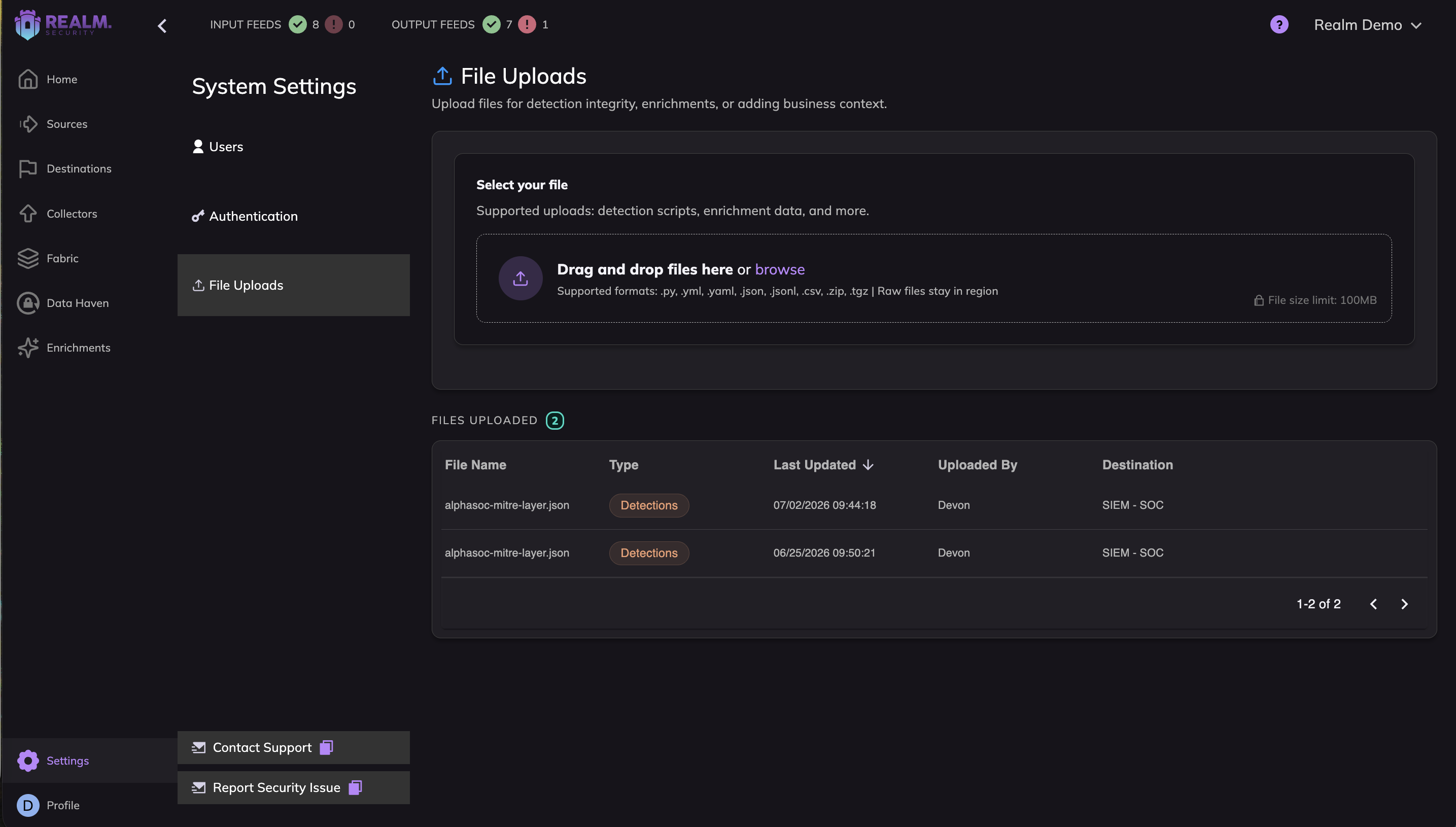
- Navigate to Settings > File Uploads via the left-hand navigation menu.
Step 2: Upload Your Detection Rules
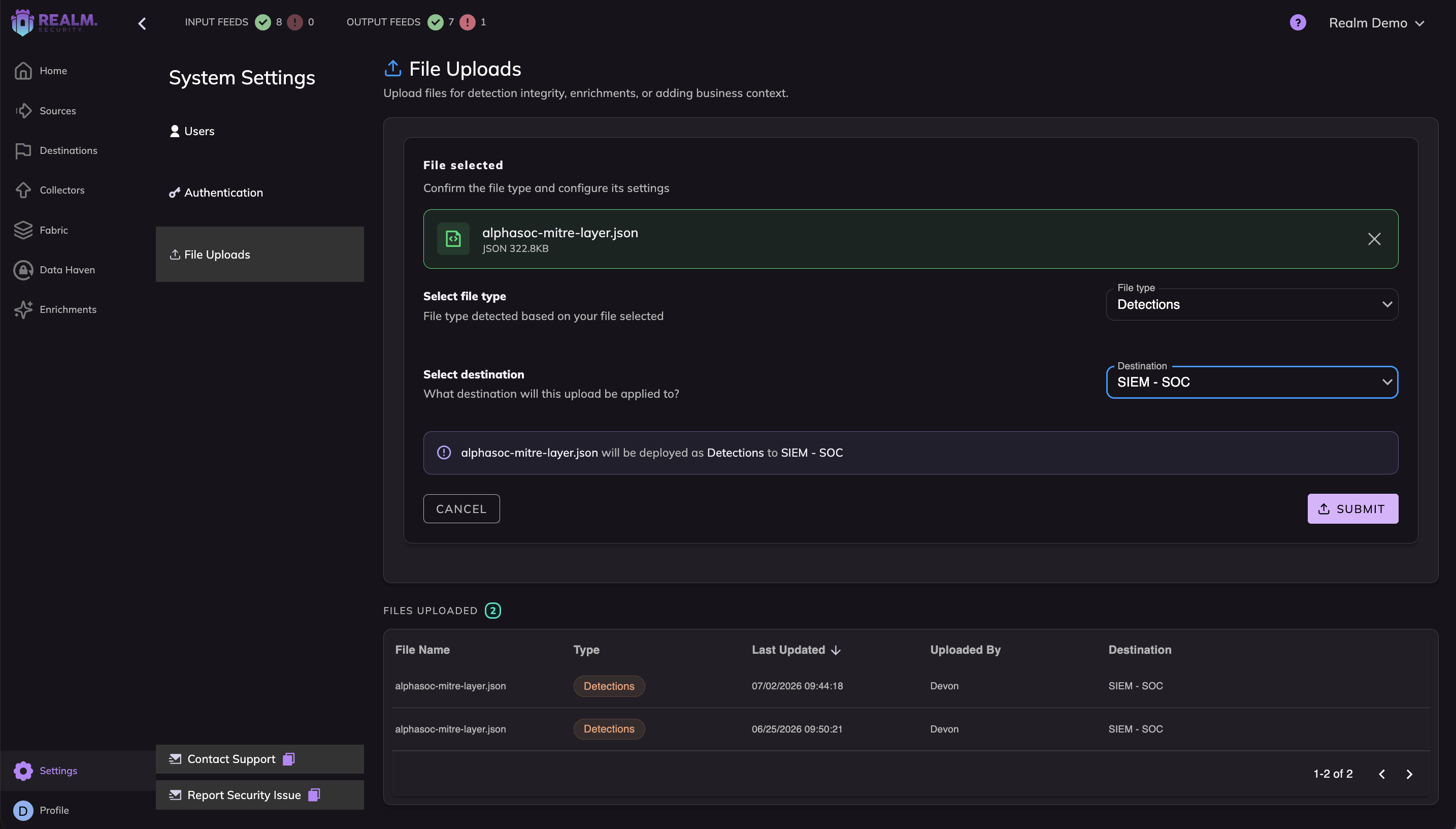
- Drag and drop your rules file into the upload zone, or click Browse to select it from your local machine.
- Select Detections as your intended Type from the dropdown menu.
- Select the Destination that your detections apply to.
- Click Submit.
What Happens Next?
Once your file is successfully uploaded, Realm begins processing and translating your rules into the platform.
1. Translation Timeline & Reevaluation
- Initial Processing Window: It takes up to 48 hours for your uploaded detections to be fully translated, parsed, and associated with your Sources in your Realm Console. This will be an automated process triggered by your file upload.
- Requesting Reevaluations: If you have made changes to rules or Sources in your fabric, you can request a reevaluation against your detections by contacting your Account Manager. Because the underlying detection upload remains the same, these reruns are significantly faster to evaluate.
2. Log Optimization & Detection Statuses
Once processing is complete, you can review your Detection Integrity statuses and full report details directly within the product.
To view these insights:
- Navigate to Destinations in the left-hand navigation menu.
- Select your Destination.
- Click on the Log Optimization tab.
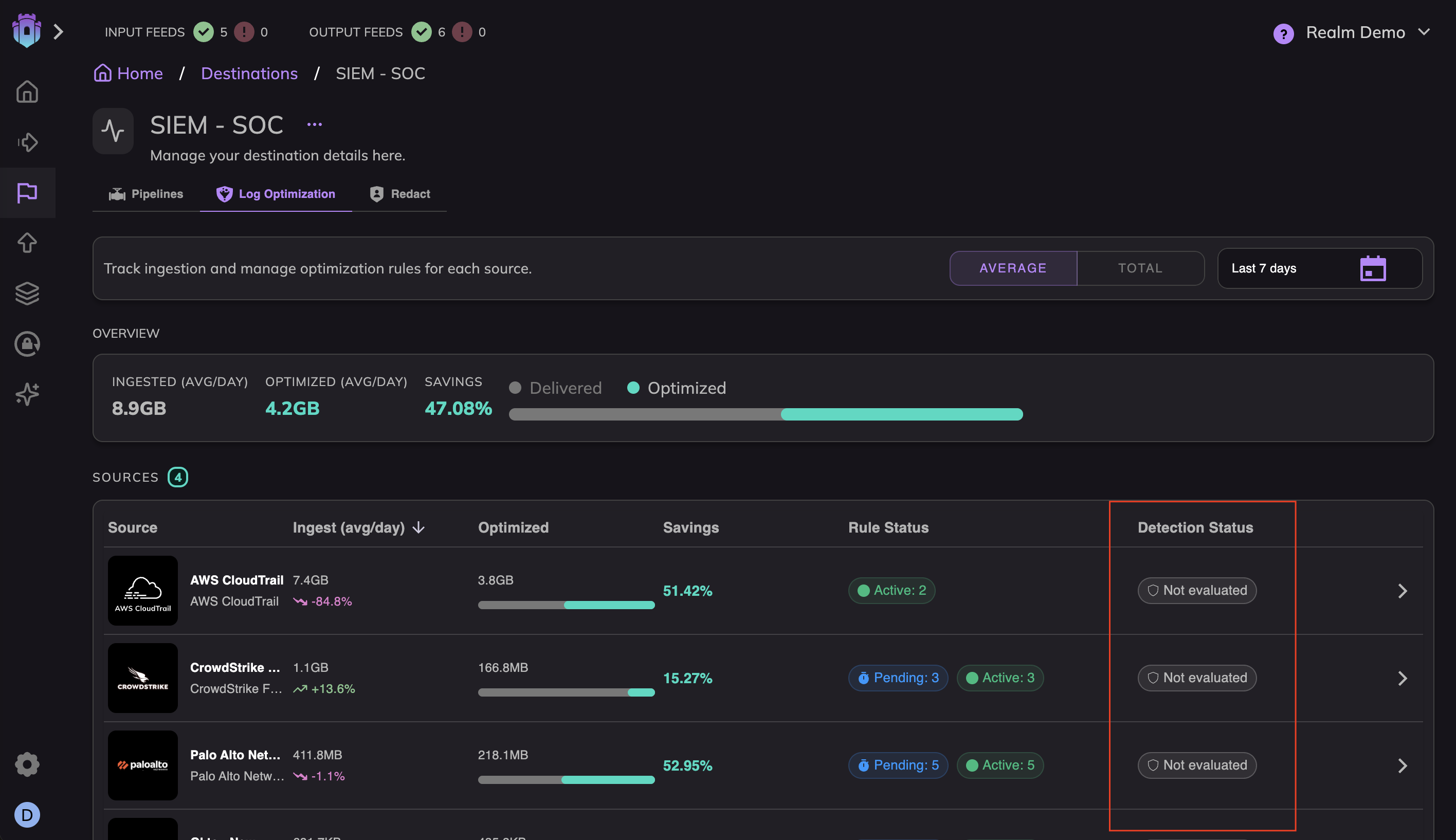
Within this view, every log optimization rule is assigned a Detection Status to help you understand how optimizations impact your security visibility. The three possible statuses are:
- No Conflicts: The optimization rule was evaluated and does not have a mapping conflict with any of the detection rules shared with Realm. It is safe to run without impacting detections.
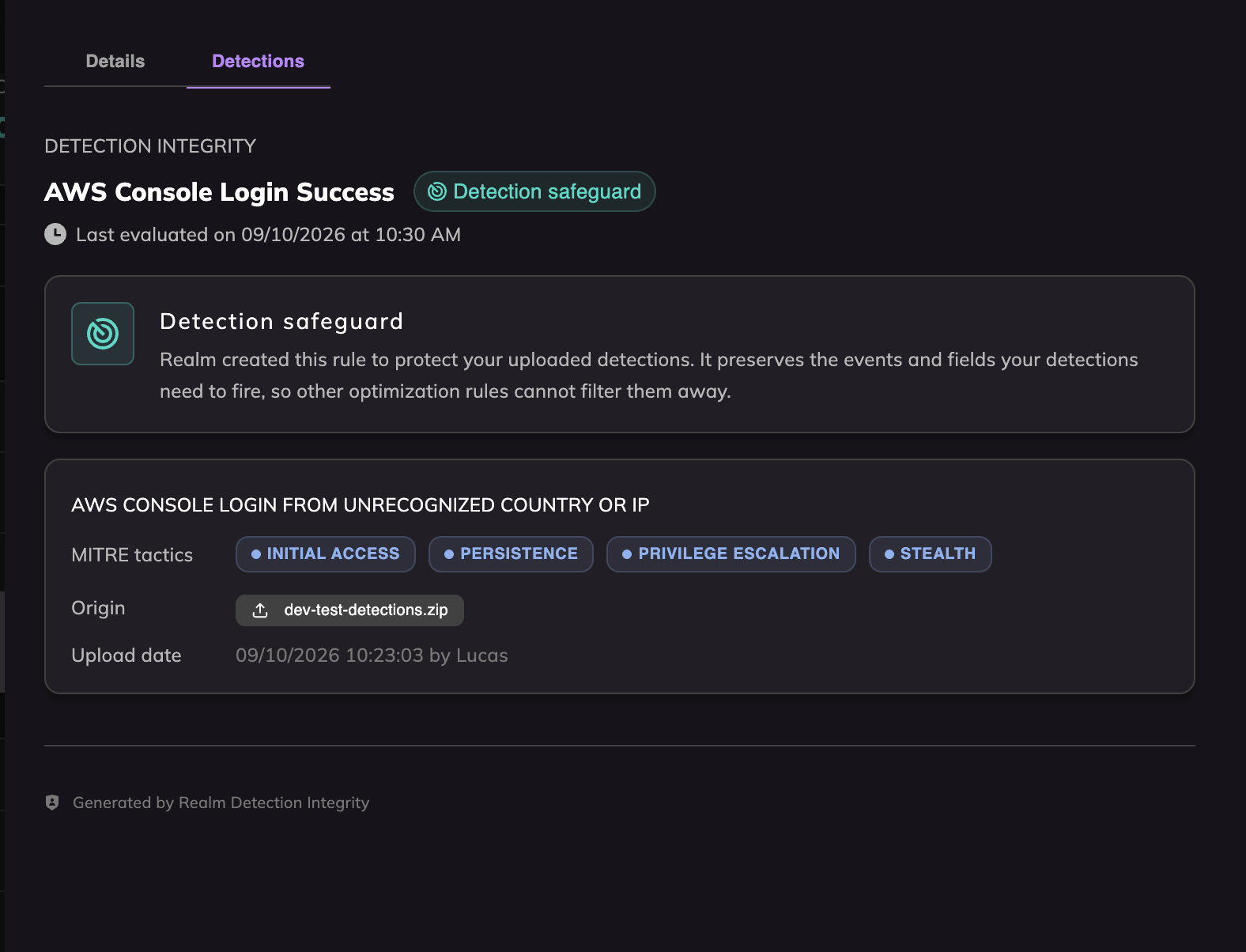
- Detection Safeguard: These are specific exception rules created to ensure that critical data associated with one or multiple detections is reliably sent to the destination, even if that data matches a broader optimization rule.
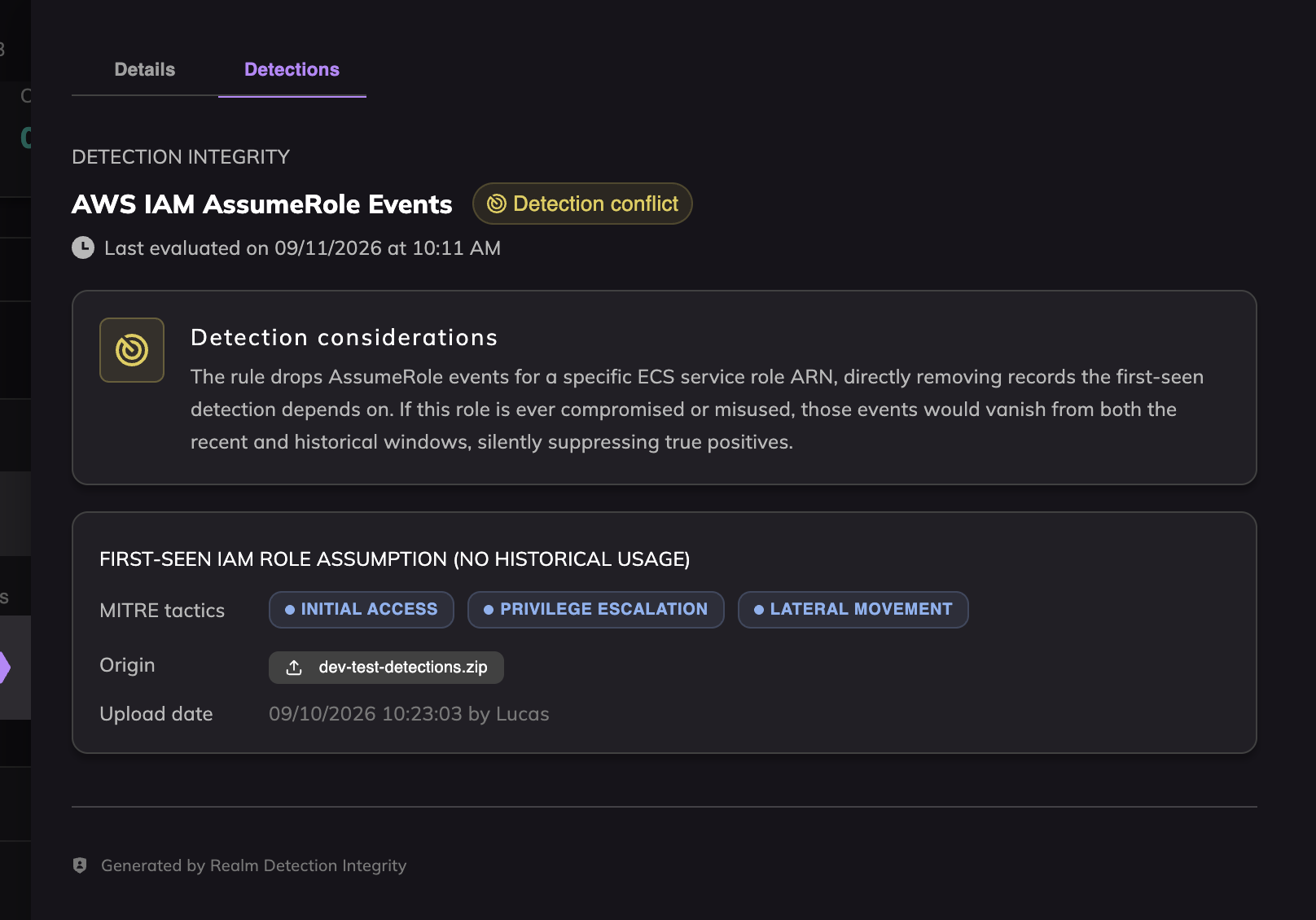
- Detection Conflict: The optimization rule has been determined to potentially conflict with the performance of a detection rule. Rules with this status likely need to be modified or disabled to avoid creating blind spots in your SIEM.
3. Reviewing & Managing Rules
Translated rules and newly generated safeguards require review before they permanently impact your data pipeline:
- Reviewing Detection Safeguards: Newly translated Detection Safeguard rules automatically enter a Pending workflow. By clicking on a pending safeguard rule, you can review additional deep-dive detection details and metadata to understand exactly which detections are being protected before you choose to activate it.
- Resolving Detection Conflicts: If Realm flags an active optimization rule with a Detection Conflict, we strongly recommend immediately moving the rule into a Pending state. Placing the rule in a pending state pauses the optimization, giving your team time to edit the rule criteria and safely resolve the conflict without causing disruptions to your downstream detections.
Need Help?
If you encounter any issues uploading your files, if your files exceed the 100MB limit, or if you need to request a rule reevaluation, please reach out to Realm Support or contact your dedicated Account Team.