Appearance
GCP Logs via Pub/Sub
Realm Security integrates with Google Cloud Pub/Sub, enabling intelligent routing and analysis of GCP log events. Follow these steps to configure sending GCP logs to Realm Security Data Fabric.
GCP Log Sources → Cloud Logging → Pub/Sub → Realm
Prerequisites
- Ensure you have administrative access to your GCP console.
- Ensure you have an existing GCP project to configure logging for.
Overview
- GCP Console: Create a Pub/Sub Topic and Subscription
- GCP Console: Create a Log Sink to route logs to Pub/Sub
- Realm Console: Configure GCP Pub/Sub Input Feed
1. GCP: Create a Pub/Sub Topic and Subscription
Log in to the GCP Console.
Navigate to Pub/Sub > Topics.
Click + Create Topic.
Topic ID: Give the topic a name (e.g.,
audit-logs-topic)
Default subscription: Check this box to automatically create a subscription alongside the topic.Click Create.
Store the Topic ID and Subscription ID — these will be used when configuring the Pub/Sub input feed in the Realm console.
2. GCP: Create a Log Sink
A log sink routes log entries from Cloud Logging to your Pub/Sub topic.
Navigate to Logging > Log Router.
Click + Create Sink.
Fill in the sink details:
Sink name: Give the sink a name (e.g.,
gcp-logs-to-pubsub)
Sink destination: Select Cloud Pub/Sub topic, then select the topic created in Step 1.Under Choose logs to include in sink, enter an inclusion filter to capture logs:
Audit Logs:
logName:"logs/cloudaudit.googleapis.com"Firewall Logs:
resource.type="gce_subnetwork" AND logName:"logs/compute.googleapis.com%2Ffirewall"GKE Logs:
resource.type="k8s_cluster" AND (logName:"logs/cloudaudit.googleapis.com%2Factivity" OR logName:"logs/cloudaudit.googleapis.com%2Fdata_access")VPC Flow Logs:
logName:"vpc_flows"Identity Logs:
protoPayload.serviceName="identitytoolkit.googleapis.com"- Click Create Sink.
- Once created, GCP will automatically generate a writer service account for the sink (e.g.,
p123456789@gcp-sa-logging.iam.gserviceaccount.com). Copy this service account — it needs to be granted publish permissions on your topic. - Navigate to Pub/Sub > Topics, select your topic, and open the Permissions tab.
- Click + Grant Access and add the sink's writer service account with the Pub/Sub Publisher role.
- Click Save.
3. GCP: Create a Service Account
Note: Realm does not support the legacy P12 secret, please ensure you are creating a JSON GCP Service Account Key.
- Go to IAM > Service Accounts.
- Click Create Service Account.
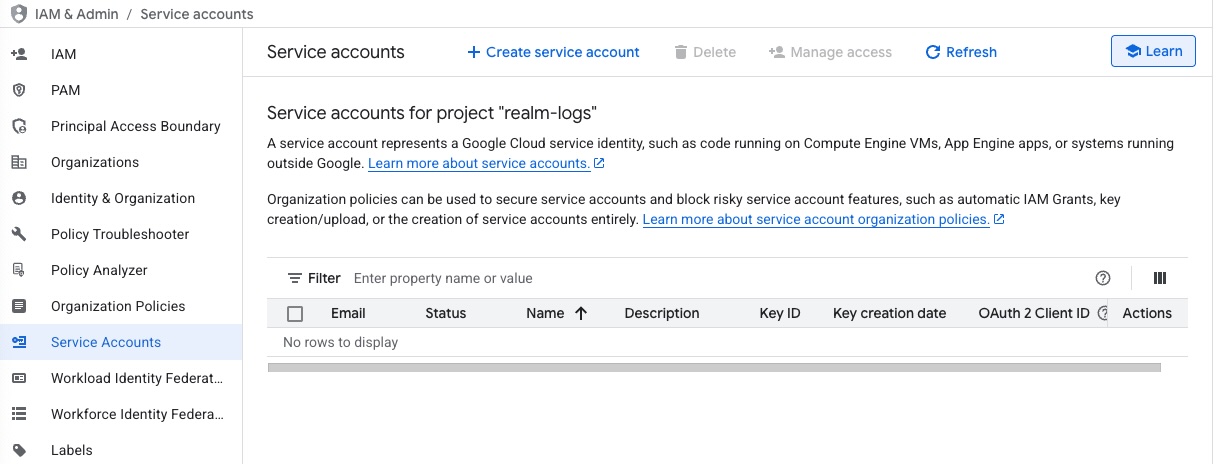
Enter a name for the service account:
Name:
realm-gcp-logsClick Create and Continue.
Grant permission to write to the bucket:
- Add role > Pub/Sub Subscriber
Select the service account.
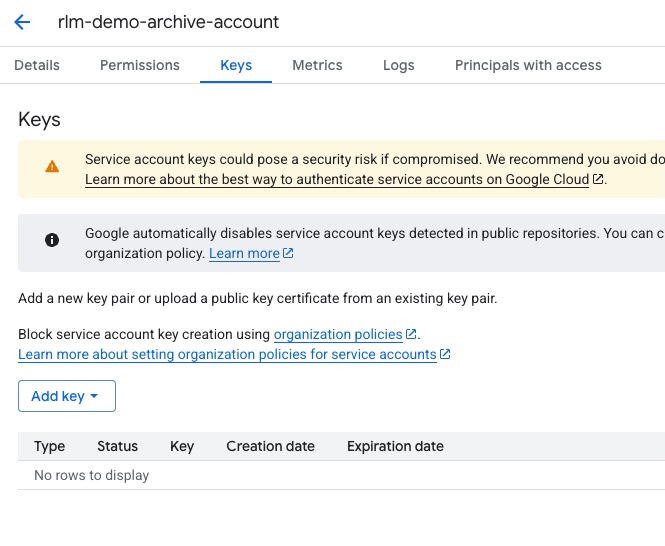
- Go to Keys > Create Key > JSON.
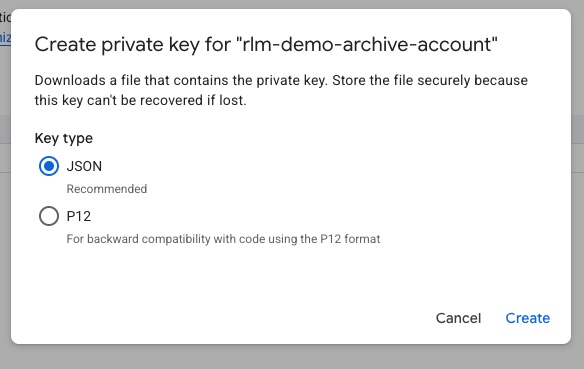
- Click Create. The service account key will be downloaded to your local machine. Open the key in a text editor, select all contents, and copy to clipboard.
4. Realm Console: Configure GCP Pub/Sub Input Feed
Log in to the Realm console.
Navigate to your Pipeline and select your source.
Add a new Input Feed and select GCP Pub/Sub as the type.
Fill in the following values:
Project ID: Your GCP project ID (e.g.,
my-gcp-project-prod)
Subscription: The short subscription ID only — e.g., gcp-logs-topic-sub — not the full resource path. GCP's console often displays subscriptions as projects/{project-id}/subscriptions/{subscription-id}; if you copy that, use only the final segment after subscriptions/. Realm builds the full resource name automatically from this field plus the Project ID field above. Credential: Select or create a GCP credential with access to the subscription
Endpoint: (Optional) Needed only if you are not using the standard GCP Pub/Sub API endpoint.Click Save to activate the input feed.
Note: Ensure the GCP credential configured in the Realm console has the Pub/Sub Subscriber role on the subscription, otherwise Realm will not be able to pull messages.
Splunk Source Type Mappings
| Log Type | Splunk Source Type |
|---|---|
| Cloud Audit - Admin Activity | google:gcp:pubsub:audit:admin_activity |
| Cloud Audit - Data Access | google:gcp:pubsub:audit:data_access |
| Cloud Audit - System Event | google:gcp:pubsub:audit:system_event |
| Cloud Audit - Policy Denied | google:gcp:pubsub:audit:policy_denied |
| Firewall Rules | google:gcp:pubsub:message |
| GKE | google:gcp:pubsub:message |
| VPC Flow Logs | google:gcp:pubsub:message |
| Cloud Identity | google:gcp:pubsub:message |
- Note: If you send additonal log types that are not mentioned above, they will be assigned the
google:gcp:pubsub:messagesource type.
NGSIEM Parser Mappings
| Log Type | NGSIEM Parser |
|---|---|
| Cloud Audit - Admin Activity | google-cloud-audit |
| Cloud Audit - Data Access | google-cloud-audit |
| Cloud Audit - System Event | google-cloud-audit |
| Cloud Audit - Policy Denied | google-cloud-audit |
| Firewall Rules | google-firewall-rules |
| GKE | google-kubernetes-engine-gke |
| VPC Flow Logs | google-cloud-vpc-flow-logs |
| Cloud Identity | google-cloud-identity |
- Note: If you send additonal log types that are not mentioned above, they will be go the
google-cloud-pubsubparser.