Appearance
Rapid7 InsightIDR Integration
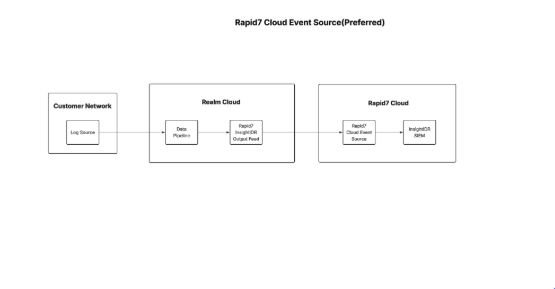
Send Realm Data to Rapid7 InsightIDR
This guide walks you through connecting Rapid7 InsightIDR to Realm as a destination. The integration uses a webhook-based approach — Realm sends log data directly to InsightIDR's Custom Logs webhook endpoint, allowing you to forward security events and other data streams to your SIEM for centralized analysis.
Prerequisites
- Active Rapid7 InsightIDR account with administrator access
- Access to the Realm Security console
- Ability to generate and copy webhook URLs from InsightIDR
Generate a Custom Logs Webhook URL in Rapid7 InsightIDR
- Log in to your Rapid7 InsightIDR console.
- In the left sidebar, click Data Collection.
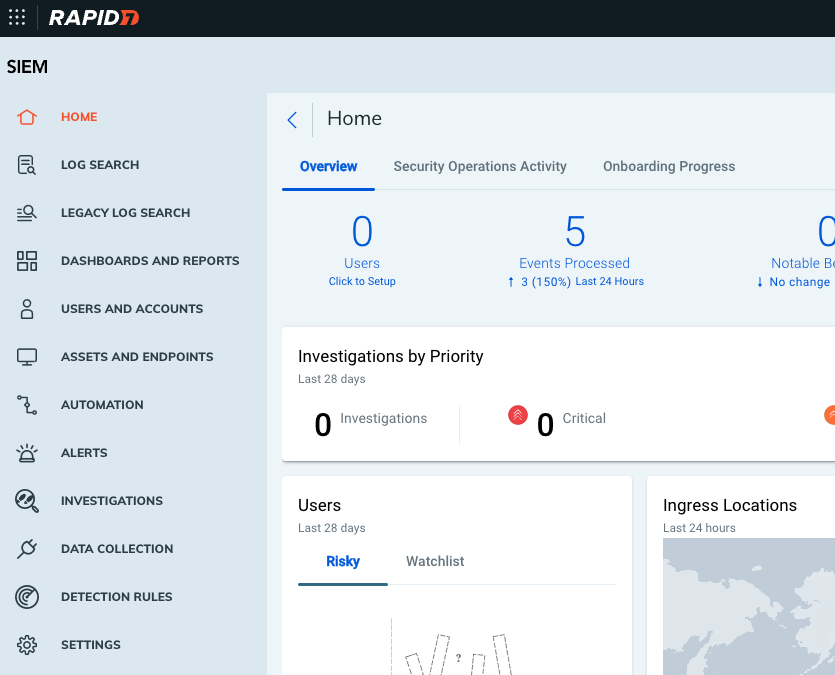
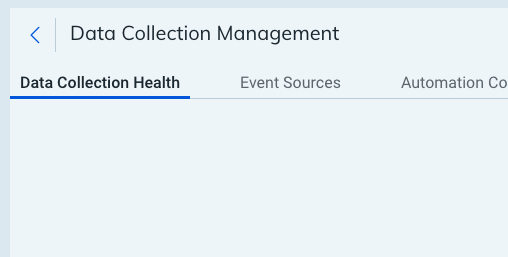
- Click Event Sources.
- Click Add Event Source and search for or select Rapid7 Custom Logs from the list.
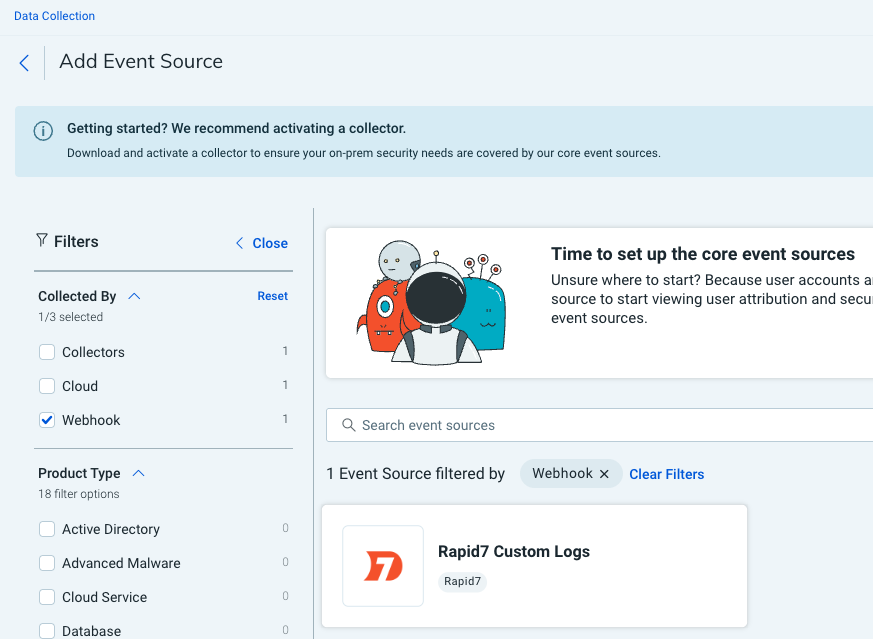
- In the event source configuration panel, set the source type to Webhook.
- Complete the configuration and save. InsightIDR will generate a unique Webhook URL for this source.
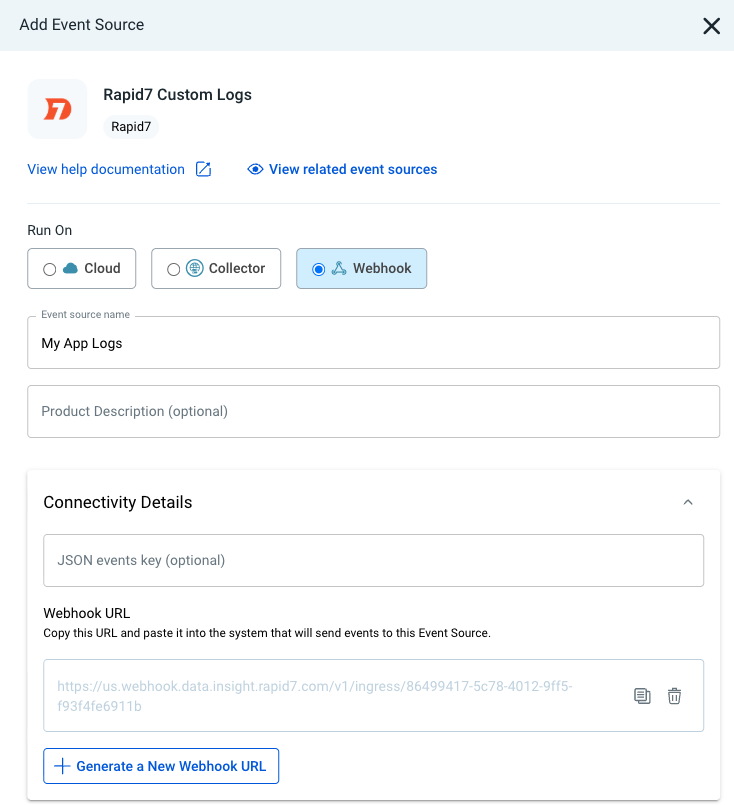
- Copy the Webhook URL — you will need it when setting up the Realm output feed.
Important: The webhook URL is unique and should be treated as a secret. Do not share it or commit it to version control. Copy and save it - you will need it when configuring the output feed in the Realm Console.
- (Optional) If you need to send specific fields as events, note the JSON Events Key field name — Realm can use this to extract events from a nested field in the JSON payload (supports dot notation for nested paths).
Configure the Destination in Realm
- In the Realm Security console, navigate to Settings > Data Outputs (or your configured destination management area).
- Click Add Destination or Create New Destination.
- Fill in the destination configuration:
Name:
Rapid7 InsightIDR
Type:Rapid7 InsightIDR
Endpoint:<your Rapid7 InsightIDR Custom Logs Webhook URL>
- Save the destination configuration.
Once configured, Realm will begin forwarding data to the InsightIDR Custom Logs webhook as NDJSON (newline-delimited JSON).
Support
For additional details, refer to the official Rapid7 InsightIDR documentation.
If you encounter any issues or require assistance, contact Realm Security support.