Appearance
Google Workspace Integration
Send Google Workspace Admin Activity Reports to Realm
This guide walks you through connecting Google Workspace Admin Activity Reports to Realm. The integration uses a polling-based approach — Realm Cloud periodically queries the Google Admin SDK Reports API to retrieve admin activity events, then forwards them through your data pipeline to your configured destination.
Prerequisites
- A Google Workspace account with super administrator access
- Access to the Google Cloud Console
- Access to the Realm Security console
Create a Google Cloud Project
If you do not already have a Google Cloud project to host the service account, create one first.
Creating a GCP Service Account
- Go to the Google Cloud Console.
- Click the project selector in the top navigation bar, then click New Project.
- Enter a project name (e.g.,
Realm Integration) and click Create.
Enable the Admin SDK Reports API
- In the Google Cloud Console, navigate to APIs & Services > Library.
- Search for Admin SDK API.
- Click the result, then click Enable.
Create a Service Account
- Navigate to IAM & Admin > Service Accounts.
- Click Create Service Account.
- Enter a name (e.g.,
realm-reports-reader) and an optional description, then click Create and Continue. - Skip the optional IAM role and user access steps — click Continue, then Done.
- Click the newly created service account to open its details.
- Navigate to the Keys tab and click Add Key > Create New Key.
- Select JSON and click Create. The key file downloads automatically.
Important: Store the downloaded JSON key file securely. You will need its contents when configuring the integration in Realm.
Grant Domain-Wide Delegation
Granting Domain-Wide Delegation
The service account must be authorized to access Reports API data on behalf of a Google Workspace admin user. This is a two-part process: first retrieve the Client ID from Google Cloud Console, then authorize the service account in the Google Workspace Admin Console.
Retrieve the Service Account Client ID
- In the Google Cloud Console, navigate to IAM & Admin > Service Accounts.
- Click the service account you created.
- Expand Advanced Settings and copy the Client ID.
Note: You will need this Client ID in the next step.
Authorize the Service Account in Google Workspace
- Log in to the Google Workspace Admin Console as a super administrator.
- Navigate to Security > Access and data control > API Controls.
- Under Domain wide delegation, click Manage Domain Wide Delegation.
- Click Add new and enter the following:
Client ID:
<your service account Client ID>
OAuth Scopes:https://www.googleapis.com/auth/admin.reports.audit.readonly - Click Authorize.
Note: The
admin.reports.audit.readonlyscope grants read-only access to the Admin Activity Report and is the minimum permission required for this integration. For more details, refer to the Admin SDK Reports API documentation.
Identify the Delegated Admin User
The service account impersonates a Google Workspace user with sufficient privileges to query the Reports API. This must be a super administrator account.
- Note the primary email address of a super administrator in your Google Workspace domain (e.g.,
admin@yourdomain.com). You will enter this in Realm as the delegated user.
Create a Source and Input Feed
- In Realm, go to Sources > Add Source.
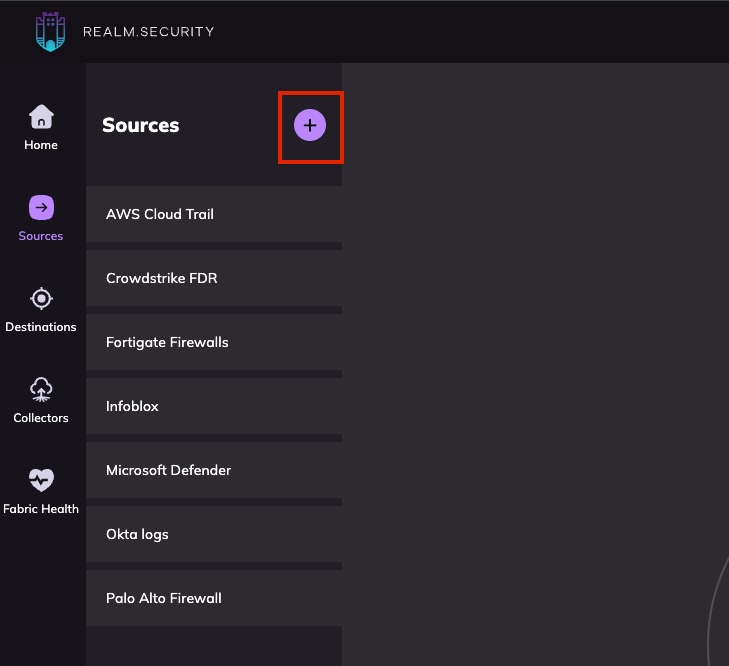
Enter a name for your source and select a the Google Workspace product type.
Add a new Input Feed to the source. Select Google Workspace as the input feed type.
You will need to input the follow before saving:
Google Service Account Key: The JSON contents of the GCP service account key file you generated in the GCP console.
Subject(Admin Email): the admin email the service account key has permissions to impersonate.
Applications: Select from the list of google workspace applications you want logs to be queried for.