Appearance
Checkpoint Firewall (Splunk)
Realm Security integrates with Checkpoint Firewall logs in the Log Exporter Splunk format. Checkpoint Log Exporter sends the logs to a Realm Collector.
Use this format if you already send Checkpoint logs to Splunk with the Check Point App for Splunk (sourcetype cp_log), or if you must keep that format.
For the CEF and Syslog formats, see Checkpoint Firewall.
Prerequisites
- Ensure you have access to your Checkpoint firewall SmartConsole.
- Realm Collector is set up and running. See Realm Collector install guide for setting up a collector.
- Realm Security Collector IP address or FQDN.
Requirements
- Realm Collector version
v0.137.0-rlm2or later. Older collectors do not open a port for this format. - Log Exporter must send over TCP. The Realm stream does not accept UDP. SmartConsole uses UDP by default, so it must be changed.
- Log Exporter must send in clear text. The Realm stream does not support TLS.
- Do not enable the Log Exporter
time-in-millioption. Realm reads thetimefield in seconds.
These steps cover Log Exporter on an on-premises Management Server or Log Server. They do not cover Smart-1 Cloud.
Set Up the Checkpoint Firewall (Splunk) Source in Realm
- Log in to the Realm console.
- Go to Sources > Add and add a new source.
Name:
Checkpoint Firewall (Splunk)
Description:Checkpoint Firewall logs in Splunk format
Format:Checkpoint Firewall (Splunk) - If a collector is already set up, go to Collectors and select your collector. If not, go to Collectors > Add and give it a name and description.
- Click Add Stream.
Product Format:
Checkpoint Firewall (Splunk)
Port: Select a unique port for this collector
Timezone: Select the timezone of your Checkpoint log server
Source:Checkpoint Firewall (Splunk) - Click Add Stream.
- Record the port of the stream. You need it to configure Log Exporter.
Note: Realm sets the protocol (TCP) and the framing (one log per line) for this stream. You do not select them.
Configure Log Exporter in SmartConsole
For CLI instructions, see the Checkpoint CLI Log Exporter guide. Use the same settings as the SmartConsole steps below: protocol tcp, format splunk, and read mode semi-unified.
Go to Objects > Server > New Log Exporter/SIEM to create a new Log Exporter/SIEM object.
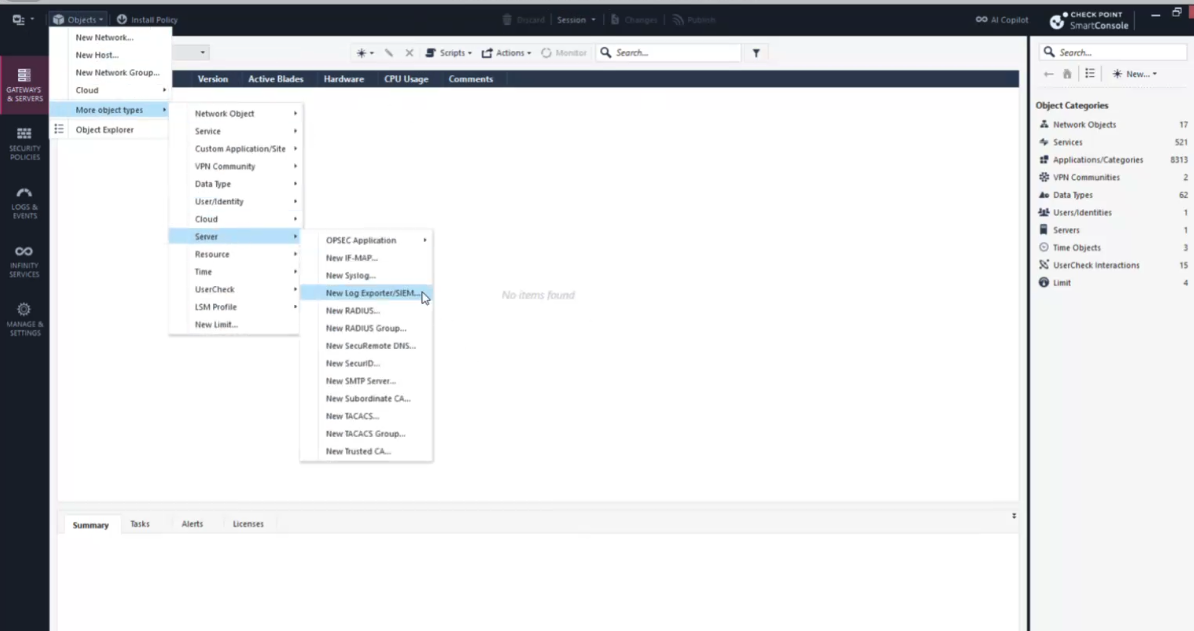
On the General page, set the server configuration.
Export Configuration:
Enabled
Target Server:<Realm Collector IP address or FQDN>
Target Port:<port of the Checkpoint Firewall (Splunk) stream>
Protocol:TCP
On the Data Manipulation page, set the format.
Format:
SplunkOn the same page, select Aggregate log updates before export. If your version shows Aggregation Mode, select Semi unified. Without this setting, each update log contains only the changed fields.
Click OK.
Go to Gateways & Servers and open the Management Server or Dedicated Log Server/SmartEvent Server object.
Go to Logs > Export, click [+], and select the Log Exporter/SIEM object from step 1.
Click OK.
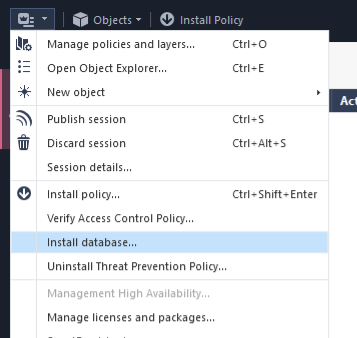
Go to Menu > Install database, select all objects, and click Install.
Important: The default protocol in SmartConsole is
UDP. SelectTCP. If you keepUDP, Realm does not receive the logs.
Verify the Setup
- In the Realm console, open the
Checkpoint Firewall (Splunk)source and confirm that new events arrive. - If no events arrive, follow the collector troubleshooting steps.
Support
For more information, see these Checkpoint documents:
If you encounter any issues or require assistance, contact Realm Security support.