Appearance
Jenkins Audit Logs Integration
Send Jenkins Audit Logs to Realm
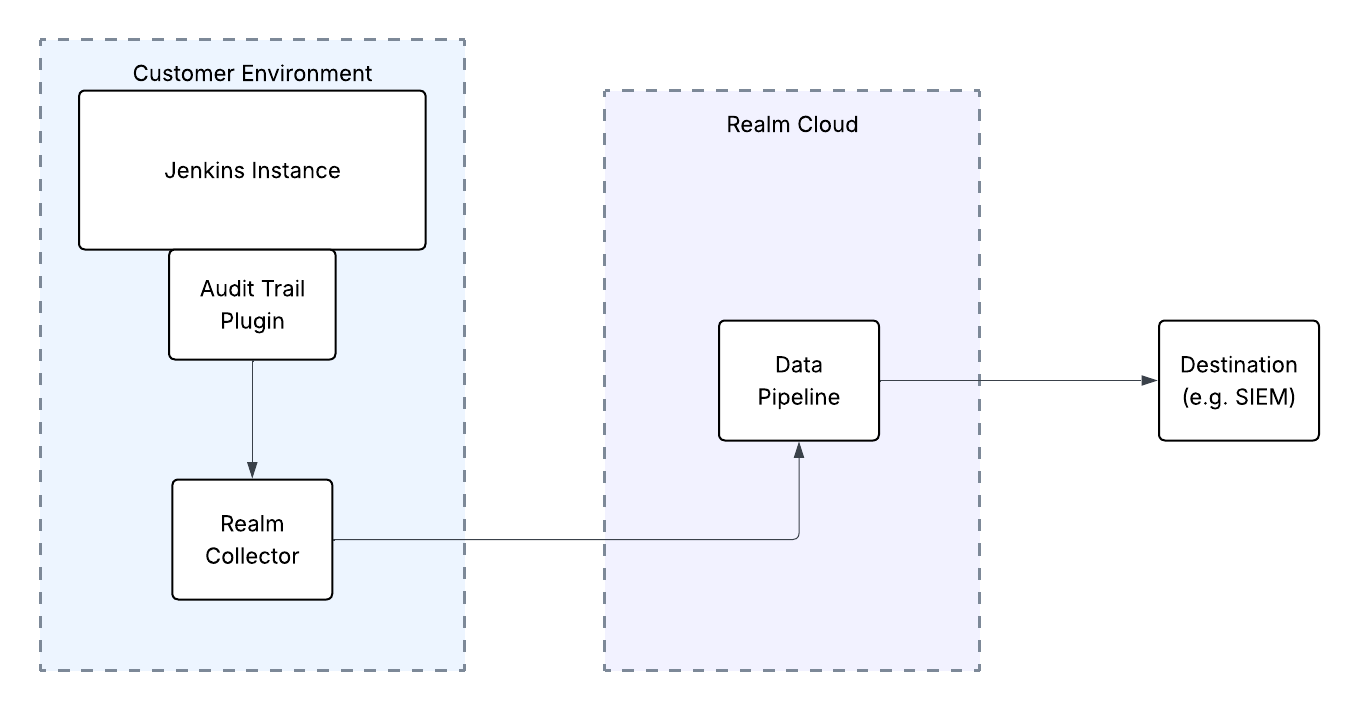
This guide walks you through connecting Jenkins audit logs to Realm using the Audit Trail plugin. The integration uses a syslog push approach — Jenkins streams audit events in RFC 5424 format directly to a Realm Collector running in your environment, which forwards them through your data pipeline to your configured destination.
Prerequisites
- Active Jenkins instance with administrator access.
- Access to the Realm Security console.
- A Realm Collector deployed and reachable from your Jenkins server. See the Realm Collector install guide for setup instructions.
- The Audit Trail plugin installed on your Jenkins instance (Manage Jenkins > Plugins > Available plugins, search for
Audit Trail).
Configure the Integration in Realm
- Log in to the Realm console.
- Go to Sources > Add and create a new Source.
Name:
Jenkins Audit
Format:Jenkins Audit - Go to Collectors and select your existing Collector, or go to Collectors > Add to create one.
- Click Add Stream on the Collector.
Product Format:
Jenkins Audit
Port: Select a unique port or use the Realm-generated port.
Source:Jenkins Audit - Click Add Stream.
- Note the Collector's IP address (or hostname) and the port assigned to the Jenkins Audit stream — you will enter these into the Jenkins Audit Trail plugin in the next section.
Configure the Audit Trail Plugin in Jenkins
- In Jenkins, go to Manage Jenkins > System.
- Scroll to the Audit Trail section.
- Under Loggers, click Add Logger and select Syslog Logger.
- Configure the Syslog Logger:
Syslog Host:
<Realm Collector IP or hostname>
Syslog Port:<port noted from Realm Collector stream>
Message Format:RFC 5424
App Name:Jenkins(or another identifier meaningful to your environment)
Facility:USER(or another facility appropriate to your environment) - Click Save.
Jenkins will now forward audit events — including user actions, job triggers, configuration changes, and credential access — to your Realm Collector in RFC 5424 syslog format.
Verifying Delivery
Once the plugin is configured, perform a test action in Jenkins (e.g. trigger a build or update a configuration). Then verify ingestion in the Realm console by checking the activity on the Jenkins Audit stream in your Collector.
Note: For more details on the Audit Trail plugin and the events it captures, refer to the Jenkins Audit Trail plugin documentation.
Support
If you encounter any issues or require assistance, contact Realm Security support.