Appearance
Snowflake (Snowpipe Streaming) Integration
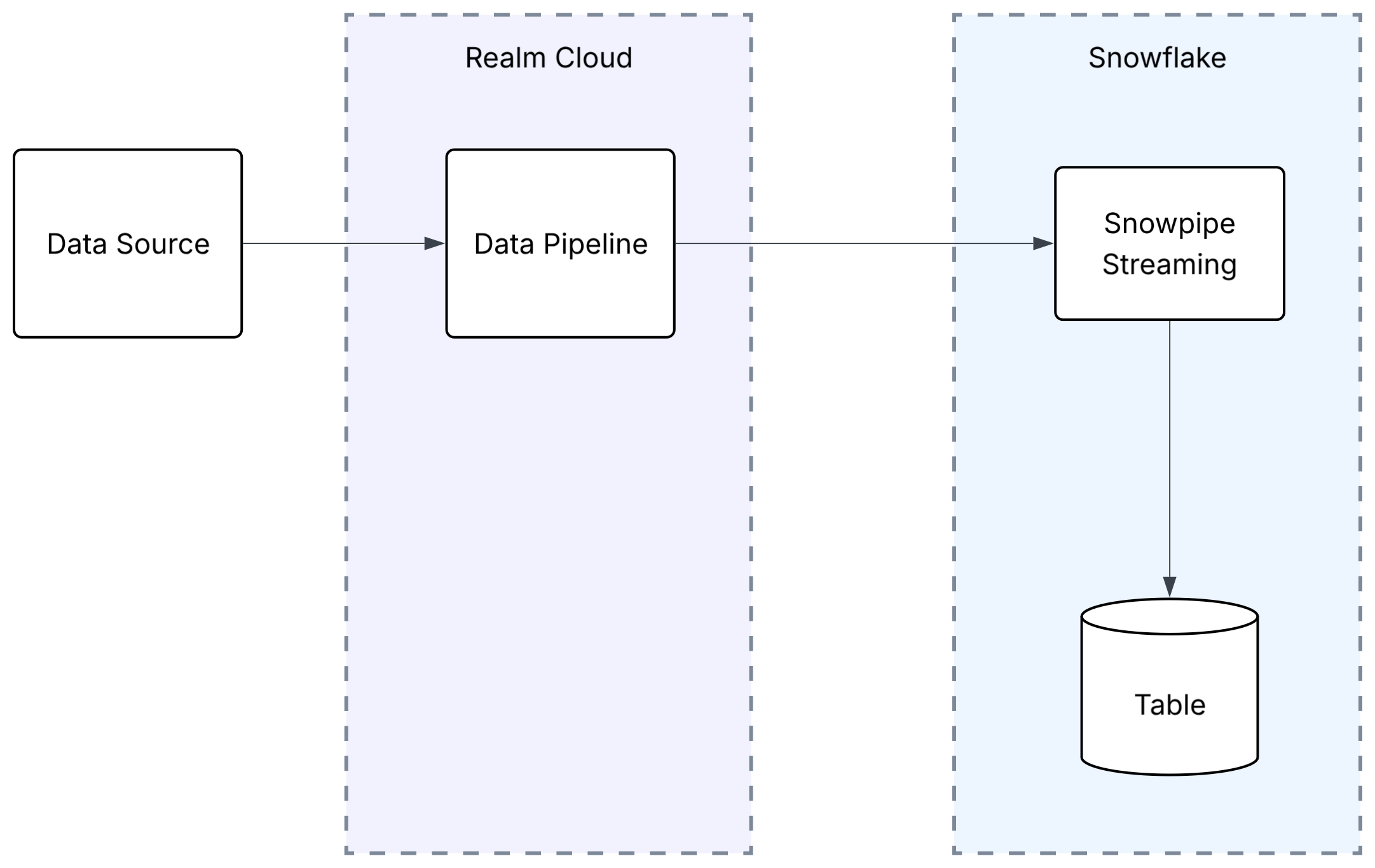
Send Logs to Snowflake
This guide connects Realm to Snowflake as a destination. Realm streams your log data into a Snowflake table with Snowpipe Streaming. Realm signs in as a Snowflake service user with key-pair (JWT) authentication.
Note: This guide covers Snowflake as a destination (Realm sends data to Snowflake). To send Snowflake audit logs to Realm, see Snowflake Audit Logs.
Prerequisites
- Access to the Realm Security console
- A Snowflake account in a commercial AWS, Azure, or Google Cloud region. Snowpipe Streaming is not available in government regions.
- The
ACCOUNTADMINrole, or a role that can create users, roles, and tables and grant privileges - OpenSSL, to generate the key pair
- If your Snowflake account uses a network policy, contact Realm Security for the IP addresses to allow
Choose an Output Format
The Snowflake output feed sends rows in one of two formats. The output format determines the table structure, so choose it before you create the table.
| Format | Row contents | Table setup |
|---|---|---|
Data Lake | The same five columns for every source: the original event, the parsed fields, Realm metadata, observables, and enrichments | One fixed table for all sources. |
JSON | The parsed event only. Each top-level key in the log becomes a column. | A table with schema evolution enabled. Snowflake adds a column for each new top-level key. |
Use Data Lake when more than one source sends to the output feed, or when you need Realm metadata (source name, event type, timestamps) in each row. Use JSON when you want the vendor's own fields as columns.
Note: The
JSONformat does not include Realm metadata. A row does not show which source sent it. Send one source to eachJSONoutput feed and table.
Create the Target Table: Data Lake Format
This section applies to the Data Lake format. For JSON, see Create the Target Table: JSON Format.
Realm writes each event as one row. The table columns must match the field names that Realm sends. Run the following in a Snowflake worksheet. Replace the database, schema, and table names with your own values:
sql
CREATE DATABASE IF NOT EXISTS <database>;
CREATE SCHEMA IF NOT EXISTS <database>.<schema>;

CREATE TABLE IF NOT EXISTS <database>.<schema>.<table> (
  raw             VARCHAR,
  parsed          VARIANT,
  observables     VARIANT,
  realm_metadata  VARIANT,
  enrichments     VARIANT
)
ERROR_LOGGING = TRUE;
Each column holds the following data:
| Column | Contents |
|---|---|
raw | The original event, as Realm received it |
parsed | The event fields that Realm parsed, as a JSON object |
observables | Observables that Realm extracted, grouped by type (for example ip_address, username, hostname) |
realm_metadata | source, source_type, event_type, input_feed, collector, destination, output_feed, event_timestamp, and ingested_at |
enrichments | Enrichment records, when enrichments are enabled for the output feed |
Important: Keep
ERROR_LOGGING = TRUEon the table. Snowflake skips rows that do not match the table after it accepts a request, and Realm cannot detect these failures. The error table is the only record of skipped rows. See Snowpipe Streaming error tables.
To turn on error logging for an existing table, run:
sql
ALTER TABLE <database>.<schema>.<table> SET ERROR_LOGGING = TRUE;Create the Target Table: JSON Format
This section applies to the JSON format. For Data Lake, see Create the Target Table: Data Lake Format.
With the JSON format, Realm sends each parsed event as a row, and Snowflake maps each top-level key to a column of the same name. Because the set of keys varies by source and can change over time, the table must have schema evolution enabled. With schema evolution enabled, Snowflake adds a column for any top-level key that does not match an existing column. When enrichments are enabled for the output feed, each enrichment field is also a top-level key and becomes a column.
Snowflake requires at least one column at table creation. The table below defines a single placeholder column, _PLACEHOLDER, which no log uses and which remains NULL for every row.
Run the following in a Snowflake worksheet. Replace the database, schema, and table names with your own values:
sql
CREATE DATABASE IF NOT EXISTS <database>;
CREATE SCHEMA IF NOT EXISTS <database>.<schema>;

CREATE TABLE IF NOT EXISTS <database>.<schema>.<table> (
  _PLACEHOLDER VARCHAR
)
ENABLE_SCHEMA_EVOLUTION = TRUE
ERROR_LOGGING = TRUE;- After the first rows arrive, you can drop
_PLACEHOLDER:ALTER TABLE <database>.<schema>.<table> DROP COLUMN _PLACEHOLDER; ENABLE_SCHEMA_EVOLUTION = TRUElets Snowflake add a column for each new top-level key.
Note: Schema evolution has limits. For more information on how it works, see Table schema evolution in the Snowflake documentation.
Create a Role for Realm
Snowpipe Streaming writes as the service user's DEFAULT_ROLE. The role needs these privileges:
| Privilege | Object | Purpose |
|---|---|---|
USAGE | Database of the target table | Find the schema |
USAGE | Schema of the target table | Find the table |
INSERT | Target table | Write rows |
EVOLVE SCHEMA | Target table (JSON format only) | Add columns for new top-level keys |
Run the following in a Snowflake worksheet:
sql
USE ROLE ACCOUNTADMIN;

CREATE ROLE IF NOT EXISTS REALM_WRITER;

GRANT USAGE ON DATABASE <database> TO ROLE REALM_WRITER;
GRANT USAGE ON SCHEMA <database>.<schema> TO ROLE REALM_WRITER;
GRANT INSERT ON TABLE <database>.<schema>.<table> TO ROLE REALM_WRITER;
If you chose the JSON format, also run:
sql
GRANT EVOLVE SCHEMA ON TABLE <database>.<schema>.<table> TO ROLE REALM_WRITER;Important: Without
EVOLVE SCHEMA, Snowflake does not add columns for this role, even whenENABLE_SCHEMA_EVOLUTION = TRUEis set on the table.
To confirm the grants, run SHOW GRANTS ON TABLE <database>.<schema>.<table>;. Confirm that REALM_WRITER has INSERT, and also EVOLVE SCHEMA for the JSON format.
Create the Service User and Assign a Key Pair
Realm signs a JWT with an RSA private key to authenticate. No password is sent to Realm. Use a dedicated service user, not a personal account.
Create the User and Set the Default Role
sql
USE ROLE ACCOUNTADMIN;

CREATE USER IF NOT EXISTS <username>
  TYPE = SERVICE
  DEFAULT_ROLE = REALM_WRITER;

GRANT ROLE REALM_WRITER TO USER <username>;
Important: The
GRANT ROLEstatement is required. Without it, Snowflake ignoresDEFAULT_ROLE, and writes fail.
Generate the Key Pair
Run the following with OpenSSL:
shell
openssl genrsa 2048 | openssl pkcs8 -topk8 -inform PEM -out rsa_key.p8 -nocrypt
openssl rsa -in rsa_key.p8 -pubout -out rsa_key.pub
This makes two files:
rsa_key.pubis the public key. You assign it to the Snowflake user in Assign the Public Key to the User.rsa_key.p8is the private key. Do not upload it to Snowflake. Keep it secure. You give it to Realm in Configure the Snowflake Destination in Realm.
Assign the Public Key to the User
Get the public key value without its header and footer lines:
shellgrep -v "PUBLIC KEY" rsa_key.pub | tr -d '\n'In a Snowflake worksheet, run:
sqlALTER USER <username> SET RSA_PUBLIC_KEY='<public_key_value_from_step_1>';Verify the user:
sqlDESC USER <username>;Confirm that the
RSA_PUBLIC_KEY_FProw shows aSHA256:fingerprint, and that theDEFAULT_ROLErow showsREALM_WRITER.Confirm that the user has the role:
sqlSHOW GRANTS TO USER <username>;REALM_WRITERmust appear in the output.
Note: Snowflake supports a second key slot (
RSA_PUBLIC_KEY_2) on the same user. To rotate keys without downtime, assign a new key pair to the unused slot, update the Auth credential in Realm, then unset the old key.
Look Up Your Account Identifier
- Log in to Snowsight.
- Click your account name in the bottom-left corner of the page.
- The Account panel shows your account identifier (for example
myorg-myaccount). Click it to copy the value.
You can also run the following in a worksheet:
sql
SELECT CURRENT_ORGANIZATION_NAME() || '-' || CURRENT_ACCOUNT_NAME() AS account_identifier;Configure the Snowflake Destination in Realm
In the Realm console, navigate to Destinations and click Add Destination.
Name:
Snowflake
Type:Data LakeNote: The destination Type is
Data Lakefor both output formats. You choose the output format on the output feed.Add a new Output Feed and select Snowflake as the method.
Fill in the following fields:
Name:
Snowflake
Auth: Create or select a credential that contains the private key file (rsa_key.p8)
Account Identifier:<your account identifier>
Username:<the service user>
Database:<database>
Schema:<schema>
Table:<table>
Format:Data LakeorJSON. Use the format that matches your table.
Endpoint: Leave blank unless you connect through PrivateLinkClick Add. Realm starts to stream log data to your Snowflake table.
Note: The private key must not have a passphrase. If you generated it with a passphrase, remove the passphrase before you add it to Realm:
shellopenssl pkcs8 -in rsa_key_encrypted.p8 -topk8 -nocrypt -out rsa_key.p8
Note: The Endpoint field replaces the default account URL,
https://<account_identifier>.snowflakecomputing.com. Set it only for a PrivateLink connection. Contact Realm Security before you use PrivateLink.
Query the Data
Fields inside VARIANT columns use Snowflake path syntax.
For the Data Lake format, this query shows the 10 most recent events:
sql
SELECT
  realm_metadata:event_timestamp::TIMESTAMP_TZ AS event_time,
  realm_metadata:source::STRING                AS source,
  realm_metadata:event_type::STRING            AS event_type,
  raw
FROM <database>.<schema>.<table>
ORDER BY event_time DESC
LIMIT 10;
For the JSON format, the columns are the top-level keys of the log, in uppercase. For example, for Okta events:
sql
SELECT
  PUBLISHED,
  EVENTTYPE,
  ACTOR:alternateId::STRING AS actor
FROM <database>.<schema>.<table>
ORDER BY PUBLISHED DESC
LIMIT 10;
To see the columns that Snowflake added, run DESC TABLE <database>.<schema>.<table>;.
Note: Snowpipe Streaming delivers each row at least once. If a request times out and Realm retries it, the same event can appear in the table more than once.
Troubleshooting
No rows in the table
- Confirm that the private key in Realm matches the public key on the Snowflake user. Run
DESC USER <username>and compareRSA_PUBLIC_KEY_FPwith the fingerprint of your local key file. - Confirm the Username and Account Identifier in Realm.
- Run
SHOW GRANTS TO ROLE REALM_WRITERand confirmUSAGEon the database and schema andINSERTon the table. - Confirm that the Database, Schema, and Table in Realm match the table that you created.
- Confirm that the Format in Realm matches the table that you created.
- If your account uses a network policy, confirm that it allows the Realm IP addresses.
- Confirm that the user is not locked or disabled.
Some events are missing
Snowflake skips rows that do not match the table and does not tell Realm. To see the skipped rows and the reason for each, run:
sql
SELECT * FROM ERROR_TABLE(<database>.<schema>.<table>) ORDER BY timestamp;If the query returns an error, error logging is off. Turn it on with the ALTER TABLE statement in Create the Target Table: Data Lake Format.
JSON format: rows arrive, but no new columns appear
The table has rows, but DESC TABLE shows only _PLACEHOLDER.
- Run
SHOW TABLES LIKE '<table>' IN SCHEMA <database>.<schema>;and confirm thatenable_schema_evolutionshowsY. - Run
SHOW GRANTS ON TABLE <database>.<schema>.<table>;and confirmEVOLVE SCHEMAforREALM_WRITER.
JSON format: rows from one source fail
Two sources can use the same key with different value types, for example severity as a string and as a number. The column keeps the type of the first value, and rows with the other type fail. Query ERROR_TABLE to see the reason. Send each source to its own output feed and table.