Appearance
Sonicwall
Realm Security integrates seamlessly with Sonicwall, enabling intelligent routing and analysis of security event logs.
Setup Sonicwall Source in Realm
- Login to Realm console.
- Go to Sources > Add > Sonicwall and add a new Source.
Name:
SonicwallDescription:Sonicwall - If a collector is already set up, go to Collectors and select your collector. If not, go to Collectors > Add and give it a name and description.
- Add a Sonicwall stream to the Collector. Click Add Stream.
Product Format:
SonicwallSource:SonicwallFraming Trailer:Unspecified - Click Add Stream.
- Take note of the port assigned to the Sonicwall stream. You will need it when configuring Sonicwall to forward syslog messages to Realm.
Configure Sonicwall Firewall Syslog Forwarding
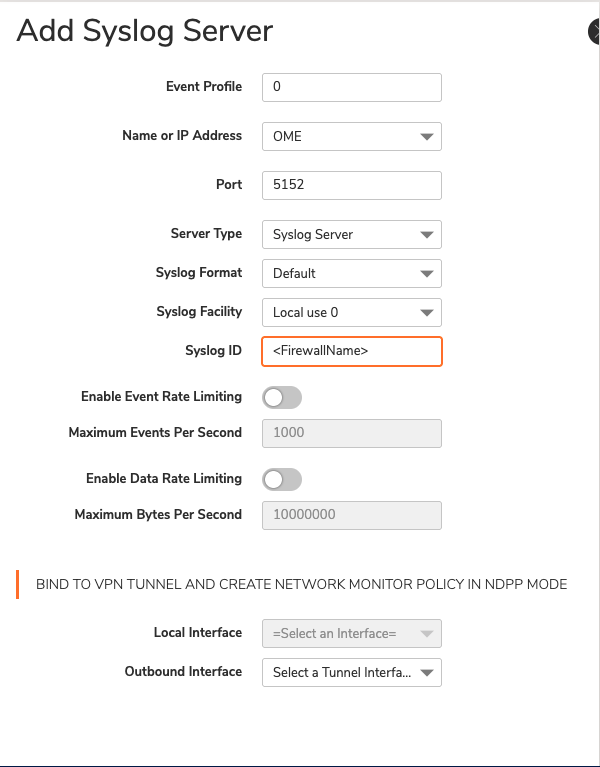
- Go to Device > Log > Syslog > Syslog Servers and click Add.
- Set the Syslog server name or IP address to that of the Realm Collector VM name or IP address.
- Enter the port number assigned to the Sonicwall stream found in the Realm console.
- Syslog ID: Specify your firewall's name or unique identifier.
- Click Add.