Appearance
Salesforce Event Monitoring Integration
Send Salesforce Event Monitoring Logs to Realm
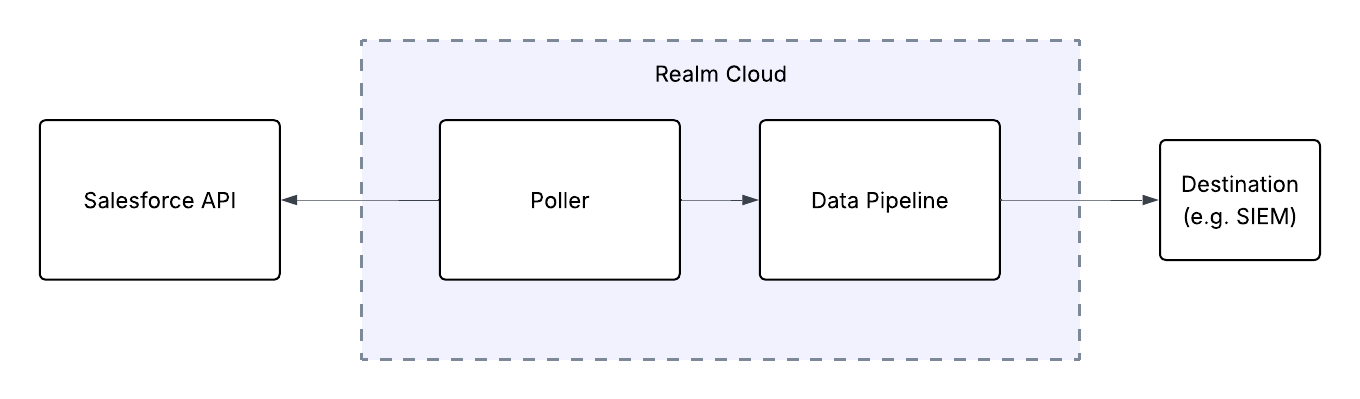
This guide walks you through connecting Salesforce Event Monitoring to Realm. The integration uses a polling-based approach — Realm Cloud periodically queries the Salesforce API to retrieve event log files, then forwards them through your data pipeline to your configured destination.
Realm supports the following Salesforce Event Monitoring log types:
- Login — user login history
- LoginAs — admin actions performed while logged in as another user
- Logout — user logout events
- URI — user interactions with the web browser UI
Prerequisites
- An active Salesforce account with administrator access
- Event Monitoring enabled for your Salesforce org (an additional Salesforce license may be required)
- Access to the Realm Security console
Enable Event Monitoring
Before setting up the integration, you must enable Event Monitoring in your Salesforce org.
Log in to Salesforce as an administrator.
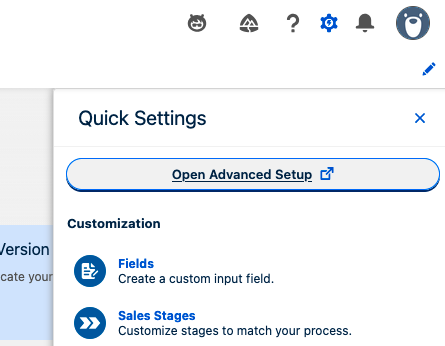
Click the gear icon in the top-right corner and select Setup.
Click Open Advanced Setup.
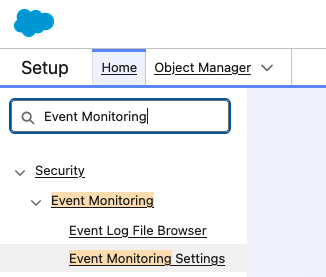
In the search box, enter Event Monitoring and click Event Monitoring Settings.
Enable the Generate event log files toggle to start collecting event log files.

Create an External Client App in Salesforce
Realm authenticates to the Salesforce API using an External Client App configured with the Client Credentials flow. Follow the steps below to create the app and collect the credentials needed by Realm.
Log in to Salesforce as an administrator.
Click the gear icon in the top-right corner and select Setup.
In the Quick Find box, search for External Client Apps and select External Client App Manager.
Click New External Client App.
Fill in the required fields:
External Client App Name:
Realm Event Monitoring
API Name:Realm_Event_Monitoring
Contact Email:<your admin email>Under OAuth Settings, enable Enable OAuth Settings.
Set the Callback URL to
https://login.salesforce.com/services/oauth2/callback(a placeholder is required by Salesforce; Realm uses client credentials and does not use a callback URL).Under Selected OAuth Scopes, add the following scopes:
Manage user data via APIs (api)Perform requests at any time (refresh_token, offline_access)
Enable Enable Client Credentials Flow.
Click Save.
Important: After saving, Salesforce will display the Consumer Key (Client ID) and Consumer Secret (Client Secret). Copy and save both values immediately — the Consumer Secret may not be shown again. You will need both values when configuring the integration in Realm.
- Note your Salesforce domain. This is the base URL visible in your browser address bar when logged in to Salesforce (for example,
https://mycompany.my.salesforce.com).
Assign Permissions to the External Client App
The External Client App must be granted the permissions required to read Event Log Files.
In Setup, search for Permission Sets in the Quick Find box and click Permission Sets.
Click New to create a new permission set.
Enter a label and API name:
Label:
Realm Event Monitoring
API Name:Realm_Event_MonitoringClick Save.
On the new permission set's page, click System Permissions.
Click Edit, then enable the following permissions:
- API Enabled
- View Event Log Files
Click Save.
Return to External Client App Manager, open the
Realm Event Monitoringapp, and navigate to Manage > Edit Policies.Under Client Credentials Flow, set Run As to a system user that has the
Realm Event Monitoringpermission set assigned. This user must have API access and the ability to view event log files.Click Save.
Configure the Integration in Realm
Create a new Source.
Name:
Salesforce Event Monitoring
Format:Salesforce Event MonitoringAdd a new Input feed.
Type:
Salesforce Event Monitoring
Salesforce Domain:<your Salesforce domain, e.g. https://mycompany.my.salesforce.com>
Client ID:<your Consumer Key>
Client Secret:<your Consumer Secret>Select the event types you want Realm to collect:
- Login
- LoginAs
- Logout
- URI
Click Save.
Once saved, the Realm poller will begin retrieving Salesforce Event Monitoring log files at regular intervals and forward them through your data pipeline to your configured destination.
Note: For more details on Salesforce Event Monitoring and available event types, refer to the Salesforce Event Monitoring documentation.