Appearance
Okta Integration
Send Logs from Okta to Realm Fabric
- Login to Okta as Administrator.
- Copy the base URL from the address bar. You will need to enter this in the Realm console.
- Click on Admin to log on to the admin portal.

- Click on Applications > Applications.
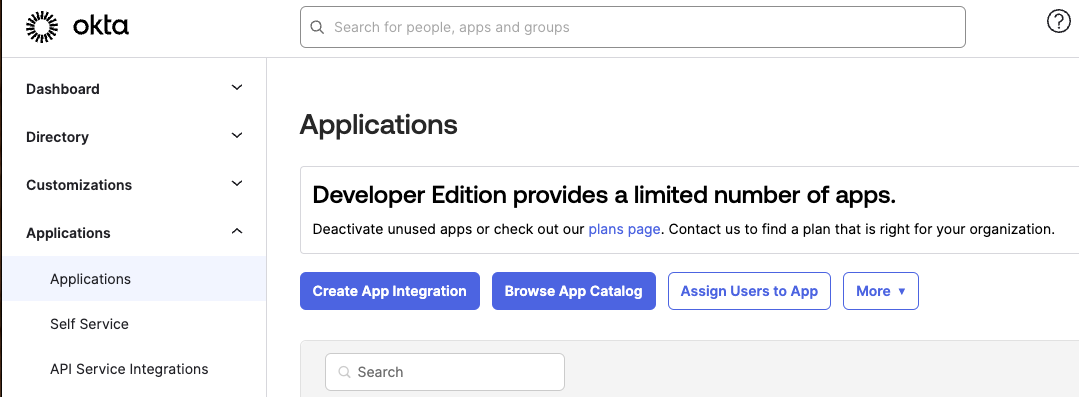
- Click on Create App Integration.
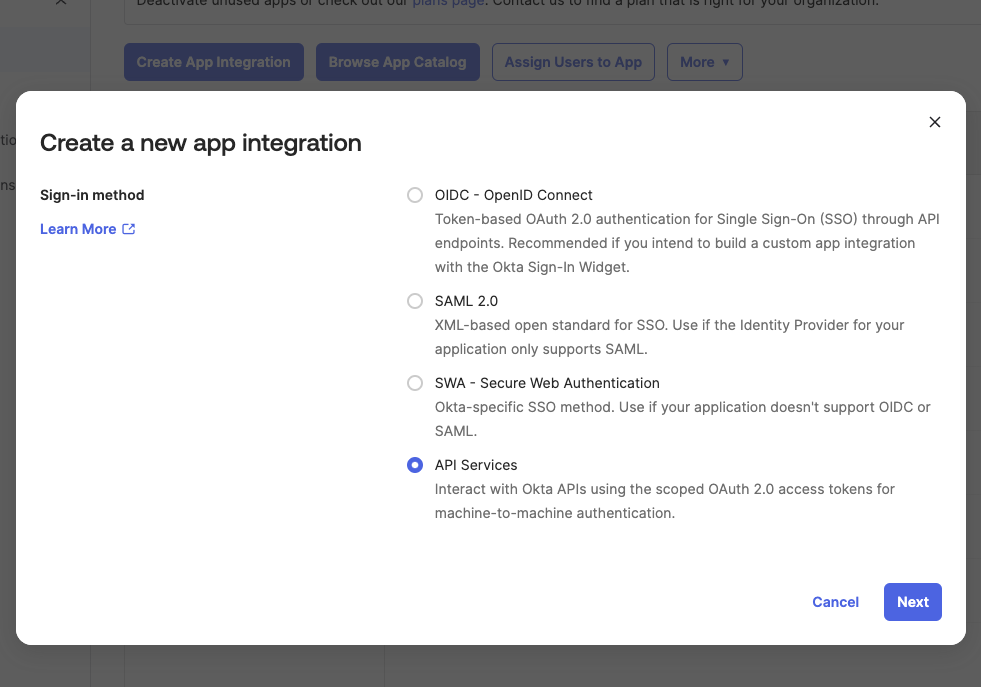
- Select API Services > Click Next.
- Enter a name for the integration:
Realm.Security
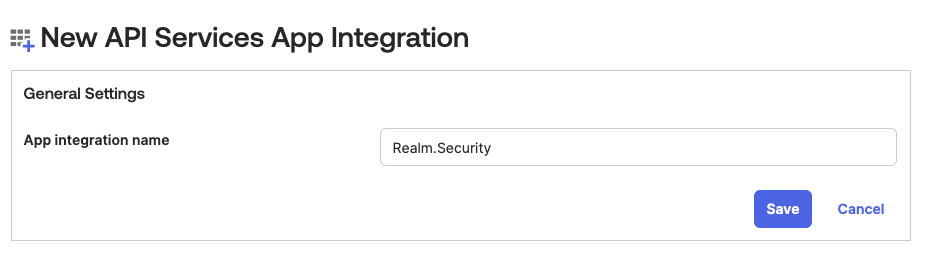
- Click Save.
- From the integration details page, click General > Client Credentials > Edit.
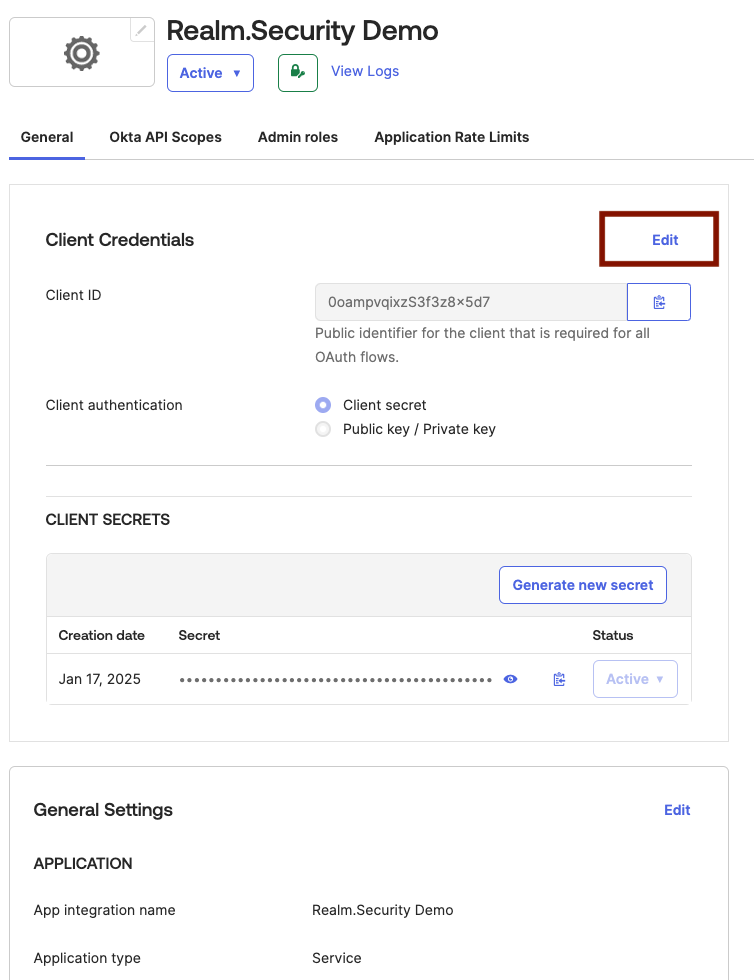
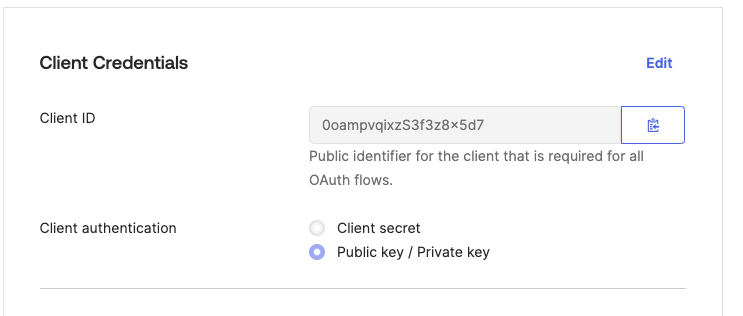
- Select Public Key / Private Key.
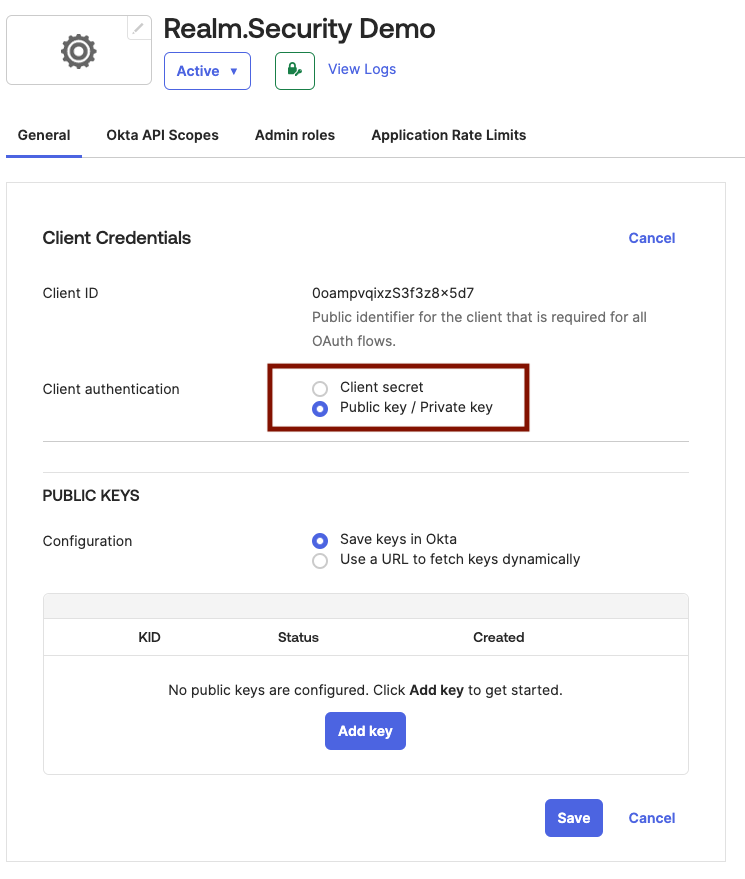
- Click Add Key.
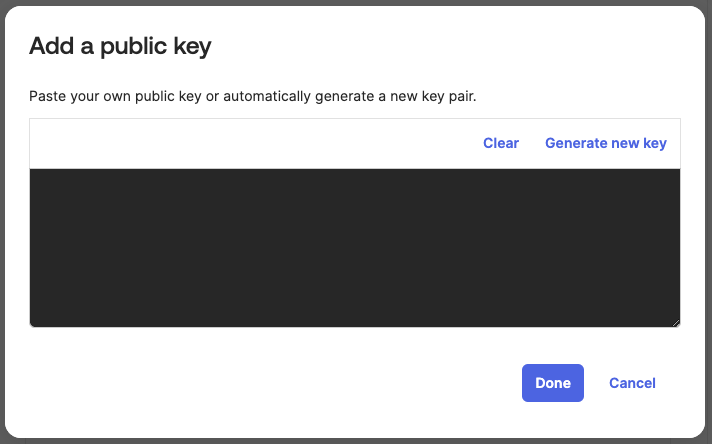
- Click Generate new key.
- Under Private key > JSON, click Copy to clipboard.
Important: Save this private key somewhere safe — you will not be able to view it again. You will need to paste this key in the Realm Security console.
- Click Done.
- Click Save.
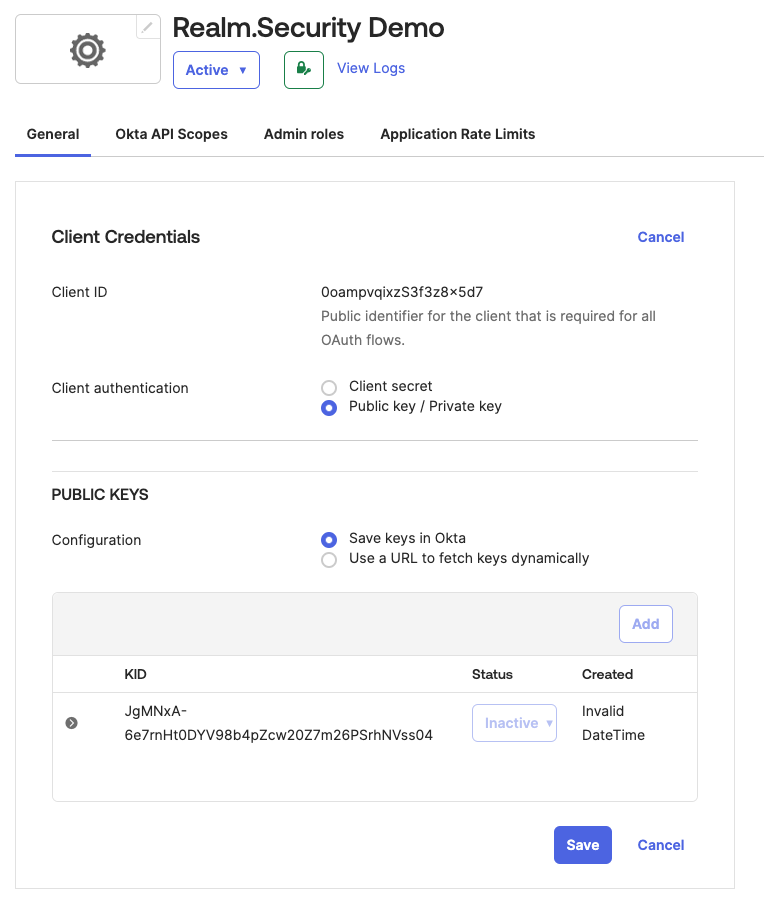
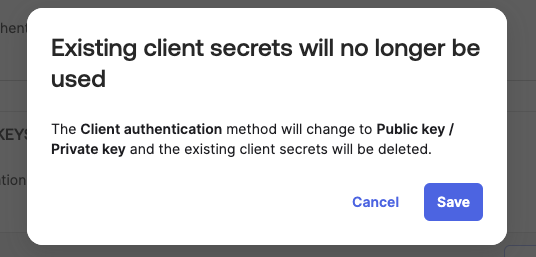
- Click Save in the confirmation dialog box.
- Copy the Client ID and save it somewhere safe. You will need to enter it in the Realm Security console.
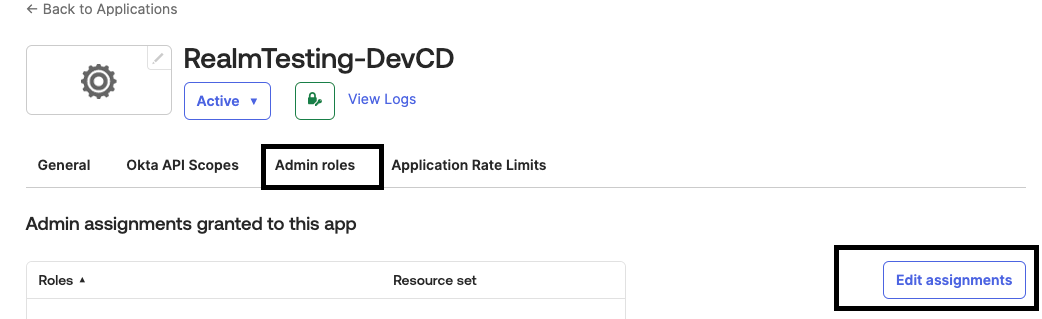
- Assign a read-only admin role to the app that was just created.
Click the Admin Roles tab > Edit Assignments.
Select the Administrator Read Only role.
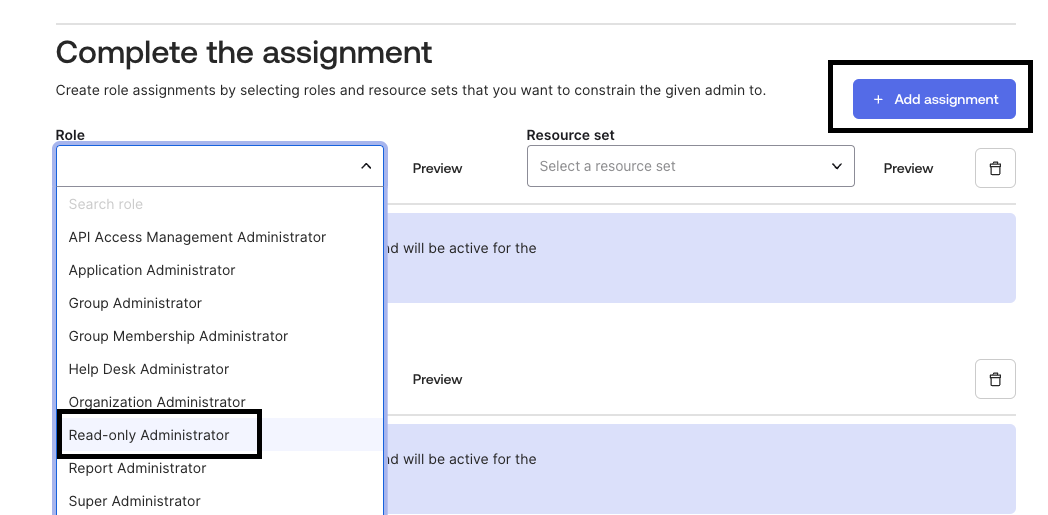
- Click Save changes.
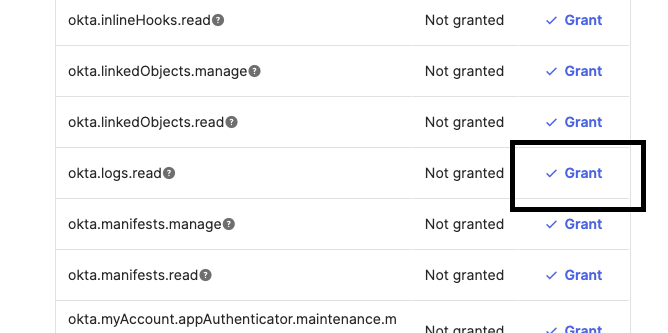
- Grant the app the
okta.logs.readscope. - Click the Okta API Scopes tab.
- Find the scope
okta.logs.readin the Scope column and select Grant.
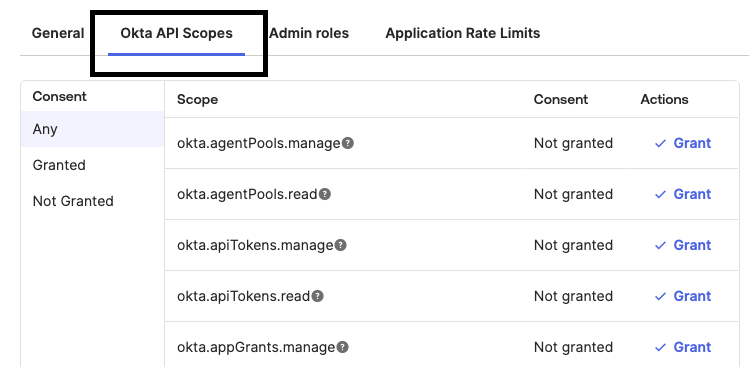
- Select Grant Access on the confirmation pop-up.