Appearance
Google Cloud Integration
Configuring Google Cloud Storage as Destination
Realm Security supports integration with Google Cloud Storage as a destination. This guide provides instructions for configuring Google Cloud Storage to receive data from Realm.
Step 1: Create GCS Bucket
- Login to the GCS console.
- Navigate to Cloud Storage > Buckets > Create Bucket.
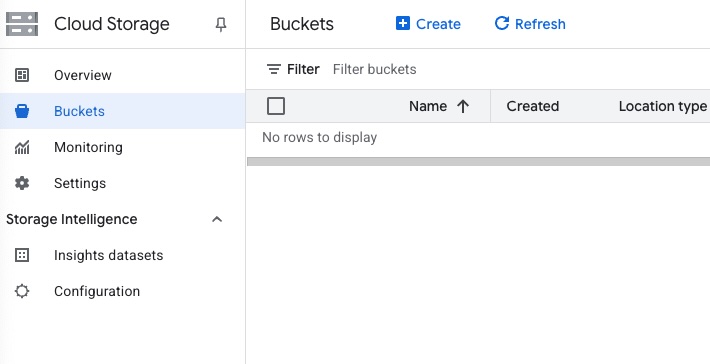
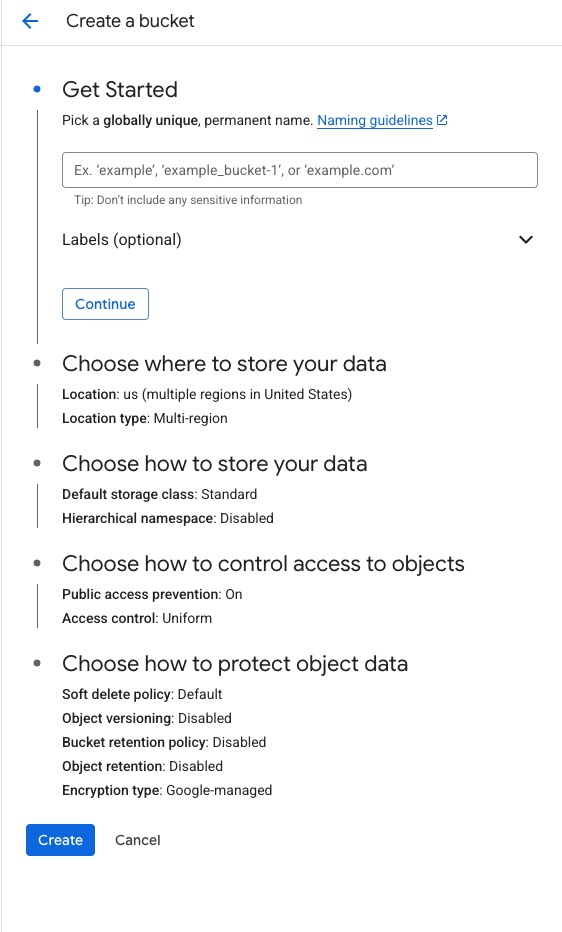
- Enter a name for the bucket, for example:
Realm-Archive. - Select Standard storage.
- Click Create.
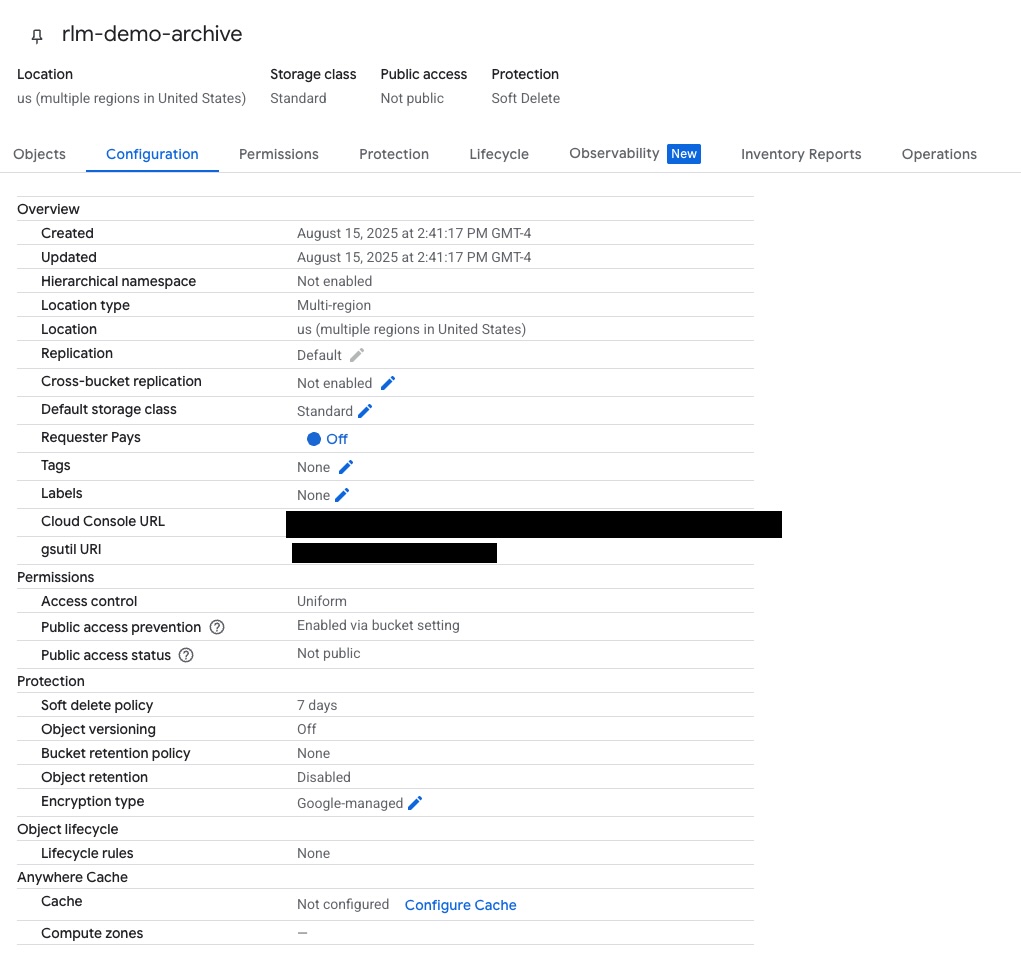
- Review the bucket configuration.
Step 2: Create a Service Account
Note: Realm does not support the legacy P12 secret, please ensure you are creating a JSON GCP Service Account Key.
- Go to IAM > Service Accounts.
- Click Create Service Account.
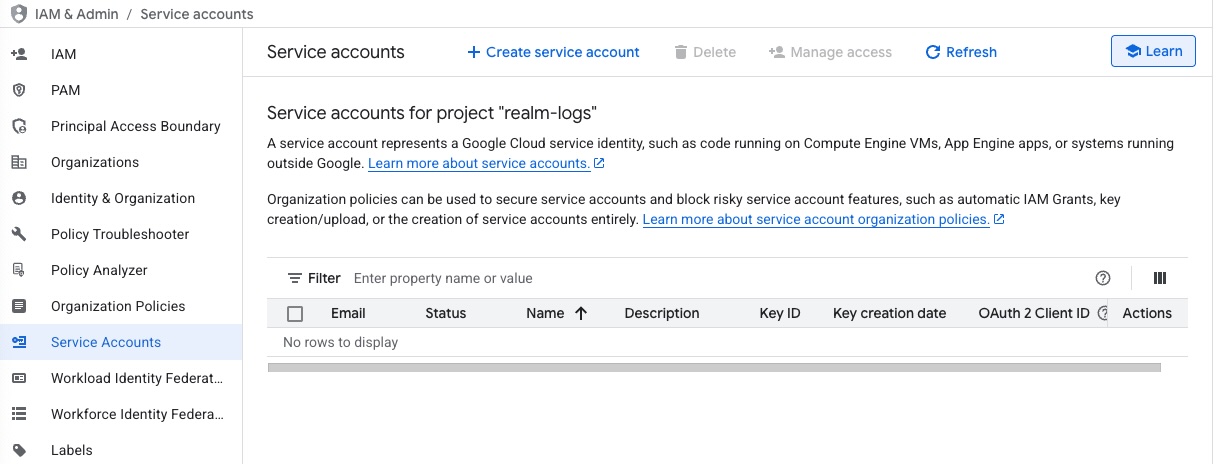
- Enter a name for the service account:
Name:
realm-archive-account - Click Create and Continue.
- Grant permission to write to the bucket:
- Add role > Cloud Storage > Storage Object Creator
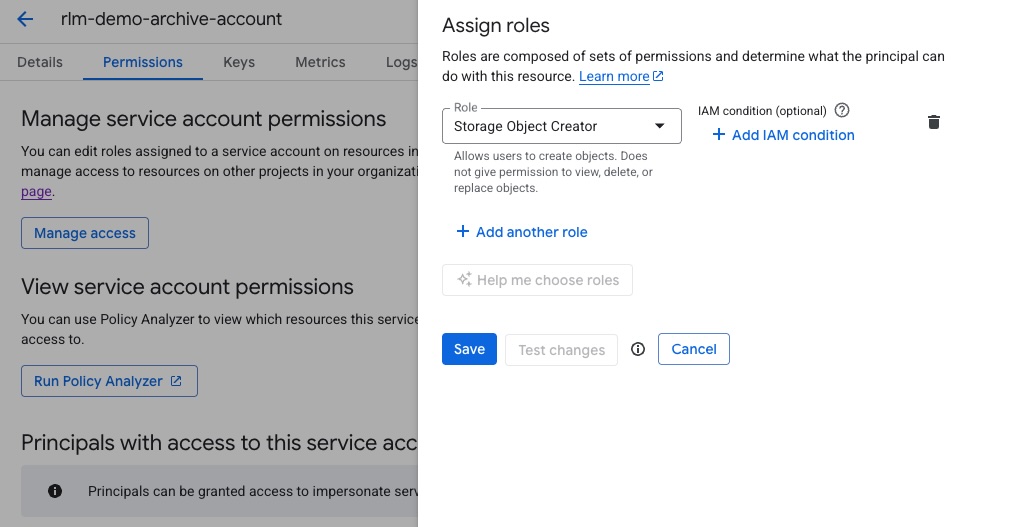
- Add an IAM condition to restrict access to just one bucket:
text
resource.service == "storage.googleapis.com" &&
resource.name.startsWith("projects/_/buckets/REPLACE_WITH_BUCKET_NAME")- Select the service account.
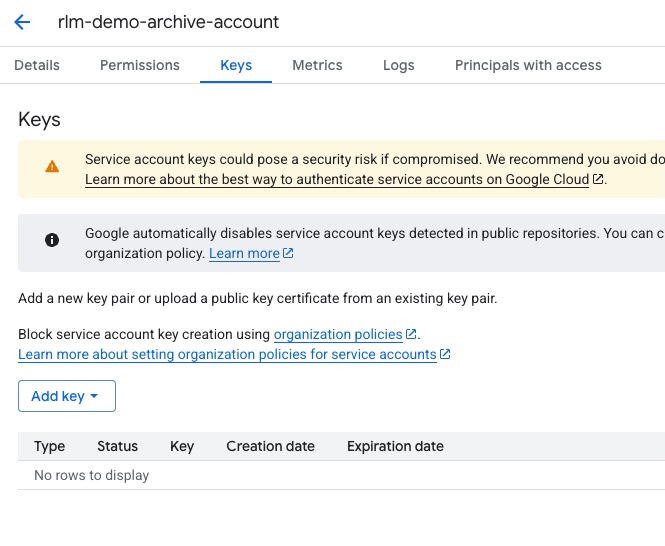
- Go to Keys > Create Key > JSON.
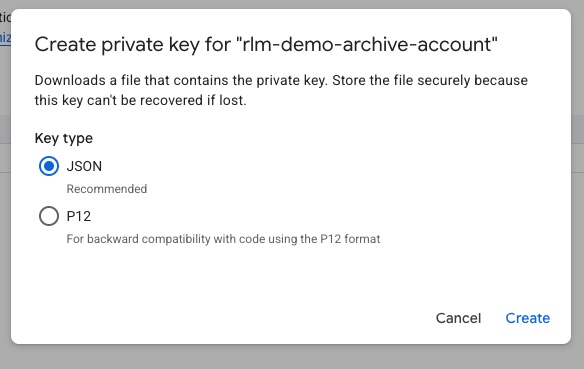
- Click Create. The service account key will be downloaded to your local machine. Open the key in a text editor, select all contents, and copy to clipboard.
Step 3: Create a Destination in Realm for GCS Archive
- Navigate to Destinations > Add Destination.
Name:
ArchiveType:Data Lake - Under Destinations, select Add New Source.
- Connect the relevant log source (e.g., FortiGate, Azure, etc.) to the destination.
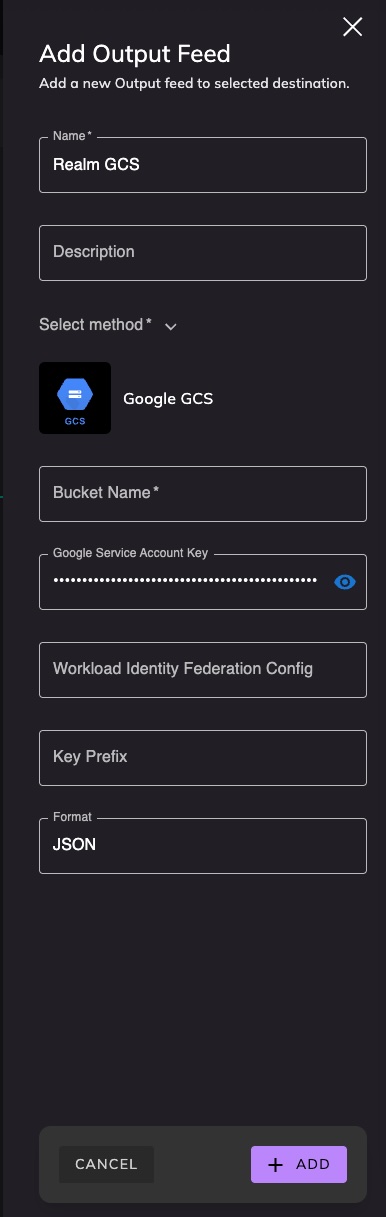
- Go to Output Feeds > Add Output Feed.
- Choose GCS output feed.
Name:
GCS ArchiveBucket Name: Enter the name of the bucket created above Service Account Key: Paste the service account key copied earlier