Appearance
Tailscale
Realm supports ingesting streamed from Tailscale.
Prerequisites
- Access to the Realm console.
- Access to your Tailscale console and have the necessary permissions to configure log streaming.
Realm Console
This sections walks through how to configure the Tailscale integration in the Realm Console.
Configure Source
- In the Realm console, navigate the Sources.
- Click Add Source and select Custom (JSON).
- Give the new source a name and description.
Configure the Input Feed
- In the newly created source, click Add to the create a new input feed.
- Give the input feed a name and description, then select the Splunk Hec transport method. Leave the token section blank as Realm will auto generate one for you.
- After creating the input feed, select the input feed and click Edit.
- Copy the host name and auto generated token as both will be needed when configuring log streaming in the Tailscale console.
Tailscale: Configure Log Streaming
- In your Tailscale console, navigate to Logs page. The process for configuring the streaming of Configuration logs and Network flow logs is the same, so you can repeat these steps for both.
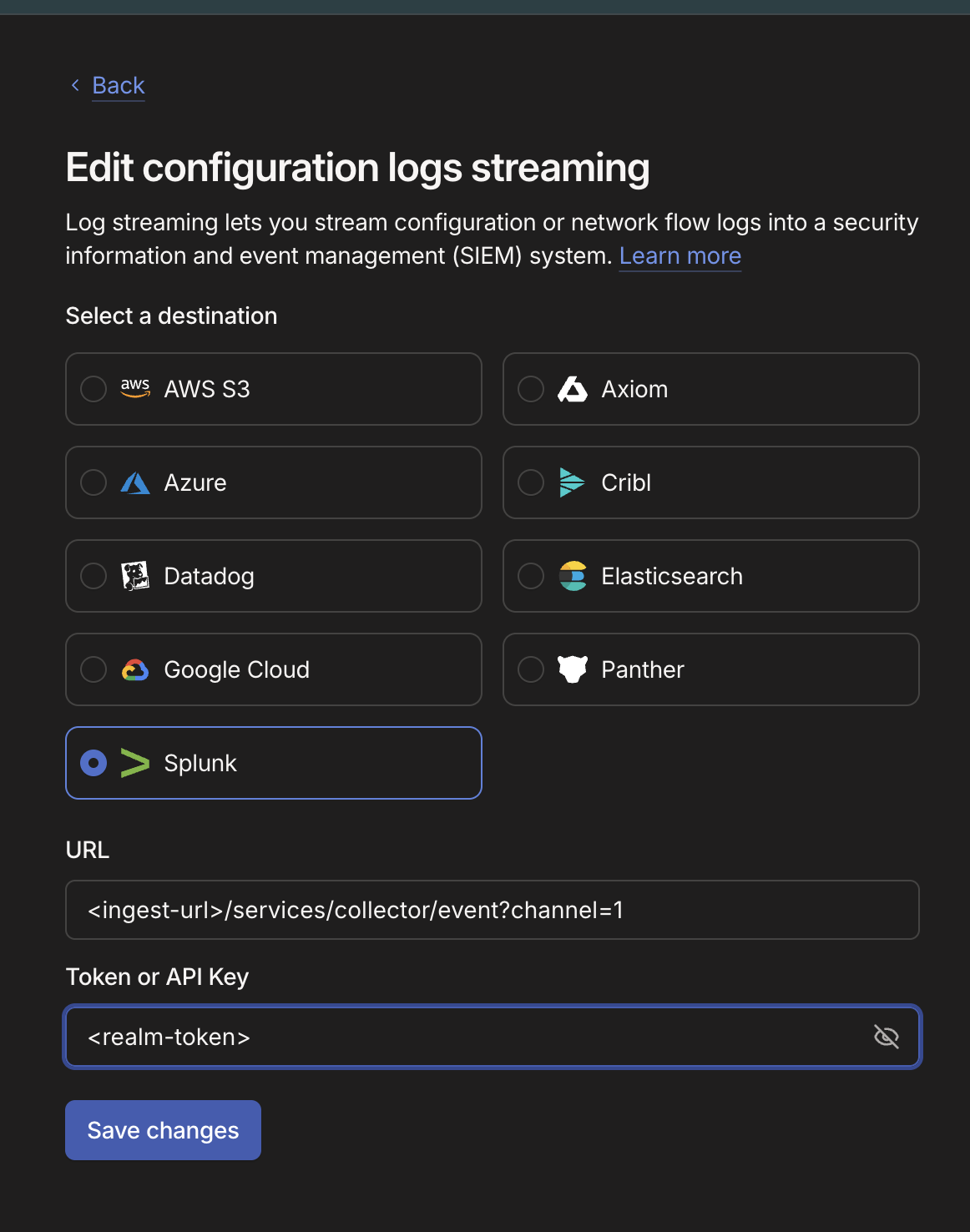
- Click on Actions and then select edit.
- Select Splunk and fill in the URL and token field with the values from the Realm console. Note You will need to append
/services/collector/event?channel=1to the end of the Realm provided URL. - Click Save Changes.
Troubleshooting
If in the Tailscale console you see a Bad Auth error on the first attempt, this has been observed as a transient error on the initial setup and will go away on the next attempt. If the issue persists, contact Realm support.