Appearance
Zscaler ZPA Integration
Send Zscaler ZPA Logs to Realm
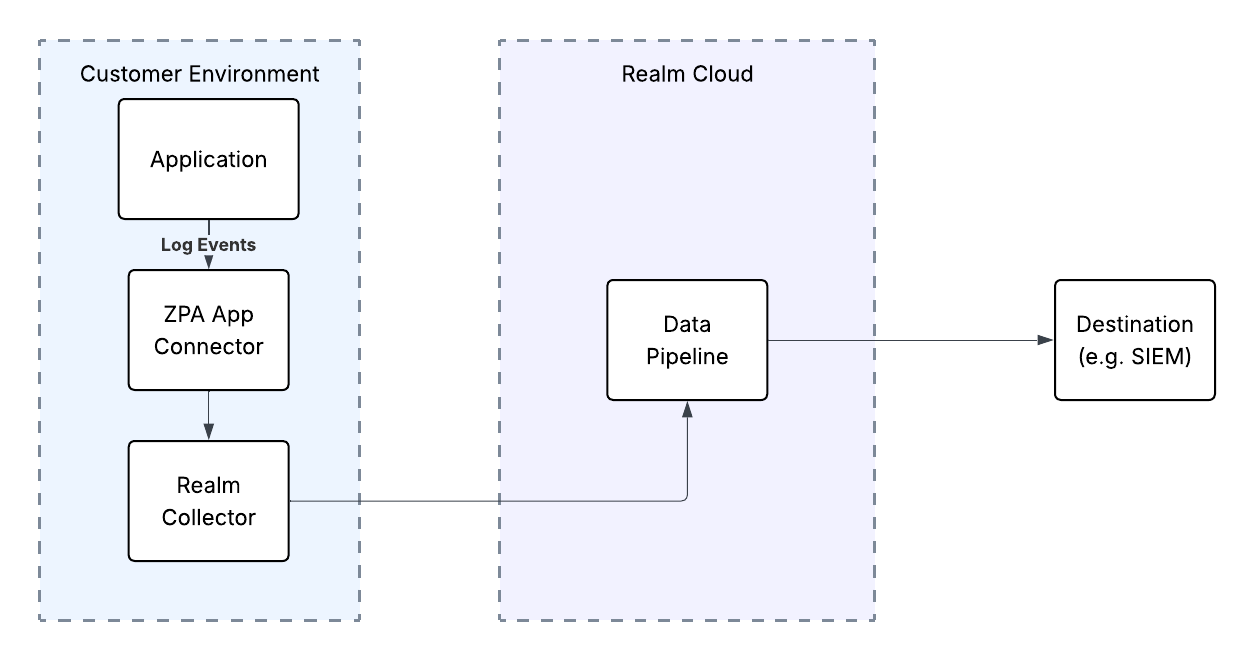
This guide walks you through connecting Zscaler Private Access (ZPA) to Realm. The integration uses a push-based approach — ZPA's Log Streaming Service (LSS) streams access and activity logs to the Realm Collector, which forwards them through your data pipeline to your configured destination.
Data Flow:
text
ZPA Cloud (LSS) > Realm Collector (on-prem) > Realm Cloud BackendPrerequisites
- Active Zscaler ZPA tenant with Super Admin or Admin access.
- Access to the Realm Security console.
- A Realm Collector deployed and reachable from ZPA's Log Streaming Service. See the Realm Collector install guide for setup instructions.
- Realm Collector IP address or FQDN — this is needed when configuring the ZPA Log Receiver.
Configure the Integration in Realm
Step 1: Create a Source
- Log in to the Realm console.
- Go to Sources > Add and select Zscaler ZPA.
Name:
Zscaler ZPA
Description:Zscaler ZPA access and activity logs - Click Save.
Step 2: Add a Stream to Your Collector
- Go to Collectors and select your collector. If you don't have one set up yet, go to Collectors > Add and give it a name and description.
- Click Add Stream and configure it with the following values:
Product Format:
Zscaler ZPA
Source:Zscaler ZPA - Click Add Stream.
- To view the assigned port for the ZPA stream, click VIEW PORTS. Copy the port number — you will need it when configuring the ZPA Log Receiver in the next section.
Configure a Log Receiver in Zscaler ZPA
ZPA's Log Streaming Service (LSS) streams logs to an external receiver. You'll configure a Log Receiver in the ZPA Admin Portal to point at your Realm Collector.
- Log in to the ZPA Admin Portal.
- Navigate to Configuration > Connectors > Log Streaming Service.
- Click Add Log Receiver.
- On the Log Receiver configuration page, enter the following:
Name:
Realm Security
Log Receiver Domain or IP Address:<Realm Collector IP or FQDN>
TCP Port:<port number from the Realm console>
TLS: Disabled (recommended) - Under Log Template, choose the log format:
Log Format:
JSON - Under Log Stream Content, select the log types you want to forward to Realm. Supported log types include:
- User Activity — records of user application access events
- User Status — ZPA Client Connector tunnel and authentication status
- Browser Access — browser-based private app access events
- App Connector Status — health and status events for App Connectors
- Private Service Edge Status — health and status events for Private Service Edges
- Audit Logs — administrative audit trail for the ZPA tenant
- Click Save.
Note: For full details on Log Receiver fields and available options, refer to the Zscaler ZPA Log Streaming Service documentation.
Once saved, ZPA's LSS will begin streaming logs to your Realm Collector at the configured IP and port.
Support
For additional details, refer to the official Zscaler ZPA documentation.
If you encounter any issues or require assistance, contact Realm Security support.