Appearance
Zscaler NSS Cloud Splunk Integration
Zscaler NSS Cloud supports sending log data to configured destinations using format strings to format data into the correct schema for a given SIEM/Data store. This guide covers streaming Zscaler NSS Cloud logs to Realm for delivery to Splunk.
Note: This guide covers the Zscaler NSS Cloud based appliance streaming to Splunk. If you're using NSS VM, or sending to Microsoft Sentinel or CrowdStrike instead, see the Zscaler NSS guide.
Data Flow:
text
Zscaler (Cloud based) NSS > Realm Cloud BackendPrerequisites
- Ensure you have administrative access to your Zscaler NSS Cloud console.
- Cloud NSS allows only one feed per log type per instance. If you're already streaming a given log type elsewhere (e.g. to another SIEM), you'll need a second Cloud NSS instance for Realm. To set this up, reach out to your Zscaler account team and request an additional Cloud NSS feed.
Realm: Setup Zscaler NSS Cloud Splunk Source
- Login to Realm console.
- Go to Sources > Add > Zscaler NSS Cloud Splunk and add a new Source.
Name:
Zscaler NSS Cloud.. Description:Zscaler NSS Cloud logs.. - Select Cloud HTTP, and give the input feed a name and description.
- You can provide your own token, if not, a token will be generated on creation of the feed.
- Copy your token and HTTP URL, as this will be used to configure your Zscaler NSS Cloud feeds.
Zscaler: Setup NSS Cloud feed
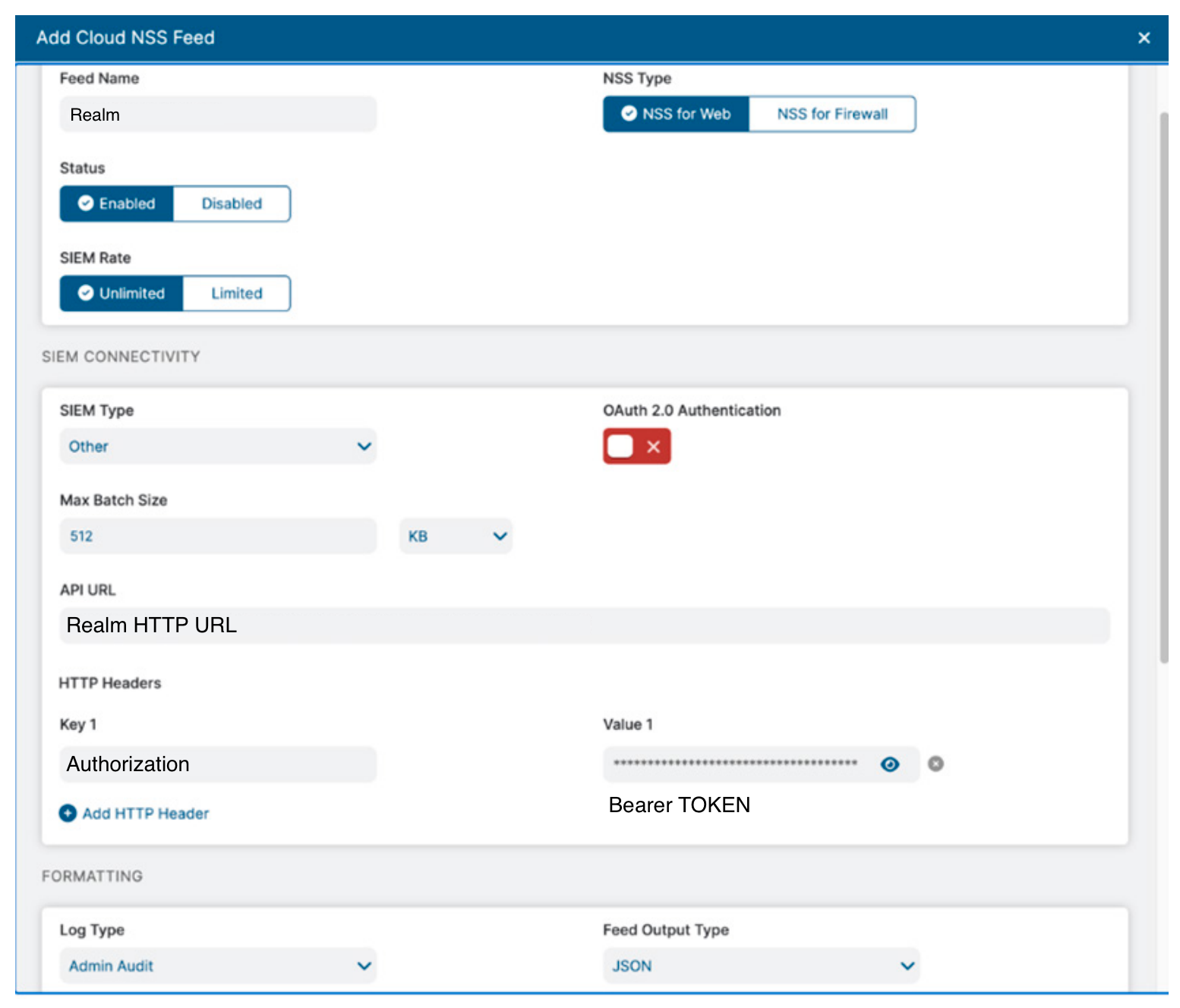
Use the following values:
Feed Name: Name of the feed
NSS Type: Select type
SIEM Destination Type:
Splunk CIM
API URL: Enter HTTP URL from Realm console
HTTP Headers: Set the key to
Authorizationand set the value toBearer {Realm Token}
Log Type: Choose the log type corresponding to the NSS feed you are setting up (Web, Firewall, etc.)
Feed Output Type:
JSONNote: If creating a Zscaler NSS Web feed, select other and use the format string below.
Feed Output Format: All but Zscaler NSS web logs will require usage of a format string. When creating the Zscaler NSS Web feed, use the following format string:
text
\{ "sourcetype" : "zscalernss-web", "event" : \{"datetime":"%d{yy}-%02d{mth}-%02d{dd}
%02d{hh}:%02d{mm}:%02d{ss}","reason":"%s{reason}","event_id":"%d{recordid}","protocol
":"%s{proto}","action":"%s{action}","transactionsize":"%d{totalsize}","responsesize":
"%d{respsize}","requestsize":"%d{reqsize}","urlcategory":"%s{urlcat}","serverip":"%s{
sip}","clienttranstime":"%d{ctime}","requestmethod":"%s{reqmethod}","refererURL":"%s{
ereferer}","useragent":"%s{eua}","product":"NSS","location":"%s{elocation}","ClientIP
":"%s{cip}","status":"%s{respcode}","user":"%s{elogin}","url":"%s{eurl}","vendor":"Zs
caler","hostname":"%s{ehost}","clientpublicIP":"%s{cintip}","threatcategory":"%s{malw
arecat}","threatname":"%s{threatname}","filetype":"%s{filetype}","appname":"%s{appname}
","pagerisk":"%d{riskscore}","department":"%s{edepartment}","urlsupercategory":"%s{ur
lsupercat}","appclass":"%s{appclass}","dlpengine":"%s{dlpeng}","urlclass":"%s{urlclas
s}","threatclass":"%s{malwareclass}","dlpdictionaries":"%s{dlpdict}","fileclass":"%s{fi
leclass}","bwthrottle":"%s{bwthrottle}","servertranstime":"%d{stime}","contenttype":"
%s{contenttype}","ssldecrypted":"%s{ssldecrypted}","unscannabletype":"%s{unscannablet
ype}","md5":"%s{bamd5}","deviceowner":"%s{deviceowner}","devicehostname":"%s{deviceho
stname}"\}\}
Note: Ensure that OAuth 2.0 Authentication has been disabled.
Support
For additional details, refer to the official Zscaler NSS documentation.
If you encounter any issues or require assistance, contact Realm Security support.