Appearance
Custom Roles
Overview
Welcome to Realm.Security Custom Roles, the feature that lets you scope user access down to specific Sources and Destinations within your data fabric.
What do Custom Roles do? Custom Roles applies Attribute-Based Access Control (ABAC) on top of Realm's existing role structure, so a user only sees and interacts with the pipeline objects relevant to their team, rather than the entire fabric.
Access and Role Onboarding
Prerequisites
To create and assign Custom Roles, you must have the Super Admin role assigned to your account.
UI Location: Custom Roles are managed from Settings > User management > Roles.
Base Permission Sets
Every custom role is built on top of one of Realm's existing permission sets. When you create a role, you select a base set and then narrow it to specific Sources and Destinations.
| Base Permission Set | Description |
|---|---|
| Analyst | Can manage rules, input/output feeds, and can search and resupply from Data Haven. |
| Optimization Analyst | Can manage log optimization rules only. |
| Data Haven Analyst | Can search and resupply data from Data Haven only. |
| Read Only | Read-only access. |
See a permission set missing for your organization? Reach out to your Customer Success team to request additional options.
Creating a Custom Role
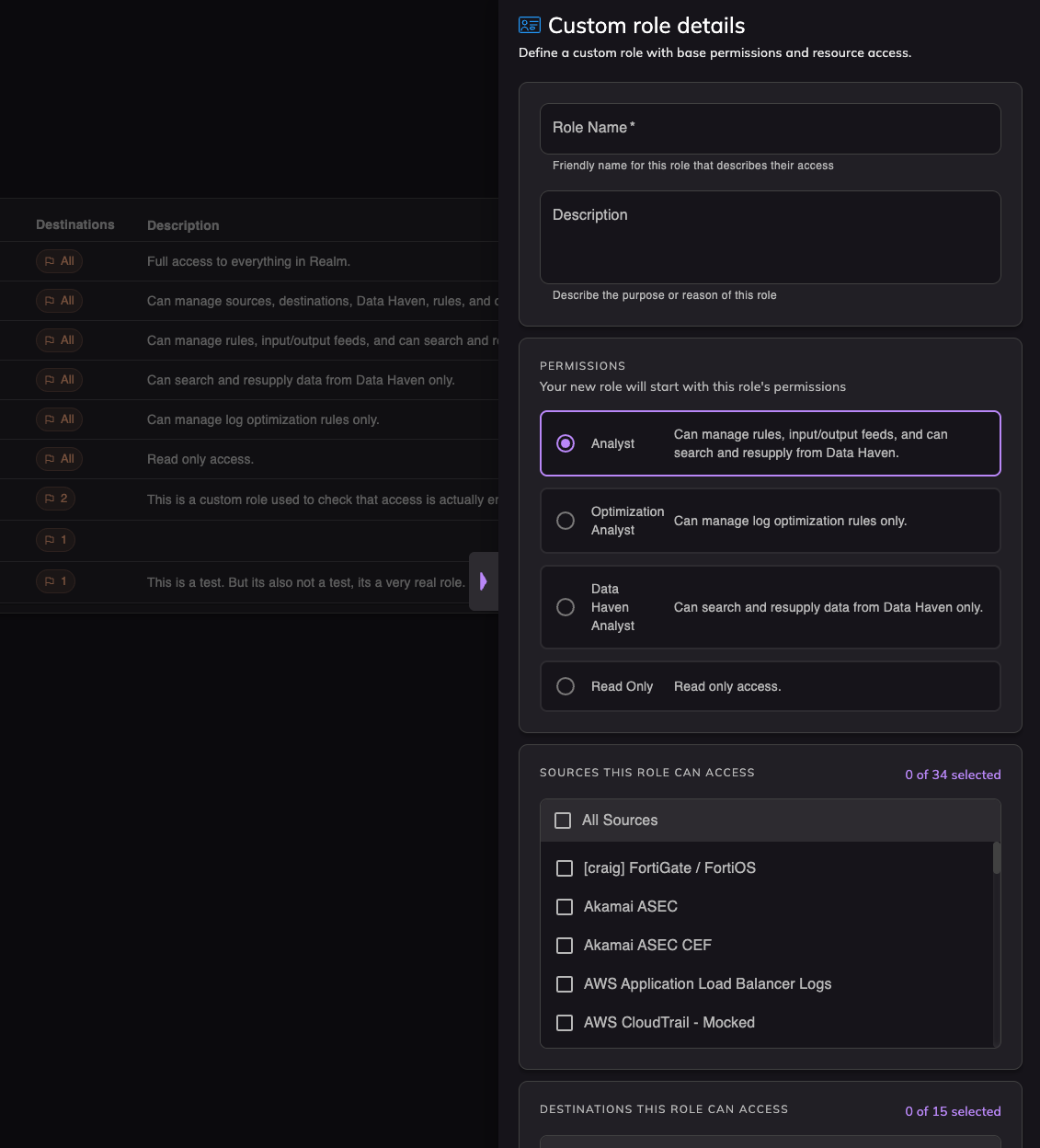
- Name the Role: Navigate to Settings > Users and Roles > Roles and select "Add Role." Give the role a descriptive name (e.g., SOC Analyst - EMEA).
- Choose a Base Permission Set: Select a base permission set (e.g., Analyst or Read Only) as the starting point for the role.
- Scope the Role: Select the specific Sources and Destinations this role should be able to see and interact with.
- Save the Role: Once saved, the role is available to assign to any user in your organization.
- Assign Users: From Settings > Users, assign team members to the new role. Users assigned to a scoped role will only see the data and configuration tied to their role.
Scope and Visibility
Custom Roles hides unauthorized resources from the interface entirely, rather than simply disabling them. This keeps each user's view focused on what they're responsible for and avoids confusion over objects they can't act on.
- Full Pipe Requirement: To configure or affect a pipeline connection, a user needs access to both the Source and the Destination involved. Access to only one end of the pipe lets a user view and work with that object, but they won't be able to complete or affect the connection until both ends are in scope.
- Homepage and Metrics: Ingest volume, reduction percentage, and optimization metrics on the homepage and throughout the platform are scoped to the Sources and Destinations a user has access to. Users only see numbers relevant to what they can influence.
- Enrichments: Users can only view and configure enrichments for the Sources they have access to.
- Resupply History: As an exception, users can see that a resupply request exists even if it involves a Source outside their scope. They will not see the underlying data or any details of that resupply, only that a request was made.