Appearance
Linear Audit Logs Integration
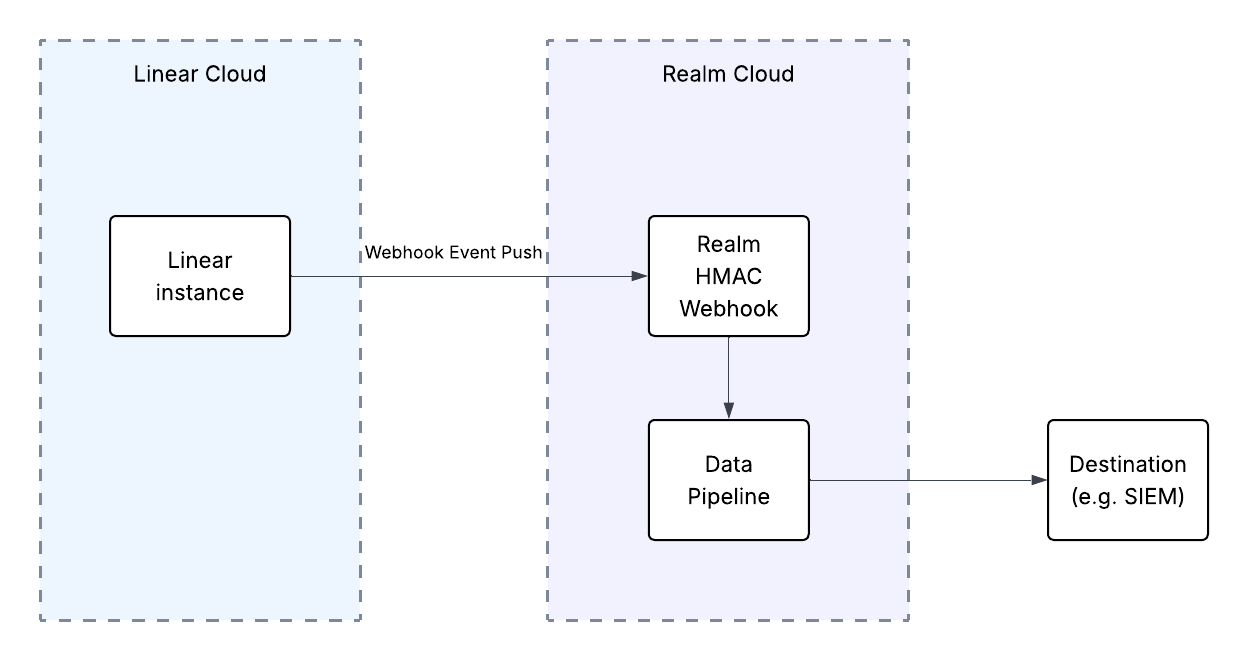
Send Linear Audit Logs to Realm
This guide walks you through connecting Linear audit logs to Realm. The integration uses a webhook push — Linear sends audit log events to a webhook input feed exposed by Realm, which then forwards them through your data pipeline to your configured destination.
Note: Linear generates the webhook signing secret and does not let you set your own. Because of this, setup runs in three phases: create the webhook in Linear to obtain the secret, create the Realm input feed using that secret, then update the Linear webhook with the URL Realm generates.
Prerequisites
- A Linear workspace admin account with permission to create webhooks.
- Access to the Realm Security console.
- A publicly trusted TLS certificate on the Realm input feed (set to Public in the steps below). Linear will not deliver to endpoints with self-signed or private certificates.
1. Linear: Create the Webhook
- Log in to Linear as a workspace admin.
- Navigate to Settings > API > Webhooks and click New webhook.
- Enter a placeholder URL (for example,
https://example.com). You will replace this with the Realm URL in step 3. - Select the audit log events you want to send, then click Create webhook.
- Copy the Signing secret displayed for the webhook.
Important: Copy and save the signing secret now. You will need it to create the Realm input feed.
2. Realm: Create the Input Feed
Log in to the Realm Security console.
Create a new Source for Linear:
Name:
Linear Audit Logs
Format:Linear Audit LogsAdd a new Input Feed to the source:
Type:
Cloud HTTP
Authentication Method:HMAC
Webhook Secret:<signing secret from Linear>
HMAC Signature Header:Linear-Signature
TLS Issuer:PublicSave the input feed and copy the URL that Realm generates.
3. Linear: Update the Webhook URL
- In Linear, return to Settings > API > Webhooks and open the webhook you created.
- Replace the placeholder URL with the Realm input feed URL.
- Click Save.
Once saved, Linear will begin pushing audit log events to Realm.
Troubleshooting
If events are not arriving in Realm:
- Confirm the webhook URL in Linear exactly matches the URL shown for the input feed in Realm.
- Confirm the Signature Header is set to
Linear-Signatureand the secret matches the Linear signing secret. Requests that fail HMAC validation are rejected. - Confirm the input feed's TLS certificate is set to Public.