Appearance
Jenkins Logs via OpenTelemetry Integration
Send Jenkins Logs to Realm via OpenTelemetry
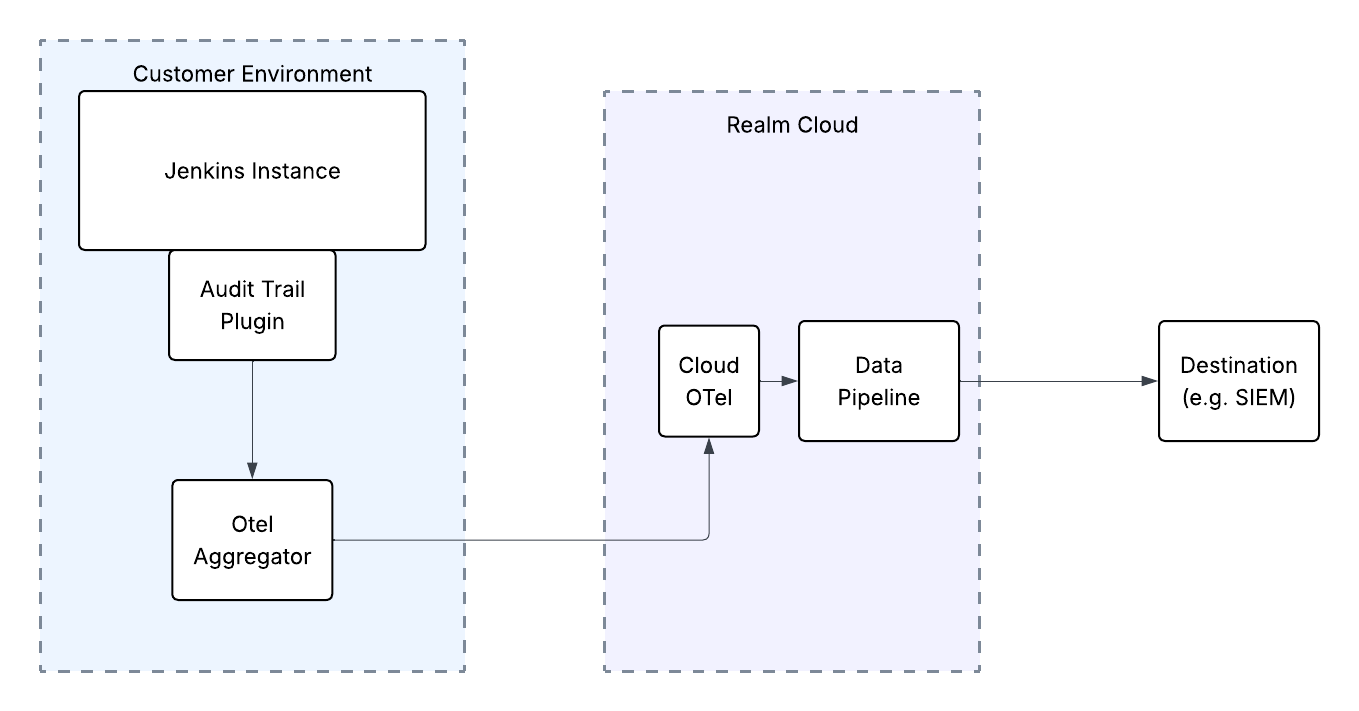
This guide walks you through forwarding Jenkins logs to Realm using OpenTelemetry. The Audit Trail plugin writes audit events to a log file on the Jenkins host. Your existing OpenTelemetry Collector tails that file and forwards the log records to a Realm Cloud OTLP input feed, which then routes events through your data pipeline to your configured destination.
Note: This guide assumes you already have an OpenTelemetry Collector (or compatible aggregator) deployed and reachable from your Jenkins host. Collector installation and general OTel setup are outside the scope of this guide.
Prerequisites
- Active Jenkins instance with administrator access.
- Access to the Realm Security console.
- The Audit Trail plugin installed on your Jenkins instance (Manage Jenkins > Plugins > Available plugins, search for
Audit Trail). - An OpenTelemetry Collector (or compatible aggregator) already deployed with access to the Jenkins host filesystem, or to a shared log path.
Configure the Integration in Realm
- Log in to the Realm console.
- Go to Sources > Add and create a new Source.
Name:
Jenkins OTLP
Format:Jenkins OTLP - Add a new Input Feed to the source and select Cloud OTLP as the input feed type.
- Give the input feed a name.
- Enter a token if you have one or leave it empty to have the system generate a random token for you. The Cloud OTLP input feed requires Bearer token authentication.
- Click Save.
- Click
...> Edit on the newly created input feed. - Click the eye icon in the token field to view the token value.
- Copy the connection details:
OTLP Endpoint: the Realm-provided OTLP ingestion URL (e.g.
https://<feed-id>.<account-id>.cloud.ingest.realmsec.net)
Token: the Bearer token for the input feed
Important: Copy and save the Endpoint URL and Token — you will need both when configuring your OpenTelemetry Collector.
Configure the Audit Trail Plugin in Jenkins
The Audit Trail plugin must be set to write events to a log file that your OpenTelemetry Collector can read.
- In Jenkins, go to Manage Jenkins > System.
- Scroll to the Audit Trail section.
- Under Loggers, click Add Logger and select Log File.
- Configure the log file output:
Log Location:
<path to audit log file>(e.g./var/log/jenkins/audit.log)
Log File Size (MB):100(or a value appropriate for your environment)
Log File Count:5(or a value appropriate for your environment) - Click Save.
Jenkins will now write audit events — user actions, job triggers, configuration changes, and credential access — to the specified log file in a structured text format.
Note: Ensure the log file path is readable by the user account running your OpenTelemetry Collector, or use a shared path both processes can access.
Configure the OpenTelemetry Collector
Update your existing OpenTelemetry Collector configuration to tail the Jenkins audit log file and export records to Realm's OTLP endpoint.
Note: The Cloud OTLP input feed for realm expects data at the HTTP endpoint, not GRPC
Note: The Cloud OTLP input feed requires Bearer token authentication. Configure the Collector's OTLP/HTTP exporter to send the token in the
Authorizationheader, for example:
yaml
exporters:
  otlphttp/realm:
    endpoint: https://<feed-id>.<account-id>.cloud.ingest.realmsec.net
    headers:
      Authorization: "Bearer <token>"
After updating the config, reload or restart your OpenTelemetry Collector to apply the changes.
Verifying Delivery
Once the Collector is reloaded, perform a test action in Jenkins (e.g. trigger a build or update a configuration) to generate an audit event. Then verify ingestion in the Realm console by checking the activity on the Jenkins OTLP input feed.
Note: For more details on the events captured by the plugin, refer to the Jenkins Audit Trail plugin documentation.
Support
If you encounter any issues or require assistance, contact Realm Security support.