Appearance
Stripe Activity Logs Integration
Send Stripe Activity Logs to Realm
This guide walks you through connecting Stripe to Realm. The integration uses a polling-based approach — Realm Cloud periodically queries the Stripe API to retrieve activity log events, then forwards them through your data pipeline to your configured destination.
Prerequisites
- An active Stripe account with access to the Developers section of the Stripe Dashboard.
- Access to the Realm Security console.
1. Stripe: Generate a Restricted API Key
Realm authenticates to Stripe using a restricted API key, scoped to only the permissions needed to retrieve activity log data. Do not use a standard secret key for this integration.
Log in to the Stripe Dashboard.
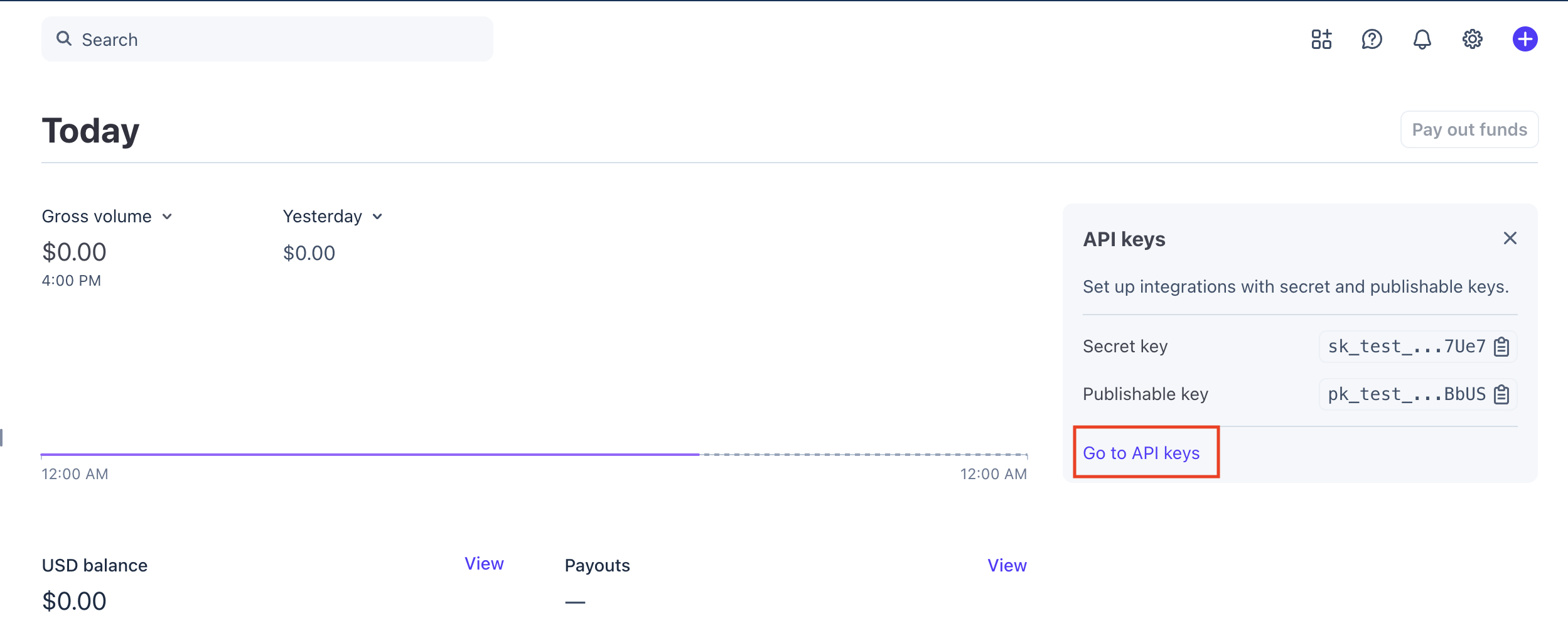
Navigate to Developers > API keys. You can also click Go to API keys in the API keys panel on the Dashboard home page.
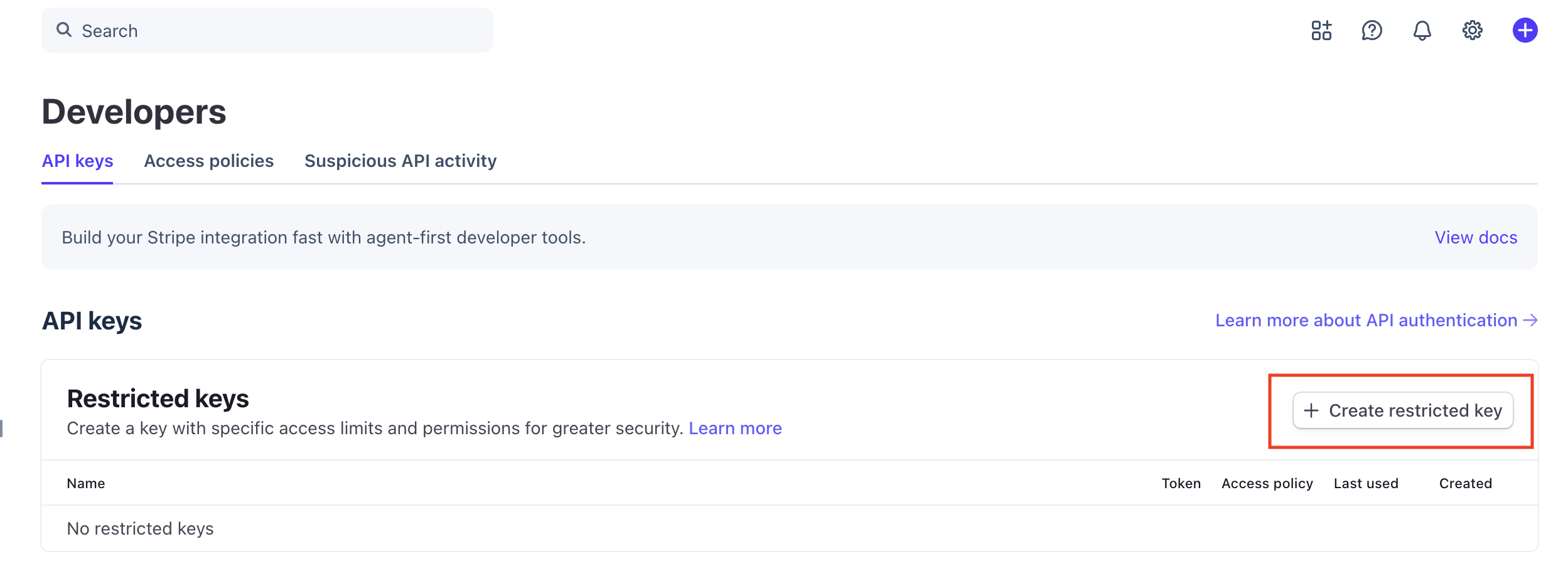
Under Restricted keys, click Create restricted key.
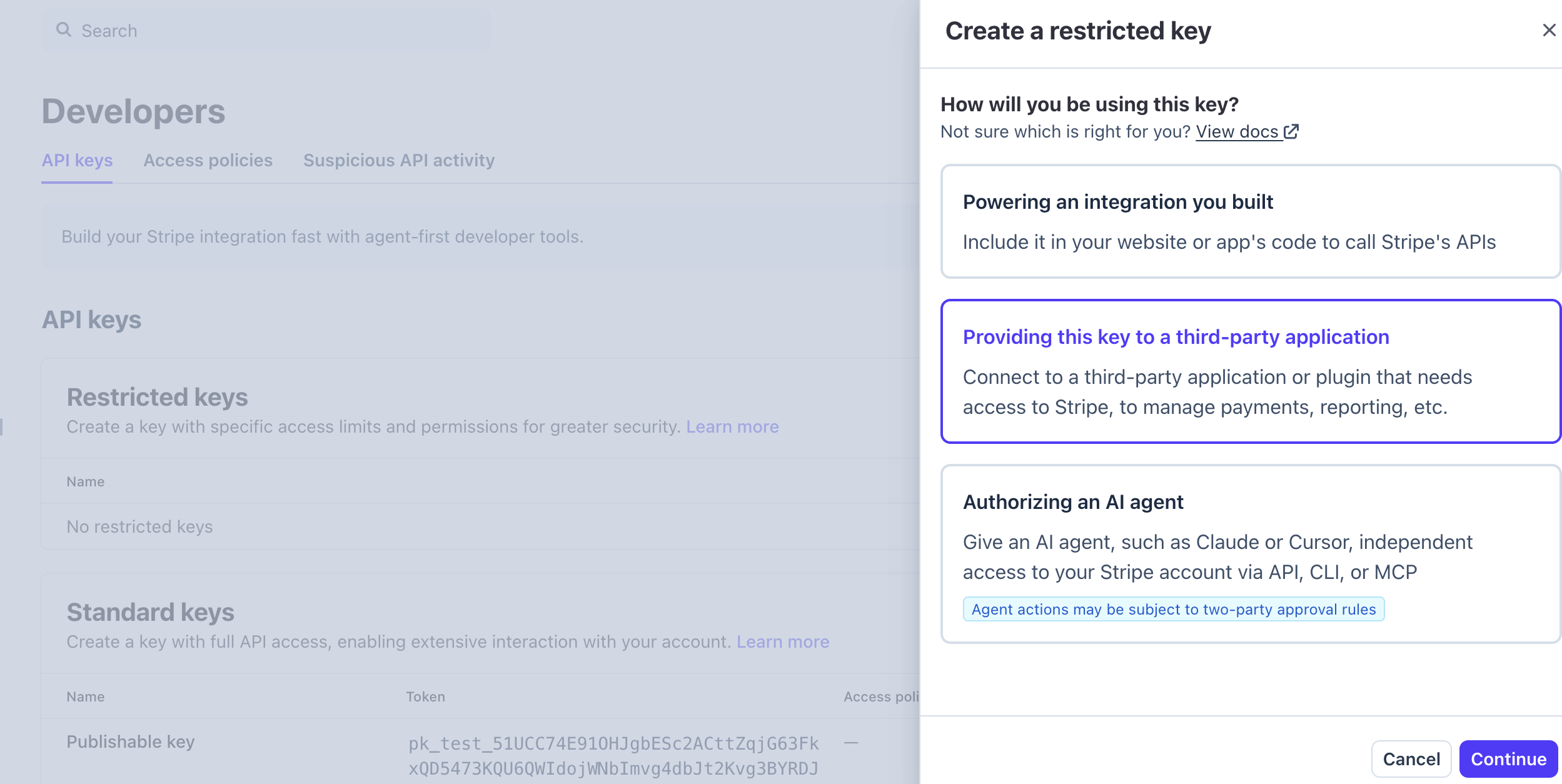
When asked how you will be using the key, select Providing this key to a third-party application, then click Continue.
Enter the third-party details and select Customize permissions for this key, then click Continue.
Name:
Realm Security
URL:https://realm.security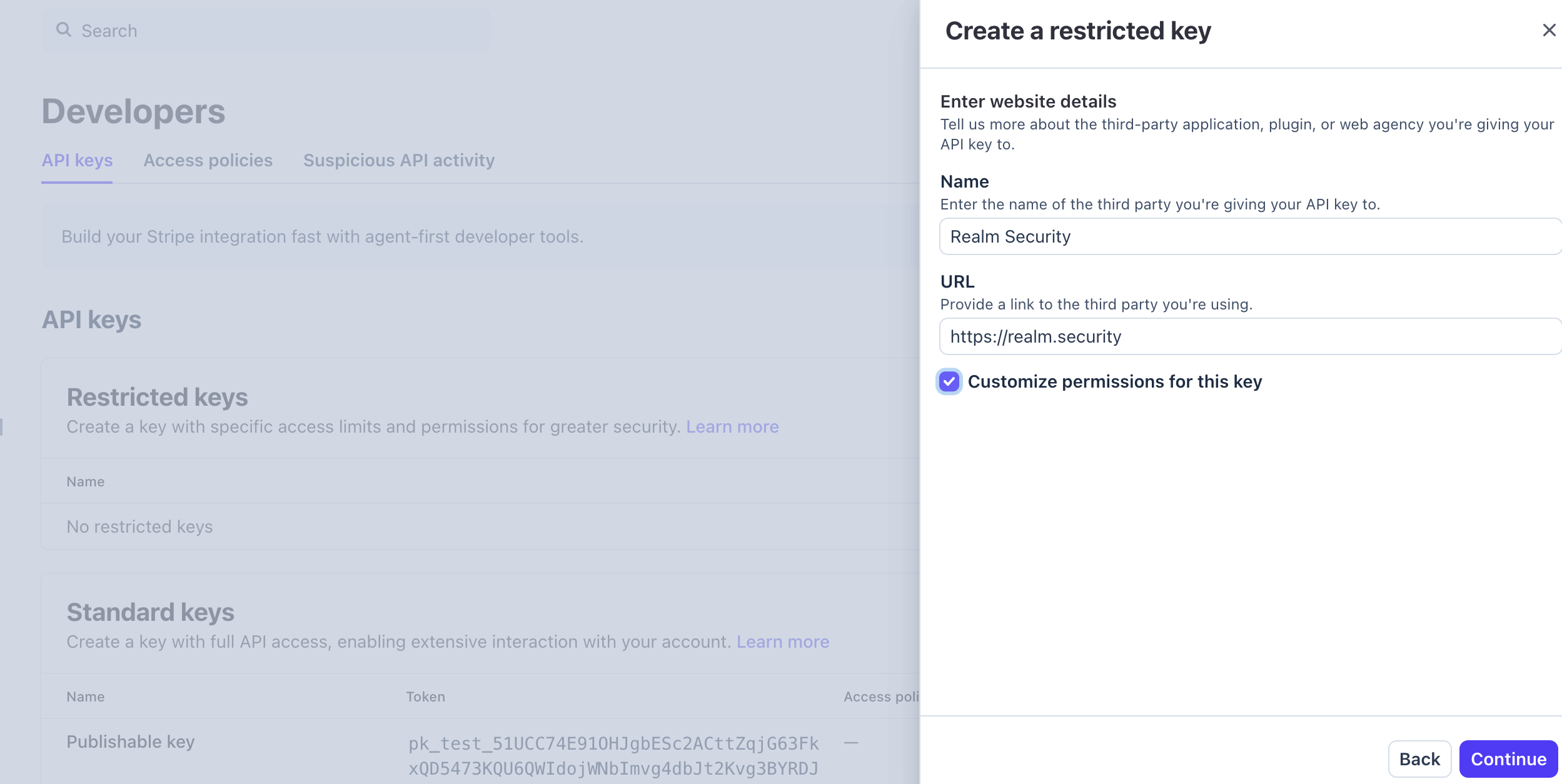
Under Access Management, set Activity Logs to Read. Leave all other resources set to None — reading Activity Logs is the only permission Realm needs to retrieve Stripe activity log data.

Click Create key.
Important: Copy and save the restricted key immediately — Stripe only displays the full key value once. You will need to enter it in the Realm console.
Note: Scoping the key to Read-only access on Activity Logs limits what the integration can access if the key is ever exposed. For more details on restricted keys, see Stripe's API keys documentation.
2. Realm: Configure the Stripe Activity Logs Input Feed
Log in to the Realm Security console.
Create a new Source.
Name:
Stripe Activity Logs
Format:Stripe Activity LogsAdd a new Input Feed to the source.
Type:
Stripe Activity Logs
API Token:<your Stripe restricted key>Click Save.
Once saved, the Realm poller will begin retrieving activity log events from the Stripe API at regular intervals. The data is converted to JSON and forwarded through your data pipeline to your configured destination (e.g., SIEM).
Troubleshooting
- Authentication errors: Confirm the restricted key was copied correctly, and that it has not been rolled or deleted from Developers > API keys in the Stripe Dashboard.
- No data returned: Verify the restricted key's Access Management > Activity Logs permission is set to Read. A key with no permissions granted will authenticate successfully but return no data.